Your Cart is currently empty
   
Choose Your Currency


NavigationMenugraphic-org
graphic-org
graphic-org
graphic-org
graphic-org
graphic-org
BANNER-RIGHT
Name
Email

Your Account


Blog
Portable Vocal Booth Review by VideoMaker Magazine PDF Print E-mail
Friday, 27 August 2010 13:57

VMlogo

VideoMaker Magazine takes a look at the Editors Keys Portable Vocal Booth, with a glowing review.


VideoMaker, one of the worlds most popular and influencial magazines for video production, took one of our Portable Vocal Booths for a spin. You know a magazine of this calibre is always going to look deep into every pro and con, however the Portable Vocal Booth got an amazing top review, here are some of the best bits:


"Easy to setup and use, effective and affordable, the Portable Vocal Booth Pro Edition by Editors Keys is a sensible solution to the acoustic anomalies plaguing today's video producers." "This product deserves a place in the serious videographer's audio toolkit."


Sound Solution

I've tried a number of remedies, all with varying degrees of success. Driving to a quiet location and recording in the car - while parked, of course - can be acceptable. A walk-in closet can be made to work quite well but we don't all have them. Mover's blankets can be used, as well as any number of other common items to absorb sound, all the way up to elaborate DIY solutions for building your very own sound booth.

Sometimes these various attempts at keeping unwanted sounds from spoiling our audio efforts suffer from too much complexity, not enough ease-of-use and too little portability. Occasionally I just need to pick up and move to another room where the cats, the dogs and the kids aren't.

A product that allows me to do exactly that is the Portable Vocal Booth by Editors Keys. I evaluated the Pro Edition but they have a Home Edition available as well. The most obvious difference between the two is the microphone stand included with the Pro Edition. It's quite sturdy and adjustable in height between about 32" - 59".


If your recording environment changes (the kids inform you that their absolute favorite, matter-of-life-and-death television show, is playing at that very moment on the big screen TV in that very room) you can pick the Vocal Booth up - stand, mics and all - and easily move into another room.

No more having to set up and take down heavy blankets, commandeer walk-in closets or drive around in search of solitude on those cold winter nights. This product deserves a place in the serious videographer's audio toolkit.


To read the full review by Mark Holder, check out the link below:

Editors Keys Pro Edition Portable Vocal Booth


3 Votes
How to Autotune your voice – The complete guide PDF Print E-mail
Tuesday, 03 August 2010 14:01

Automatic tuningautotune_evo_graphic, or auto-tuning is used by singers to correct “mistakes” or wrong notes in a singers voice or even musical instruments when being recorded. When used properly, it can take a recording of a person’s voice who is not able to sing, and tune it so that it appears that they can actually sing. Not only can it be used to change notes, tune and pitch, it can be used to extend notes and distort the voice. Its use has been criticised by many people in the music industry. Lots of people think that auto tune is just used in rap for artists such as T-Pain and Lil Wayne but it is actually used across many music genres (sometimes you might not even notice it!) Other examples of famous people who have used auto-tuning are Britney Spears, Shania Twain, Akon, Cher, Tim McGraw, Kanye West, Madonna, Janet Jackson, Daft Punk and hundreds more.


The Good the Bad and the Autotuned.
Auto tuning can be really good for making a different sounding song, however songs that haven’t been auto tuned very well can sound terrible. It is also important to remember that although a very bad singer can be auto tuned to perfection after hours of careful work, it doe
sn’t always sound good, depending on the quality of the singer to begin with. If you have someone screeching down a mic making your ears bleed, there’s a slim chance you can edit the voice to sound good. A great example that comes to mind here is Katie Price!


Don’t be put off by the fact that auto-tuning appears to be hard because lots of famous singers use it, its not as hard as you’d think. One of the most commonly searched tutorials is how to sound like T-pain, and guess what? He doesn’t use a big fancy studio, he uses a MacBook Pro and Logic and sometimes, even Garage Band! So it is possible!


Ok, enough about everyone else, we are going to concentrate on you now. When you have your recording, whether it is vocal, instrumental or a combination of both, you need to find out the key of the song (if you don’t already know it) for effective use of auto tuning, otherwise it will sound bad and you don’t want that! (Quick note: Auto tune is called pitch correction in Logic. Just to avoid any future confusion!) When you have found out the key of the song, choose this as the key in Logic. To do this, it’s very simple; all you have to do is click on blank insert slot, click on pitch, then pitch correction and choose either stereo or mono. A box should then pop up. In the box, select the scale (minor and major are the most popular scales to use in pop songs). After that, choose the route note.

t-pain

How the celebs do it.

To get your voice sounding like T-Pain, turn up the response so that it is very fast. This will give a result of your voice going over multiple notes at once and making you sound like T-Pain. After that, take the pitch correction to the top of the signal chain, to do this, hold down command and drag it up. If it is after the reverb and echo, you may get some annoying popping noises, but that can easily be solved by dragging it in front of the reverb and echo.

You can also automate the auto tuning (choosing when it is on and off). To do this, select show automation, change from volume to pitch correction and then go to response. If you want to isolate a piece of your song and make it free from auto tuning, draw two dots on the time line and drag one up so that they make a vertical line. After that, click a third dot and drag the line back down to connect to the third dot.


Congratulations, you have now just auto tuned a song!


What can you use?
If you don’t find that the built in pitch correction in Logic works for you, or if you wanted to try something a little more advanced, you could always try the Antares plug in. This is available to use across most audio software (Logic, Pro Tools, Ableton Live, Garage Band etc.) There is a free demo available on their website which lasts for ten days so again, if the built in auto tune isn’t for you, then get the demo! Just Google “auto tune” and you will see the link!


Visit EditorsKeys.com for editing keyboards, recording equipment and tutorial DVD’s.


Article Written by Fallon Morris of Editors Keys

Fallon

 
6 Votes
Panasonic reveals HDC-SDT750 3D camcorder, and we even have a video! PDF Print E-mail
Wednesday, 28 July 2010 08:50

PANASONIC UNVEILS THE WORLD'S FIRST 3D CONSUMER CAMCORDER, COMPLETE WITH A 3D CONVERSION LENS

So you've brought your new 3D TV, and realise you don't have anything other than the sample bluray disc to play on it! Well Panasonic has now solved that problem with its new consumer 3D camcorder, so you can bring your holiday dreams to the 3D big screen. The Panasonic HDC-SDT750 will be available in October 2010 with a suggested retail price of $1,399.95


The Panasonic SDT750 is a user-friendly consumer 3D camcorder that makes experiencing 3D at home easy and affordable. In addition to shooting 3D, the SDT750 can record full 1080p High Definition (HD) in AVCHD, when the 3D conversion lens is unattached, and includes powerful features such as a 3MOS system, a Leica Dicomar lens and a 12x optical zoom.


To shoot 3D video with the Panasonic HDC-SDT750 camcorder, the user needs to attach the 3D conversion lens that comes included, to record dynamic images. The specially-designed 3D conversion lens records right-eye and left-eye images simultaneously through its two lenses, thus resulting in video that can be viewed in 3D. The right and left images (each with 960 x 1080 pixels) that enter through the lenses are recorded using the side-by-side method.


The high-sensitivity 3MOS System has 7.59 million effective motion image pixels (2.53 megapixels x 3), so this advanced image sensor separates the light received through the lens into the three primary colors – red, green and blue – and processes each color independently. As a result, the Panasonic SDT750 produces beautiful images with rich color quality, detail and gradation. Adding to the quality, the SDT750 also features a large-diameter (46mm) F1.5*3 Leica Dicomar lens and Crystal Engine PRO, a high-speed processing unit – both components which contribute to the effectiveness of the camcorder's light gathering, increased sensitivity, and reduced noise when shooting, even in dim lighting.


Users can play back 3D videos recorded on the Panasonic HDC-SDT750 on 3D-capable televisions, such as Panasonic VIERA® Full HD 3D televisions, including the TC-P50VT25, TC-P54VT25, TC-P58VT25, TC-P65VT25 and the TC-P50VT20 models. Playback using a VIERA TV is done by connecting the 3D camcorder to the television using an HDMI cable. In addition, it is also possible to play 3D images recorded on SD Memory Cards by using an AVCHD compatible player,*4 such as a Panasonic 3D Blu-ray Disc player – the DMP-BDT350 or DMP-BDT300 models are currently available. When watching 3D content recorded by the SDT750 on any of the Panasonic Full HD 3D VIERA televisions, users can view the true-to-life content and the VIERA television will automatically engage the side-by-side method for smooth viewing of 3D content – no change of settings necessary.


Other features of the Panasonic HDC-SDT750 include:

Auto Power LCD automatically adjusts the brightness of the screen according to the shooting environment for comfortable use in a variety of different lighting situations.
Large 3.0" touch-screen LCD allows icons to be easily operated by touching them with a fingertip. On the LCD, recorded 3D images are displayed only as the 2D images that were recorded with the left lens.
Eco Mode automatically turns off the power when the camcorder is not operated for five minutes, reducing wasteful energy use and saving battery power.
Pre-Rec allows for the camcorder to continuously record three seconds of content into internal memory. Then, when the record button is pressed, the three seconds immediately prior will have been recorded.

 
6 Votes
Getting started with Pro Tools (& few handy Pro Tools keyboard shortcuts) PDF Print E-mail
Thursday, 24 June 2010 11:32

Getting Started With Pro Tools

In this article you will find everything a beginner needs to know about Pro Tools and few Pro Tools Keyboard shortcuts, starting from opening the program! This step-by-step tutorial will walk you through the beginning stages of your Pro Tools hobby and/or career.

To begin with, go to File -> New Session. The Pro Tools Keyboard shortcut for a new session is Command + M. When you have done this, a new dialog box will open. Name your project in the “save as” box and choose a location for your file to be saved. After this, choose the following session options:

· Audio file type – aiff

· Sample rate – 44.1 kHz (IMPORTANT: Only use 44.1 kHz if you’re not planning to use the sample in a video, if you are planning to use the sample in a video then set the sample rate at 48 kHz which is the standard for audio in video).

· Bit depth – 16 bit

· I/O settings – Stereo mix

After that, click the save button (Pro Tools Keyboard - Command + S).

Pro tools can look confusing to a beginner. In this section you will learn all about the different elements of the Pro Tools screen, Pro Tools Keyboard shortcuts and their functions. The main Pro Tools screen is divided into several sections. In the middle of the screen, you will see an open space; this is for laying audio tracks. Using Pro Tools, you can lay down multiple tracks and you can mix and fade between them to create your final track.

You will see a time line at the top of the screen. The time line is used to keep track of the overall length of your project and to know where you are in the editing process at any time.

On the right you will see the audio bin. This is where the raw audio files are stored that you’ve imported. Do not confuse this with the recycle bin on your desktop. The audio bin is simply a place to store audio files and not to dispose of them. To load files into the audio bin, click on the words “audio bin”. This will reveal an options menu. Click on import audio. In the import audio box, go to the place where your audio files are stored and highlight all the audio you would like to add to your bin. They will appear in the “regions currently chosen” box. To add more files, double click on the file name and click add. Press the done button when you’re finished. After this, a box will appear asking where you’d like to save your files. Choose the “audio files” folder. In the audio bin you will see a list of your audio files in the audio bin. To add them to your project, you can drag them onto “new audio tracks”.

Now that you have the audio files ready in the audio bin, you need to create a track to put them in. To do this, click file then new track. When the dialog box pops up, select either mono track if you’re working with and interview or voiceover for example, or stereo tracks if you’re working with music. A new track should have appeared in your workspace.

To bring audio into the workspace, drag a file from the files in the audio bin into the track. To play it, press the spacebar the most magical Pro tools keyboard shortcut of them all. Press the spacebar again at any time to stop the audio.

To play that piece of audio, activate the track by clicking on the new soundfile, then press the spacebar. As the audio plays, you'll see the playhead on the track will begin to scroll along the waveform. To stop the audio, press the space bar again.

You'll notice that there are several button options for each track. We'll start by explaining some of the basic buttons.

"Audio 1" is the name of that track. To change it to something a little more relevant, click on the title once and type in a new name.

Below the title are three Pro Tools Keyboard shortcuts. R for recording, S for soloing, and M for mute. Use the R button to record audio onto a track, the S button when you only want to hear audio on that specific track, and the M button to silence that track.

Now that you have been introduced to the first steps of getting started with Pro Tools, look out for part two: Beginning to Edit Using Pro Tools! Join us on Facebook to be alerted about part two: http://www.facebook.com/editorskeys.

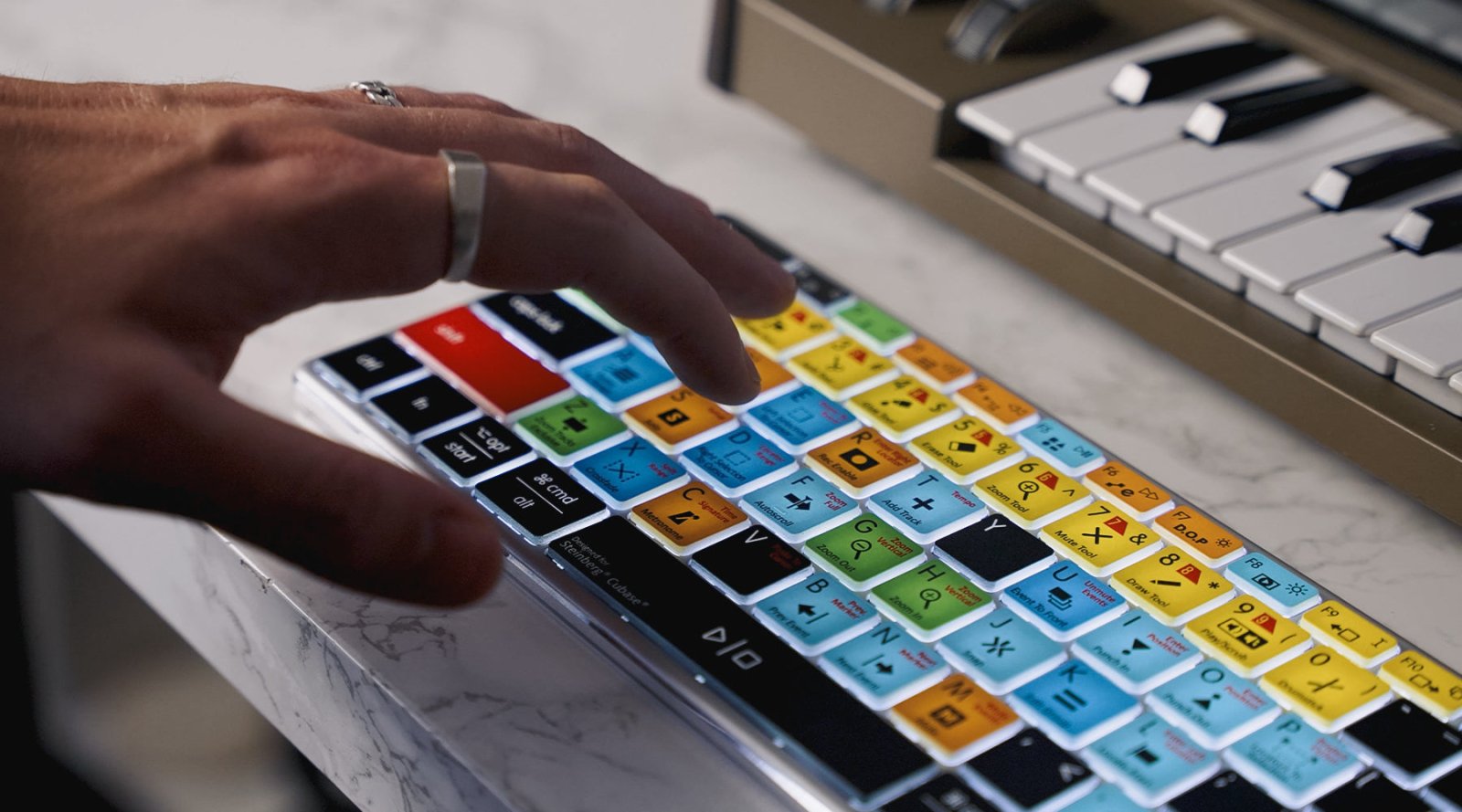
Click this link to see the Pro Tools Keyboard.

 
11 Votes
«StartPrev12345678910NextEnd»

Page 1 of 11