
The Premiere Pro Tool That Makes Editing Faster (and Why Every Videographer Should Use It)
When you’re editing regularly in Adobe Premiere Pro, small workflow improvements can make a huge difference. Saving even a few minutes per edit quickly adds up when you’re working on multiple videos, client projects, or daily content.
One simple tool inside Premiere Pro can dramatically streamline your workflow: Adjustment Layers.
For many editors, this feature becomes an essential part of their editing process once they start using it properly.
What Is an Adjustment Layer in Premiere Pro?
An Adjustment Layer is a special layer that sits above your video clips on the timeline. Instead of applying effects directly to individual clips, you apply them to the adjustment layer. Any clip underneath it automatically receives the same effect.
This approach allows you to make global edits quickly and efficiently without altering the original clips themselves.
Why Adjustment Layers Are So Useful
Editing often involves applying the same effects repeatedly. Colour grading, stylised filters, sharpening, or other visual tweaks are usually applied across many clips.
Without adjustment layers, you would need to:
-
Add the effect to each clip individually
-
Adjust the settings on every clip
-
Revisit each clip if you want to change the effect later
With an adjustment layer, you only apply the effect once.
Place the layer above your clips and any effect applied to it will affect every clip below it. If you need to tweak the look later, simply adjust the effect on the adjustment layer rather than editing dozens of clips.

A Typical Workflow
Here’s how editors often use adjustment layers in Premiere Pro:
-
Place your footage clips on the timeline.
-
Add an Adjustment Layer above the clips.
-
Apply effects such as colour grading, stylisation, or sharpening to that layer.
-
Instantly apply the effect across the entire sequence.
This keeps your timeline organised and makes revisions far easier if a client asks for changes.
Perfect for Colour Grading and Style Effects
Adjustment layers are particularly useful for:
-
Colour grading entire sequences
-
Applying cinematic looks or LUTs
-
Adding film grain or sharpening
-
Creating consistent visual styles across projects
Because the original clips remain untouched, this method also keeps your workflow non-destructive and flexible.
A Small Tool That Saves a Lot of Time
Professional editors know that speed and efficiency come from mastering small workflow improvements. Adjustment layers are a perfect example of a simple feature that can dramatically reduce repetitive work.
If you’re editing frequently in Adobe Premiere Pro, adding adjustment layers to your workflow can save time, simplify revisions, and help maintain a consistent look across your projects. For videographers and content creators working on tight deadlines, tools like this quickly become essential.

Speed Up Premiere Pro Even More With Keyboard Shortcuts
While adjustment layers help streamline effects and grading, keyboard shortcuts are one of the biggest workflow boosters in Premiere Pro.
Many editors lose time navigating menus or searching for tools with a mouse. Learning shortcuts allows you to edit faster and stay focused on the creative process.
That’s where Editors Keys comes in.
Editors Keys Premiere Pro Keyboards and Covers
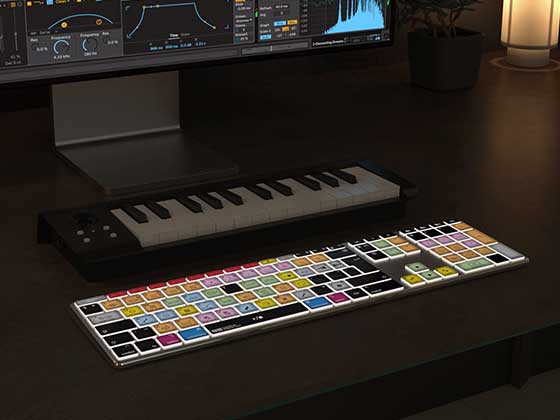
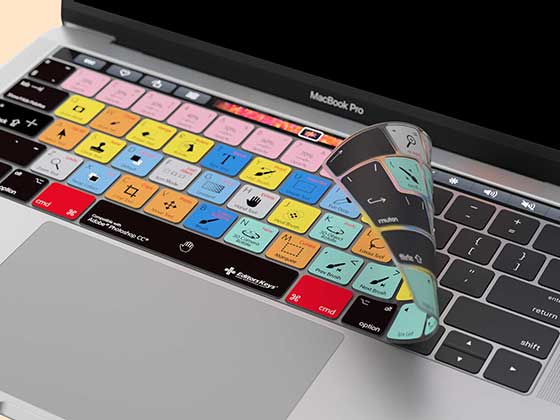
Editors Keys produces dedicated video editing keyboards and keyboard covers for Premiere Pro designed to help editors work faster and learn shortcuts more easily.
These keyboards display colour-coded Premiere Pro shortcuts directly on the keys, making it much easier to memorise the commands you use most often.
Benefits include:
-
Quickly learning Premiere Pro shortcuts
-
Faster editing with less menu navigation
-
Improved workflow efficiency
-
Ideal for beginners and professional editors alike
Many editors find that using a shortcut keyboard helps them build muscle memory for Premiere Pro commands, allowing them to edit significantly faster over time.
be sure to check out Lewis's full video on this useful Premiere Pro feature on Youtube!