
If you're spending hours editing videos in Adobe Premiere Pro, mastering keyboard shortcuts is one of the fastest ways to improve your workflow. Whether you're creating YouTube videos, social media content, documentaries, corporate films or cinematic productions, the right shortcuts can dramatically reduce editing time and help you work more efficiently.
Many editors spend far too much time navigating menus, dragging clips around manually, and constantly switching tools with their mouse. While these actions may only take a few seconds each time, they quickly add up over the course of a large project.
Professional editors rely on keyboard shortcuts because they allow them to stay focused on the creative process rather than the software itself. In this guide, we'll explore 10 of the most useful Adobe Premiere Pro shortcuts that can instantly make your editing workflow faster, smoother and more professional.

1. Ripple Delete (Shift + Delete)
One of the biggest time-wasters in video editing is deleting clips and then manually closing the gaps left behind in the timeline.
Many editors simply delete unwanted footage and then spend additional time dragging all subsequent clips back into place. When you're making hundreds of cuts throughout a project, this becomes incredibly inefficient.
The Ripple Delete shortcut solves this instantly.
Simply highlight the gap in your timeline and press:
Shift + Delete
Premiere Pro automatically removes the gap and shifts all remaining clips forward.
This shortcut is particularly useful when editing interviews, podcasts, tutorials and long-form YouTube content where you're constantly removing mistakes, pauses and unnecessary sections.
By eliminating the need for manual repositioning, Ripple Delete can save hours over the course of a large editing project.
2. Razor Tool and Selection Tool (C and V)
Switching tools with your mouse might seem harmless, but when you're doing it hundreds of times per day, it significantly slows down your workflow.
The Razor Tool allows you to quickly make cuts in your footage.
Press:
C
to instantly activate the Razor Tool.
You can then make cuts exactly where you need them throughout your timeline.
Once you've finished cutting, press:
V
to immediately return to the Selection Tool.
This simple two-key workflow becomes second nature after a while and is especially valuable when editing interviews, fast-paced social media content, reels and YouTube videos.
Instead of constantly moving your mouse to the toolbar, your hands stay on the keyboard where they belong.
3. Full Screen Panels (Tilde Key ~)
Premiere Pro's workspace can sometimes feel cramped, particularly when reviewing footage or performing detailed colour correction work.
Fortunately, there's a simple solution.
Hover your mouse over any panel and press:
~ (Tilde Key)
The panel instantly expands to full screen.
Press the key again and it returns to its normal size.
This shortcut is incredibly useful when:
-
Checking focus and sharpness
-
Reviewing footage in detail
-
Colour grading
-
Organising media
-
Adjusting audio waveforms
Many editors overlook this shortcut, but once you start using it, you'll wonder how you ever worked without it.

4. Add Audio Transitions Instantly (Shift + D)
Nothing makes an edit feel amateur quite like abrupt audio cuts.
Normally, editors need to open the Effects panel, locate an audio transition, and manually drag it onto each edit point.
Instead, select your audio edit points and press:
Shift + D
Premiere Pro automatically applies your default audio transition, which is usually Constant Power.
This helps smooth out transitions between clips and creates a more polished, professional listening experience.
For editors working with interviews, podcasts, voiceovers and dialogue-heavy content, this shortcut can dramatically speed up the finishing process.
5. Open Speed and Duration Controls (Command + R / Control + R)
Modern video editing often involves changing clip speeds.
Whether you're creating slow motion sequences, speed ramps, cinematic B-roll or fast-paced social media edits, you'll frequently need access to Premiere Pro's Speed and Duration controls.
Instead of right-clicking clips and searching through menus, simply select your clip and press:
Mac: Command + R
Windows: Control + R
The Speed and Duration window opens immediately.
This shortcut is one of the quickest ways to adjust pacing and create dynamic edits without interrupting your workflow.
6. Duplicate Clips Quickly (Alt/Option + Drag)
Copying and pasting works, but there's an even faster method.
Hold:
Alt (Windows)
or
Option (Mac)
while dragging a clip.
Premiere Pro instantly creates a duplicate.
This shortcut is perfect for:
-
Sound effects
-
Titles and text layers
-
Adjustment layers
-
Graphics
-
Repeated video elements
Instead of multiple copy-and-paste commands, you can duplicate assets in a single motion.
It's a small shortcut that delivers significant time savings over the course of a project.
7. Fit Entire Timeline to Screen (Backslash Key )
As projects become larger, navigating the timeline can become frustrating.
Editors often waste time zooming in and out repeatedly just to find specific sections of their sequence.
The solution is simple.
Press:
\ (Backslash)
Premiere Pro instantly zooms out and displays your entire sequence within the timeline window.
This gives you an immediate overview of your edit and makes navigation much easier.
For long-form projects, documentaries and feature-length content, this shortcut quickly becomes indispensable.

8. Ripple Trim Edits (Q and W)
Many professional editors consider this one of the most powerful shortcuts in Premiere Pro.
Instead of manually dragging clip edges to trim footage, use:
Q – Trim everything before the playhead
W – Trim everything after the playhead
Both commands automatically perform a ripple delete, removing the gap as they trim.
This makes tightening edits incredibly fast.
It's especially effective when:
-
Editing interviews
-
Trimming YouTube videos
-
Creating social media content
-
Removing pauses and mistakes
-
Tightening dialogue
Once you've developed the habit of using Q and W, you'll find yourself editing significantly faster.
9. Add Timeline Markers (M)
Markers are one of the most underused features in Premiere Pro.
Whenever you're reviewing footage or listening to music, simply press:
M
to drop a marker at the current playhead position.
Markers can help identify:
-
Music beats
-
Transition points
-
Important dialogue
-
Caption locations
-
Key moments in footage
-
Hook points for short-form content
Many editors use markers to plan their edit before making any cuts, resulting in faster and more organised workflows.
For social media editors, this shortcut is particularly useful when synchronising edits with music.
10. Reveal Clip in Project Panel (Shift + F)
Have you ever found the perfect clip in your timeline but struggled to locate the original media file inside a large project?
This shortcut solves that problem instantly.
Select a clip and press:
Shift + F
Premiere Pro automatically highlights the original file inside the Project panel.
This is incredibly useful when working with:
-
Large productions
-
Multi-camera projects
-
Documentary footage
-
Organised media bins
-
Shared editing projects
Instead of manually searching through folders, Premiere takes you directly to the source file.
Over the course of a year, this shortcut alone can save editors countless hours.
Speed Up Editing Even Further with Editors Keys Premiere Pro Keyboards
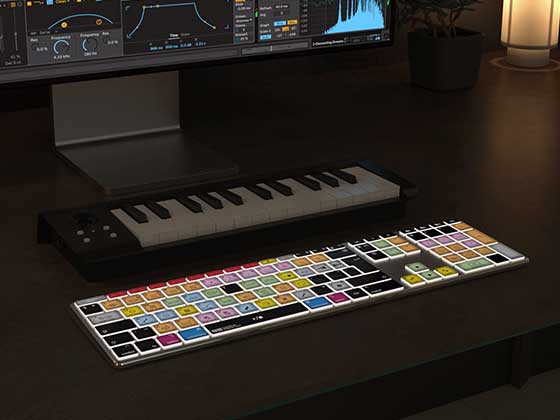
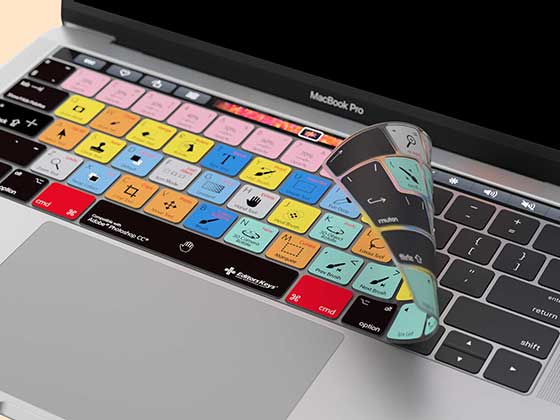
Learning shortcuts is one of the best ways to become a faster editor. However, remembering dozens or even hundreds of Premiere Pro shortcuts can be challenging, particularly for new users. That's where the Editors Keys Adobe Premiere Pro keyboards come in.
Our latest AB10 Core Wired Backlit Keyboard and AB10 Air Wireless Backlit Keyboard feature Adobe Premiere Pro shortcuts printed directly onto the keys. Rather than memorising every command, you can simply glance down and instantly find the shortcut you need.

The AB10 range has been designed specifically for professional video editors and content creators who want to:
-
Edit faster
-
Learn shortcuts naturally
-
Reduce time spent searching menus
-
Improve workflow efficiency
-
Build shortcut muscle memory
-
Stay focused on creativity
The fully backlit design makes editing comfortable in low-light environments, while the colour-coded layout allows you to quickly identify different groups of Premiere Pro commands. Whether you're a beginner learning Adobe Premiere Pro for the first time or an experienced editor looking to work more efficiently, the AB10 keyboard range helps turn shortcuts into second nature.
Final Thoughts
Adobe Premiere Pro contains hundreds of keyboard shortcuts, but these ten are among the most useful and time-saving commands you can learn. From Ripple Delete and Ripple Trim to Markers and Full Screen Panels, each shortcut removes unnecessary clicks and helps you focus on creating better content. The more shortcuts you use, the faster your editing becomes. Over time, these small improvements compound into massive productivity gains.
If you're serious about speeding up your workflow, combining these shortcuts with an Editors Keys AB10 Core Wired Backlit Keyboard or AB10 Air Wireless Backlit Keyboard can make learning and using Premiere Pro shortcuts easier than ever before!
Be sure to check out our Full youtube video below!