
Thank you for choosing Editors Keys for your new Hybrid Mac & PC Keyboard. Follow this guide to enable 'Mac' Mode.
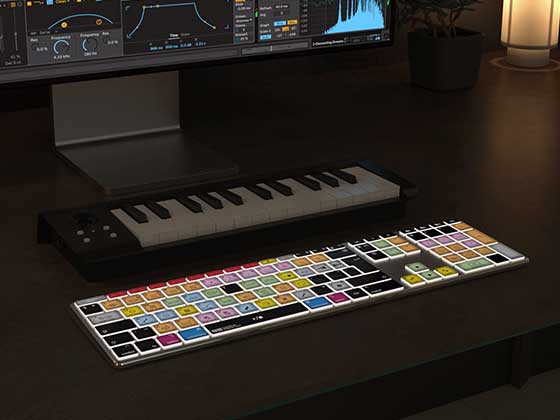
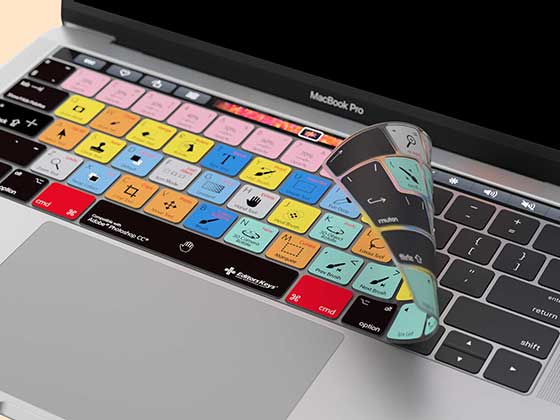
The Slimline Hybrid Keyboard has become one of our most requested products. With most audio and video software now running on both Mac and PC, users wanted a keyboard that works seamlessly across both systems. We designed it to function just like a native keyboard on either platform.
If you only need a dedicated Mac or PC keyboard, we recommend our backlit models. They switch automatically, so you won’t need the setup steps below.
Slimline Keyboard PC USERS:
PC users will be pleased to know the keyboard works straight out of the box, all you need to do is plug the keyboard in and you're good to go. You'll see a divide on each hybrid key. All Windows shortcuts are 'Above' the line.
Slimline Keyboard MAC USERS:
The keyboard will work out of the box on a Mac system, however for full compatibility (including correct positioning of CTRL, ALT and CMD keys and full access to the 'F' Key Mac shortcuts.) We recommend you follow our video below to move the Control, option and CMD keys to the right position.
Step 1:

Step 2

Step 3

How to Add Volume, Brightness and Media Controls to a PC Keyboard on a Mac (Free & Easy Guide)
If you're using our Slimline keyboard on a Mac or any other PC keyboard, you may find that keys for volume, brightness, or media playback don’t work by default. Here’s the easiest and completely free way to fix that using Karabiner‑Elements — a trusted macOS tool that lets you remap keys with just a few clicks.
Step 1 — Download Karabiner‑Elements
-
Visit the Karabiner‑Elements website. Click here
-
Download the latest version for macOS.
-
Install the app and open it once installation is complete.
Step 2 — Select Your Keyboard
-
Open Karabiner‑Elements.
-
Click Simple Modifications in the left menu.
-
Choose your PC keyboard from the device list at the top.
Step 3 — Add Volume Controls
You can assign any key to control your Mac’s volume.
-
Click Add item.
-
Under From key, choose the key you want to use (e.g., F9, F10, or any unused key).
-
Under To key, choose:
-
volume_increment → Volume Up
-
volume_decrement → Volume Down
-
mute → Mute
-
Repeat for each function you want.
Step 4 — Add Screen Brightness Controls
Karabiner‑Elements also supports brightness keys.
-
Click Add item again.
-
Under From key, choose the key you want to use.
-
Under To key, choose:
-
display_brightness_increment → Brightness Up
-
display_brightness_decrement → Brightness Down
-
Assign whichever keys you prefer.
Step 5 — Add Media Controls
You can also add playback controls for music and video.
Use these options under To key:
-
play_or_pause → Play/Pause
-
rewind → Previous Track
-
fastforward → Next Track
Add each one using the same “Add item” button.
Step 6 — Test Your Keys
Press the keys you assigned. Your Mac should now respond instantly with volume changes, brightness adjustments, and media playback — just like a native Mac keyboard.
That’s it
Your PC keyboard now works perfectly with macOS controls, all using free software and a simple setup.