Final Cut Pro has earned its reputation as one of the fastest and most efficient professional video editing applications available for macOS. From YouTube creators and wedding videographers to documentary filmmakers and broadcast editors, it's trusted for its speed, stability and intuitive Magnetic Timeline. However, even experienced editors often use only a fraction of what Final Cut Pro is capable of.
Beneath its clean interface are dozens of incredibly powerful tools that many users never discover. Some have existed for years but remain surprisingly underused, while others are newer AI-powered additions introduced in Final Cut Pro 12 and subsequent 2026 updates. In this guide, we'll explore fifteen of the most useful hidden features in Final Cut Pro for 2026. You'll learn what each feature does, where to find it, how to use it effectively and why professional editors rely on it every day.
Why Learning Hidden Features Makes You a Faster Editor
One of the biggest misconceptions about becoming a better video editor is that speed comes purely from experience.
Experience certainly helps, but experienced editors are also efficient because they know how to let the software do the hard work. Professional editors rarely perform repetitive tasks manually. Instead, they build workflows that minimise unnecessary clicks, automate repetitive actions and make use of keyboard shortcuts wherever possible.
Imagine spending five seconds searching through menus every time you need a command. If you repeat that action hundreds of times during a project, you've wasted hours. That's exactly why Final Cut Pro includes so many workflow tools that often go unnoticed. Learning even a handful of them can significantly reduce editing time while making projects more organised and enjoyable to work on.
Let's look at the features every Final Cut Pro editor should know.
Free: the complete Final Cut Pro shortcuts PDF
Every default Final Cut Pro shortcut, taken from Apple's own documentation. A4, printable, grouped by task. Pop your email in and we'll send it straight over.
We'll email the PDF straight over, then the occasional tip. Unsubscribe any time.

1. Transcript Search – Find Dialogue Instantly
One of the biggest workflow improvements in modern versions of Final Cut Pro is Transcript Search. If you've ever edited interviews, podcasts, documentaries or talking-head videos, you'll know how frustrating it can be trying to find one specific sentence buried inside hours of footage.
Before transcript search existed, editors had to scrub manually through clips, listen repeatedly or rely on written notes. Now Final Cut Pro automatically analyses spoken dialogue and creates searchable transcripts directly inside your library.
Instead of remembering roughly where someone said something, you simply search for the word or phrase.Within seconds, Final Cut Pro jumps directly to the correct moment.
For editors working with interviews, educational content or corporate productions, this alone can save hours every week.
How to use Transcript Search
- Import your footage into Final Cut Pro.
- Once media analysis has completed, open the Browser search field and choose to search transcript content rather than filenames or metadata.
- Type any spoken word or phrase.
- Every clip containing those words appears immediately.
- Selecting a result takes you directly to the relevant section of the recording.
- Rather than spending fifteen minutes searching through interviews, you can locate the exact sentence in seconds.
This is particularly useful when clients ask for revisions such as:
"Can we use the bit where Sarah mentions sustainability instead?"
Instead of hunting through an hour-long interview, simply search for sustainability.

2. Visual Search – Find Clips Using Natural Language
Finding footage used to rely almost entirely on careful organisation. Final Cut Pro's Visual Search changes that dramatically. Using machine learning, Final Cut analyses your footage and identifies recognisable objects, locations, actions and scenes.
For example, you might search for:
-
Dog
-
Beach
-
Car
-
Forest
-
Mountains
-
Sunset
-
Office
-
Person walking
Rather than searching filenames, Final Cut searches what actually appears in your footage. For documentary filmmakers and editors with huge media libraries, this is an enormous productivity boost.
Imagine editing a travel film with 3,000 clips.
- Need every drone shot showing mountains? Simply search for them.
- Need every clip featuring vehicles? Search "car".
- Need all beach footage? Type "beach".
Final Cut performs the searching for you!

Why professionals love it
Visual Search becomes increasingly valuable as your footage library grows. Instead of relying on memory or perfect organisation, you can retrieve footage based purely on what appears on screen.

3. Beat Detection Makes Music Editing Much Faster
Synchronising edits with music has always been one of the defining characteristics of engaging video. Fast-paced montages, trailers and social media edits often rely on cuts landing perfectly with the rhythm of the soundtrack.
Previously, editors had to zoom into the waveform and manually place markers. Final Cut Pro now includes Beat Detection, allowing the software to analyse music automatically and identify beat positions throughout a track. Those markers can then guide your editing rhythm.
Instead of manually identifying dozens of beats, Final Cut performs the analysis in moments.

For editors producing:
-
YouTube videos
-
Sports edits
-
Promotional videos
-
Wedding films
-
Travel content
-
Commercial adverts
this feature dramatically speeds up the editing process while producing more polished results.
4. Generate Captions Automatically
Captions are no longer optional. Social media platforms consistently show that captioned videos achieve better engagement because many viewers watch without sound.
Previously, creating captions meant using third-party software or typing subtitles manually. Modern Final Cut Pro can generate captions automatically using speech recognition. Once generated, captions remain fully editable.
Editors can:
-
Correct wording
-
Change timing
-
Adjust formatting
-
Export subtitle files
-
Burn captions directly into videos
For creators producing regular online content, this removes one of the most time-consuming parts of the publishing workflow.

5. Auto Mask – Isolate Subjects Without a Green Screen
One of Final Cut Pro's most impressive AI-powered additions is Auto Mask. Instead of painstakingly drawing masks frame by frame, Auto Mask intelligently identifies your subject and separates it from the background.
This allows editors to:
-
Blur backgrounds
-
Apply colour adjustments to only the subject
-
Replace backgrounds
-
Create spotlight effects
-
Improve subject visibility
While green screen remains the gold standard for complex compositing, Auto Mask is remarkably effective for many everyday editing tasks. It's particularly useful for YouTubers, presenters and corporate video editors who regularly film talking-head content.
Rather than spending half an hour refining masks, you can often achieve an excellent result in just a few clicks.
6. Roles – The Audio Feature Every Professional Should Use
Roles have existed for years, yet they're still one of Final Cut Pro's most underused professional features. Many editors simply stack music, dialogue and sound effects on separate lanes and leave it at that.
Roles provide a much more intelligent system. Instead of relying solely on timeline position, every clip can be assigned a category.
Typical roles include:
-
Dialogue
-
Voiceover
-
Music
-
Sound effects
-
Ambient audio
-
Titles
-
Graphics
Once assigned, Roles make it incredibly easy to manage complex projects.

For example, you can instantly:
-
Mute all music.
-
Hide every title.
-
Isolate dialogue during review.
-
Export separate audio stems for a sound mixer.
-
Deliver broadcast-ready mixes with far less manual preparation.
On large commercial projects, this can save an extraordinary amount of time and significantly reduce the chances of export errors.
7. Auditions – Compare Multiple Versions Without Duplicating Your Timeline
Nearly every editor has experienced the dilemma of choosing between two great takes.
- Should you use the first interview answer or the second?
- Does version A of the intro work better than version B?
- Should the edit use Track 1 or Track 2?
Many editors duplicate their timeline every time they need to compare versions. While this works, it quickly becomes messy, especially on larger projects.
The Auditions feature provides a much cleaner solution.
You can place several alternative clips into a single timeline position and switch between them instantly without creating duplicate timelines or disabling layers.
To create an Audition, select the clips you want to compare, then choose Clip > Audition > Create Audition. Final Cut groups them together, allowing you to cycle through each option while keeping the rest of your edit intact.
This is particularly useful when clients request alternative edits or when you're experimenting with different music tracks, voiceovers, graphics or colour grades. Rather than maintaining multiple versions of the entire project, you can compare alternatives in one place and commit to your preferred choice whenever you're ready.

8. Precision Editor – Make Perfect Cuts Without Guesswork
The way you trim clips has a huge impact on the speed and quality of your editing. While Final Cut Pro's standard trimming tools are already powerful, many editors overlook the Precision Editor, which gives you a much more detailed view of your edit points.
When working on dialogue, interviews, documentaries or narrative projects, tiny timing adjustments can completely change the flow of a scene. A pause that feels too long, a reaction shot that arrives slightly too late or a cut that interrupts the rhythm of a conversation can all affect the viewer's experience.
The Precision Editor makes these adjustments much easier by expanding an edit point and showing the surrounding media from both clips.
Instead of guessing where a cut should move, you can clearly see:
-
The outgoing clip before the edit.
-
The incoming clip after the edit.
-
Available handles that were hidden in the normal timeline view.
-
Exactly how your adjustment changes the timing.

How to use the Precision Editor
Place your cursor over the edit point between two connected clips.
Double-click the edit point.
Final Cut Pro expands the edit and opens the Precision Editor view.
From here, you can:
-
Drag the edit point earlier or later.
-
Adjust exactly where one clip ends and another begins.
-
Find the perfect moment for dialogue cuts.
-
Refine pacing without constantly zooming in and out.
This is especially useful when editing interviews because it allows you to remove pauses, mistakes and unwanted sections while keeping conversations feeling natural.
Professional editors often spend a significant amount of time refining cuts frame by frame. The Precision Editor gives you a faster and more visual way to do this.
9. Keyword Collections – The Secret to Managing Large Projects
As projects become larger, organisation becomes just as important as editing ability. A beginner might import footage and simply scroll through hundreds of clips looking for what they need. Professional editors build systems that allow them to find footage instantly.
One of Final Cut Pro's best organisational tools is Keyword Collections. Unlike traditional folders, Keyword Collections allow the same clip to belong to multiple categories without duplicating media.
For example, one drone shot could have the following keywords:
-
Drone footage
-
Mountains
-
Sunrise
-
Establishing shot
-
Travel documentary
The original file remains in one location, but Final Cut knows exactly where to find it whenever you need it.

How to create Keyword Collections
Select one or multiple clips in the Browser.
Press:
Command + K
Create a keyword.
Assign it to the selected footage.
You can then browse your footage by keyword rather than searching manually.
For professional editors working with:
-
Weddings
-
Documentaries
-
YouTube channels
-
Commercial productions
-
Stock footage libraries
Keyword Collections can completely transform the editing process.
Instead of asking:
"Where is that shot?"
you can simply ask:
"Show me all my drone shots from Scotland."
10. Smart Collections – Let Final Cut Organise Your Footage Automatically
Keyword Collections require you to assign categories manually. Smart Collections take organisation one step further by automatically sorting clips based on specific criteria. Think of them as intelligent folders that update themselves.
You can create Smart Collections based on:
-
Camera type
-
File format
-
Resolution
-
Frame rate
-
Audio availability
-
Ratings
-
Keywords
-
Media type
-
Missing files

For example, you could create a Smart Collection that automatically displays:
-
Every 4K clip shot on your Sony camera.
-
Every piece of footage recorded at 120fps.
-
Every clip marked as a favourite.
-
Every unused piece of B-roll.
Why Smart Collections matter
On smaller projects, Smart Collections may not seem essential.
However, once you're managing thousands of clips across multiple cameras, they become one of the most valuable tools in Final Cut Pro. The less time you spend searching for footage, the more time you have to focus on storytelling.
11. Timeline Index – Navigate Large Projects Instantly
Large edits can become overwhelming. A documentary timeline may contain hundreds of clips, dozens of audio layers, graphics, captions and multiple versions of scenes.
Scrolling endlessly through the timeline is slow and inefficient. The Timeline Index provides a much faster way to navigate. Open it using the Timeline Index button on the left side of the timeline.
You can instantly search and locate:
-
Clips
-
Audio
-
Titles
-
Markers
-
Roles
-
Captions
For example, if you have a 90-minute documentary and need to find every interview section featuring a particular person, you can search within the Timeline Index instead of manually scrubbing through the entire edit.
It also provides a useful overview of your project structure, helping you understand exactly how your timeline is built. Professional editors working on long-form content rely heavily on timeline organisation tools like this because speed becomes essential when projects grow.

12. Object Tracker – Make Graphics Follow Moving Subjects
Tracking objects manually has traditionally been one of the more technical parts of video editing. Editors previously relied on keyframes or specialist tracking plugins to make text, effects and graphics follow moving subjects. Final Cut Pro's Object Tracker simplifies this process significantly.
You can analyse movement within a clip and attach elements such as:
-
Titles
-
Logos
-
Blur effects
-
Colour adjustments
-
Masks
-
Graphics
For example:
A presenter walks across a room and you want their name title to follow them.
A football player moves across the pitch and you want a graphic attached.
A product rotates and you want text to remain positioned over it.
Instead of manually animating every frame, Object Tracker analyses the movement and keeps your elements attached.

How to use Object Tracker
- Place your title, graphic or effect above the clip.
- Select the object you want to track.
- Use the tracking controls in the viewer.
- Final Cut analyses the movement.
- Once completed, the graphic follows the subject automatically.
For social media editors, YouTubers and commercial video creators, this can save significant amounts of time.
13. Match Colour – Instantly Create Consistent Footage
When shooting with multiple cameras, achieving consistent colour can be challenging. Even cameras from the same manufacturer can produce noticeably different results. Final Cut Pro's Match Colour feature helps solve this problem by analysing one clip and applying its colour characteristics to another.
This is extremely useful when combining:
-
Multiple cameras
-
Different shooting days
-
Drone footage
-
Smartphone footage
-
Action cameras

How Match Colour works
Select the clip you want to adjust.
Choose:
Modify → Match Colour
Final Cut will analyse the selected reference clip and apply a matching look. You can then fine-tune the result using the colour tools.
While professional colour grading still requires manual adjustment, Match Colour provides an excellent starting point and can dramatically speed up the correction process.
14. Paste Attributes – Apply Changes Across Multiple Clips
One of the biggest time-wasters in editing is repeating the same adjustment over and over. Imagine colour correcting 50 interview clips individually, or applying the same audio enhancement to every piece of dialogue.
Final Cut Pro's Paste Attributes feature allows you to copy adjustments from one clip and apply them instantly to others.
You can copy:
-
Colour corrections
-
Effects
-
Transform settings
-
Cropping
-
Audio adjustments
-
Stabilisation settings
How to use Paste Attributes
Select a completed clip.
Copy it:
Command + C
Select the clips you want to adjust.
Choose:
Edit → Paste Attributes
Select exactly which settings you want to transfer.
This gives you precise control rather than copying everything blindly.
For editors working under deadlines, this is one of the fastest ways to maintain consistency across a project.
15. Custom Keyboard Shortcuts – Build a Faster Editing Workflow
Final Cut Pro includes hundreds of keyboard shortcuts, and learning them is one of the fastest ways to improve your editing speed. Many beginners rely almost entirely on menus and buttons. Professional editors rarely do.
The less you move your hands between your keyboard and mouse, the faster your workflow becomes. Final Cut Pro allows you to customise shortcuts for almost every command.
You can create shortcuts for:
-
Frequently used effects.
-
Timeline actions.
-
Editing tools.
-
Navigation commands.
-
Audio adjustments.
-
Markers.
Over time, these shortcuts become muscle memory. You stop thinking about the process and start editing instinctively. However, remembering hundreds of shortcuts can be difficult, especially when moving between different editing applications such as Final Cut Pro, Premiere Pro and DaVinci Resolve.
This is where dedicated editing keyboards become extremely valuable.

Speed Up Your Final Cut Pro Workflow with Editors Keys Shortcut Keyboards
Knowing Final Cut Pro's hidden features is only half of becoming a faster editor. The next step is being able to access those features instantly. Professional editors rely heavily on keyboard shortcuts because every second saved during editing adds up over the course of a project. The challenge is remembering hundreds of shortcut combinations and knowing exactly which key performs each action.
This is where Editors Keys Final Cut Pro shortcut keyboards and keyboard covers make such a difference.
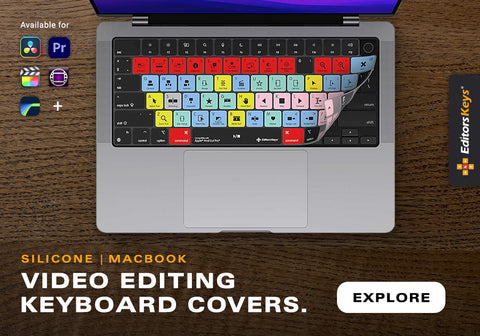
Unlike a standard keyboard, Editors Keys products have the most important Final Cut Pro shortcuts clearly printed directly onto each key. Instead of searching through menus or trying to remember complex key combinations, you can instantly see the command you need.
- Need to blade a clip? The shortcut is clearly labelled.
- Need to trim, zoom, select ranges or add markers? The shortcut is right in front of you.
- Need to navigate the timeline faster? The relevant keys are mapped directly onto the keyboard.
This makes learning Final Cut Pro significantly easier, particularly for new editors, while also helping experienced professionals increase their speed. The biggest advantage is that shortcut knowledge develops naturally. Rather than trying to memorise an enormous list of commands, you simply use the keyboard every day and gradually build muscle memory.
Editors Keys offers dedicated Final Cut Pro shortcut keyboards and silicone keyboard covers, allowing editors to upgrade their existing setup without replacing their entire keyboard.
They are ideal for:
-
Professional video editors.
-
YouTubers.
-
Filmmakers.
-
Content creators.
-
Students learning Final Cut Pro.
-
Production companies.
For anyone serious about editing faster, having shortcuts permanently visible is one of the simplest and most effective workflow improvements you can make.
Final Thoughts: Master These Final Cut Pro Features to Edit Faster
Final Cut Pro is one of the most powerful editing applications available, but many users never discover the features that make it truly exceptional.
Tools such as Transcript Search, Visual Search, Beat Detection, Auto Mask, Roles, Auditions, Keyword Collections and Object Tracking are designed to remove repetitive work and help editors focus on creativity. The biggest difference between an average editing workflow and a professional one often isn't expensive equipment or complicated techniques. It's efficiency.
The more you understand the tools available, the faster you can turn raw footage into a finished project. Combine these powerful Final Cut Pro features with a dedicated Editors Keys shortcut keyboard or keyboard cover, and you'll have a workflow designed for speed, precision and creativity.
Whether you're editing YouTube videos, documentaries, commercial productions or personal projects, mastering these hidden Final Cut Pro features can save hours of work and help you create better videos faster.