
Whether you're editing YouTube videos, documentaries, corporate content, music videos or feature films, speed is everything. Professional editors don't spend their day digging through menus or hunting for tools. Instead, they rely on keyboard shortcuts to keep their hands on the keyboard and their focus on the creative process.
Final Cut Pro includes hundreds of shortcuts, but a small handful are used constantly by professional editors every day. Learning these commands can dramatically reduce editing time, improve workflow efficiency and help you edit with greater precision.
In this guide, we'll look at the top 10 Final Cut Pro shortcuts every editor should master and explain exactly how they can help speed up your workflow.

1. Blade Tool (B)
Shortcut: B
What it does:
The Blade Tool turns your cursor into a cutting tool, allowing you to manually slice clips wherever you click on the timeline.
Why editors use it:
Cutting footage is one of the most common tasks in video editing. Whether you're removing mistakes, tightening dialogue, trimming pauses or creating fast-paced edits, the Blade Tool is used constantly. Instead of selecting the tool from the toolbar with your mouse, pressing B instantly activates it.
Workflow benefits:
-
Faster rough cuts
-
Quicker trimming of unwanted footage
-
Reduced mouse movement
-
More efficient editing sessions
Many professional editors use this shortcut hundreds of times during a single project.

2. Blade at Playhead (Command + B)
Shortcut: ⌘ + B
What it does:
Cuts the selected clip directly at the playhead position.
Why editors use it:
This is arguably one of the most important shortcuts in Final Cut Pro. Instead of switching to the Blade Tool, making a cut and then returning to the Selection Tool, you can simply position your playhead and press Command + B. The cut happens instantly.
Workflow benefits:
-
Faster editing
-
Greater precision
-
Keeps you focused on playback
-
Eliminates unnecessary tool switching
For editors creating social media content, YouTube videos or documentaries, this shortcut can save hours over the course of a project.
3. Play Forward, Pause and Reverse (J, K, L)
Shortcuts:
J = Reverse playback
K = Stop playback
L = Play forward
What they do:
These keys provide complete playback control without touching your mouse. Pressing L repeatedly increases playback speed, allowing you to quickly scan through footage. Pressing J plays footage backwards, while K stops playback.
Why editors use them:
Professional editors constantly review footage. The J-K-L keys allow you to navigate clips much faster than repeatedly clicking play and pause.
Workflow benefits:
-
Faster footage review
-
Better clip organisation
-
Rapid content scanning
-
Improved editing accuracy
Many experienced editors consider J-K-L playback control essential for professional editing workflows.
4. Select Tool (A)
Shortcut: A
What it does:
Returns you to the standard Selection Tool.
Why editors use it:
After using the Blade Tool, Range Tool or another editing tool, you'll often need to return to normal clip selection. Pressing A instantly switches back to the Selection Tool.
Workflow benefits:
-
Faster navigation
-
Less tool hunting
-
Smoother editing experience
This simple shortcut becomes second nature very quickly and saves countless clicks throughout a project.
Free: the complete Final Cut Pro shortcuts PDF
Every default Final Cut Pro shortcut, taken from Apple's own documentation. A4, printable, grouped by task. Pop your email in and we'll send it straight over.
We'll email the PDF straight over, then the occasional tip. Unsubscribe any time.
5. Range Selection Tool (R)
Shortcut: R
What it does:
Allows you to select a specific section within a clip without affecting the entire clip.
Why editors use it:
The Range Tool is incredibly useful when adjusting volume, applying effects, creating speed changes or deleting only part of a clip. Instead of cutting footage into multiple pieces, you can target only the exact area you want to modify.
Workflow benefits:
-
Precise audio adjustments
-
Cleaner timelines
-
Faster speed changes
-
More efficient effect application
Many editors overlook this shortcut, but it can significantly improve editing flexibility.
6. Append to Timeline (E)
Shortcut: E
What it does:
Adds selected clips to the end of the primary storyline.
Why editors use it:
When building rough cuts, editors frequently add footage to the end of a project. Instead of dragging clips into the timeline, pressing E instantly places them at the end of your edit.
Workflow benefits:
-
Faster assembly edits
-
Improved media organisation
-
Reduced drag-and-drop actions
This shortcut is particularly useful when working through large amounts of footage.
7. Undo and Redo (Command + Z / Shift + Command + Z)
Shortcuts:⌘ + Z
Shift + ⌘ + Z
What they do:
Undo and redo your most recent actions.
Why editors use them:
Every editor makes mistakes. The difference is that experienced editors recover instantly using keyboard shortcuts. Whether you've accidentally deleted a clip, moved a transition or changed an effect, Undo allows you to immediately reverse the action.
Workflow benefits:
-
Faster error correction
-
More confidence when experimenting
-
Improved productivity
These shortcuts are among the most frequently used commands in virtually every professional editing application.

8. Zoom to Fit Timeline (Shift + Z)
Shortcut: Shift + Z
What it does:
Automatically zooms your timeline so the entire project fits on screen.
Why editors use it:
When working on large projects, it's easy to become zoomed in and lose sight of the overall edit. Shift + Z instantly gives you a complete view of the timeline.
Workflow benefits:
-
Better project overview
-
Faster navigation
-
Improved timeline management
Many editors use this command dozens of times per day.
9. Toggle Snapping (N)
Shortcut: N
What it does:
Turns timeline snapping on or off.
Why editors use it:
Snapping helps clips automatically align with edit points, markers and other clips.
Sometimes this is incredibly useful. Other times it gets in the way when making precise adjustments. Being able to quickly toggle snapping gives editors complete control over timeline positioning.
Workflow benefits:
-
More precise edits
-
Faster clip alignment
-
Improved timeline control
Professional editors constantly switch snapping on and off depending on the task.
10. Add Default Transition (Command + T)
Shortcut: ⌘ + T
What it does:
Adds your default transition to the selected edit point.
Why editors use it:
Instead of opening transition browsers and dragging effects into place, Command + T instantly applies a transition. This is particularly useful for quick cross dissolves and basic timeline polishing.
Workflow benefits:
-
Faster finishing edits
-
Improved efficiency
-
Reduced mouse movement
A huge time-saver for editors creating content on tight deadlines.
Learn Final Cut Pro Shortcuts Faster with Editors Keys
While learning shortcuts can dramatically improve your editing speed, remembering dozens or even hundreds of commands can be challenging.
That's where the Editors Keys range of Final Cut Pro editing keyboards comes in.
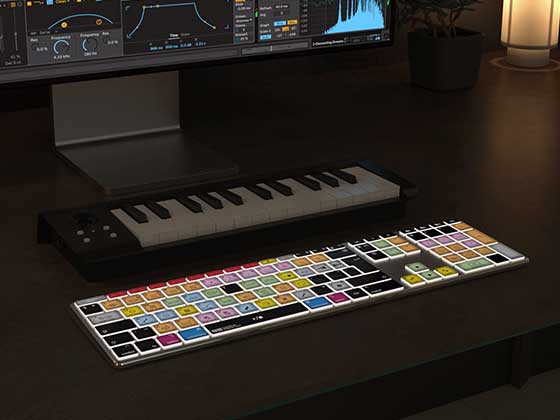
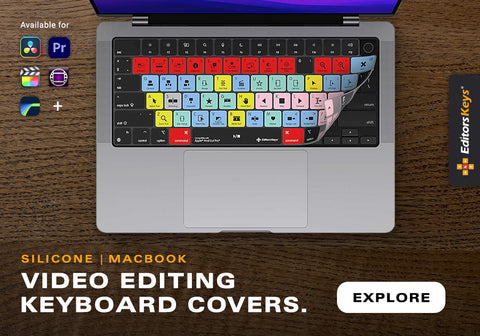
Editors Keys AB10 Core Wired Backlit Editing Keyboard
The Editors Keys AB10 Core Wired Backlit Keyboard is designed specifically for Final Cut Pro users.
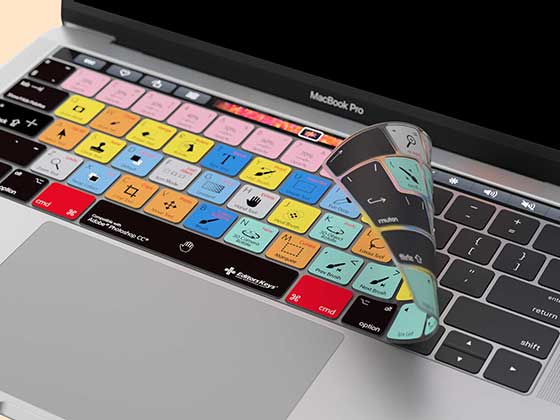
Every important Final Cut Pro shortcut is colour-coded and printed directly onto the keys, allowing you to instantly see the commands available without stopping to search menus or online tutorials.
The adjustable backlighting makes it perfect for editing studios, home offices and low-light environments, while the professional-grade construction is built for daily use.
Benefits include:
-
Faster shortcut learning
-
Improved editing speed
-
Better workflow efficiency
-
Reduced reliance on menus
-
Improved muscle memory
Rather than constantly memorising commands from cheat sheets, the shortcuts are always visible right beneath your fingertips.

Editors Keys AB10 Air Wireless Bluetooth Backlit Editing Keyboard
For editors who prefer a cable-free workspace, the Editors Keys AB10 Air Wireless Bluetooth Backlit Keyboard delivers the same shortcut-focused design with the freedom of wireless connectivity.
Compatible with Final Cut Pro workflows, the AB10 Air allows editors to work comfortably from virtually anywhere in the studio while maintaining instant access to essential shortcuts.
Like the wired version, every major Final Cut Pro command is mapped directly onto the keys, helping editors learn shortcuts naturally through daily use.
The result is faster editing, improved productivity and a smoother creative workflow.
Why Professional Editors Use Shortcut Keyboards
Many editors discover that once shortcuts become muscle memory, their editing speed increases dramatically.
A dedicated Final Cut Pro keyboard helps by:
-
Reducing menu navigation
-
Improving workflow consistency
-
Speeding up repetitive tasks
-
Helping new editors learn faster
-
Increasing overall productivity
Instead of searching for commands, editors can remain focused on storytelling and creativity.
Final Thoughts
Final Cut Pro is packed with powerful features, but keyboard shortcuts are what truly unlock its speed and efficiency. By mastering these ten essential shortcuts, you'll spend less time navigating menus and more time editing. Whether you're creating YouTube videos, corporate projects, social media content or professional productions, these commands can significantly improve your workflow.
And if you want to learn shortcuts even faster, the Editors Keys AB10 Core Wired Backlit Keyboard and AB10 Air Wireless Bluetooth Backlit Keyboard provide an excellent way to keep the most important Final Cut Pro commands visible at all times, helping you edit faster, work smarter and build shortcut muscle memory naturally.