

Whether you're editing interviews, podcasts, YouTube videos or corporate content, unnecessary pauses can quickly make your project feel slow and unprofessional. Long silences between sentences, awkward gaps in conversation and moments where nothing happens all add unnecessary length to your timeline.
Fortunately, Adobe Premiere Pro offers several ways to remove silence efficiently. Depending on your workflow, you can either let Premiere automatically detect pauses using its AI-powered Text-Based Editing tools or manually trim sections using traditional editing techniques like the Razor Tool and Ripple Delete.
Both methods have their advantages, and understanding when to use each one can dramatically speed up your editing process.
Why Remove Silence From Your Videos?
Silence isn't always bad. Natural pauses can make speech feel authentic and give viewers time to absorb information. However, excessive dead air can:
-
Slow down pacing
-
Reduce viewer engagement
-
Make interviews feel awkward
-
Increase overall video length unnecessarily
-
Require viewers to skip ahead
For creators producing YouTube content, online courses, tutorials or client interviews, trimming silence creates a smoother, more polished final product.
Method 1: Using Adobe Premiere Pro's Text-Based Editing Feature
One of the biggest workflow improvements introduced in recent versions of Premiere Pro is Text-Based Editing. Instead of editing purely on the timeline, Premiere automatically generates a transcript of spoken dialogue, allowing editors to work directly from text.
It can also identify pauses and remove them automatically.
Step 1: Import Your Footage
Begin by importing your video clips into Premiere Pro and placing them onto your timeline as normal.
For best results, ensure the dialogue is reasonably clear, as accurate speech recognition leads to better pause detection.
Step 2: Open the Text Panel
Navigate to:
Window → Text
The Text panel will appear, providing access to transcription and caption tools.
Step 3: Generate a Transcript
Select your sequence or clip and choose Transcribe.
Premiere will analyse the audio using Adobe's speech recognition technology and generate a full transcript of the spoken dialogue.
Depending on the length of your footage and your computer's performance, this may take anywhere from a few seconds to several minutes.
Once complete, every spoken word appears alongside timestamps.
Step 4: Filter for Pauses
Within the Text panel, locate the Filter icon.
Select Pauses from the available options.
Premiere will now highlight periods where no speech occurs.
Rather than manually hunting through the timeline, you immediately see every silent section identified by the software.
Step 5: Adjust the Minimum Pause Length
Before deleting anything, you can customise what Premiere considers a pause.
For example:
-
0.2 seconds may remove every tiny breath
-
0.5 seconds often creates tighter dialogue
-
1 second or longer preserves more natural pacing
Choosing the right threshold helps avoid making conversations sound rushed or robotic.
For interviews and documentaries, leaving slightly longer pauses often sounds more natural.
Step 6: Delete All Pauses
Once satisfied with the settings, select Delete All.
Make sure Extract is enabled rather than Lift.
Extract removes the silence and automatically closes the resulting gaps by moving everything together on the timeline.
The result is an instantly tightened edit that could otherwise take hours manually.
Advantages of Text-Based Editing
The AI-powered workflow offers several significant benefits.
Extremely Fast
Hours of interview footage can be cleaned up in minutes.
Works Directly From Speech
Rather than searching waveforms, editors can navigate through actual dialogue.
Great for Podcasts and Interviews
Talking-head videos, podcasts and educational content benefit enormously from automatic silence removal.
Can Remove Filler Words Too
Many editors also use Text-Based Editing to remove "um", "er" and repeated phrases alongside pauses.
Potential Limitations
Although impressive, the feature isn't perfect.
Very noisy recordings or overlapping speakers may confuse transcription.
You may also prefer to keep certain pauses for dramatic effect, emotional timing or natural conversation flow.
Because of this, many editors still perform a final manual review after automatic trimming.

Method 2: Using the Razor Tool and Ripple Delete
Some editors prefer complete manual control.
The traditional approach involves cutting around silent sections yourself and removing them individually.
Although slower, it offers absolute precision.
Step 1: Zoom Into the Audio Waveform
Increase the timeline zoom until individual waveforms become clearly visible.
Silent sections typically appear as flat or nearly flat areas with very little waveform activity.
Looking closely at the waveform often makes pauses easy to identify.
Step 2: Select the Razor Tool
Choose the Razor Tool from the toolbar or simply press:
C
The Razor Tool allows you to split clips at precise points.
Step 3: Cut Before the Silence
Click at the beginning of the silent section.
Then click again at the end of the silence.
This isolates the unwanted gap into its own clip segment.
Step 4: Select the Silent Section
Switch back to the Selection Tool (V) and click the isolated silent clip.
Step 5: Perform a Ripple Delete
Press:
-
Shift + Delete on Windows
-
Shift + Function + Delete on Mac (depending on keyboard layout)
Ripple Delete removes the selected section and automatically pulls every subsequent clip left to fill the gap.
Unlike pressing Delete alone, no empty space remains on the timeline.
Step 6: Repeat Throughout the Edit
Continue identifying pauses, slicing around them and ripple deleting until your sequence flows naturally.
Many experienced editors combine keyboard shortcuts to complete this process extremely quickly.
Why Some Editors Prefer Manual Editing
Although AI is fast, manual editing offers greater creative control.
You can:
-
Preserve natural breathing
-
Keep dramatic pauses intact
-
Adjust pacing based on emotion
-
Avoid accidental cuts caused by inaccurate transcription
-
Handle multi-camera edits more carefully
For documentaries, cinematic interviews and narrative productions, manual trimming often produces more natural results.

Which Method Is Better? The answer depends on your project...
Text-Based Editing
Best for:
-
Podcasts
-
YouTube creators
-
Corporate interviews
-
Long-form dialogue
-
Educational videos
-
Fast turnaround projects
Pros:
-
Extremely quick
-
AI automatically finds pauses
-
Can process hours of footage rapidly
-
Minimal manual effort
Cons:
-
Relies on transcription accuracy
-
May remove pauses you'd prefer to keep
-
Less suitable for complex multi-speaker edits
Razor Tool and Ripple Delete
Best for:
-
Narrative editing
-
Documentaries
-
High-end productions
-
Creative pacing
-
Fine-tuning AI-generated edits
Pros:
-
Complete control
-
Precise timing adjustments
-
Works regardless of transcript quality
-
Ideal for difficult audio
Cons:
-
Time-consuming
-
Requires manual inspection
-
Less efficient for very long interviews
For many professionals, the ideal workflow combines both approaches: use Text-Based Editing to remove the majority of dead space, then fine-tune manually with the Razor Tool and Ripple Delete.
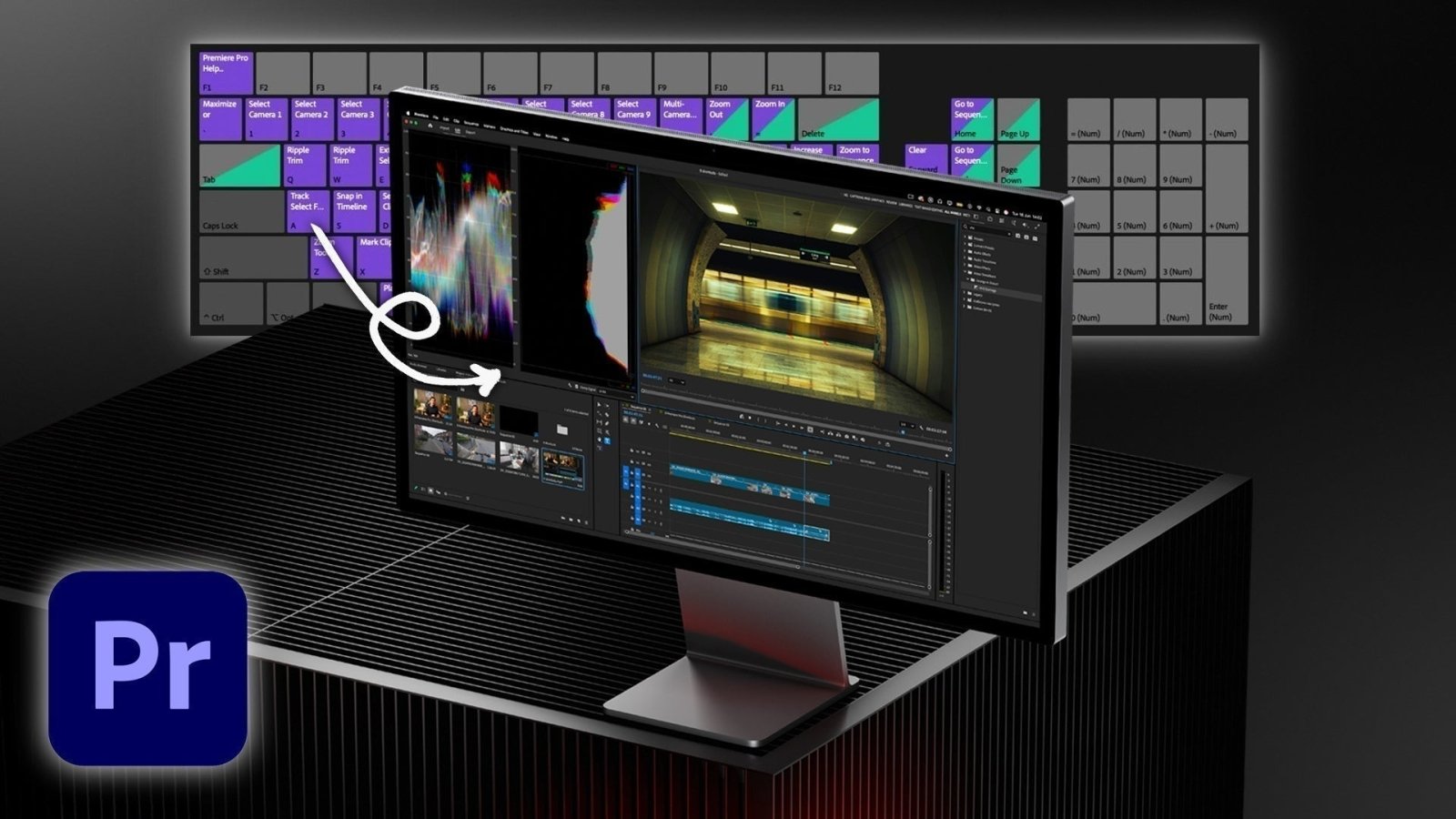
Speed Up Premiere Pro Editing With Editors Keys
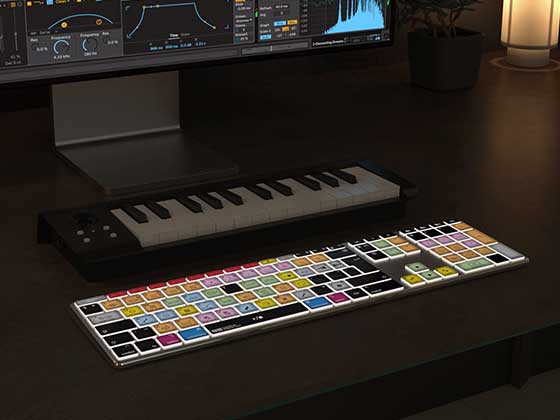
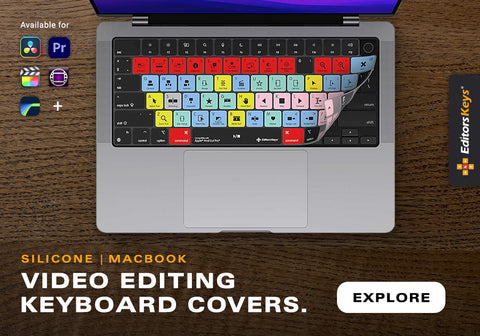
Removing silence is only one part of the editing process. Professional editors rely heavily on keyboard shortcuts to navigate timelines, trim clips and perform repetitive actions quickly. Editors Keys shortcut keyboards and keyboard covers for Adobe Premiere Pro place the most commonly used shortcuts directly onto the keys, helping editors work faster without constantly memorising commands or searching through menus.

Functions for trimming, ripple deleting, razor editing, playback controls, timeline navigation and dozens of other editing tools are clearly labelled, making them especially valuable for both beginners learning Premiere Pro and experienced professionals looking to increase productivity. Whether you're editing interviews all day or producing content for YouTube, having shortcuts visible at your fingertips can significantly reduce editing time while helping build muscle memory naturally.
Final Thoughts
Adobe Premiere Pro offers two highly effective ways to trim silence from dialogue, each suited to different editing styles.
The AI-powered Text-Based Editing feature is incredibly efficient for cleaning up interviews, podcasts and long-form conversations in just a few clicks. Meanwhile, traditional Razor Tool and Ripple Delete editing provides the precision needed for projects where every pause matters.
Learning both techniques gives you the flexibility to tackle any project efficiently while maintaining full creative control over pacing and rhythm. Combined with keyboard shortcuts and an optimised workflow, trimming silence becomes one of the quickest ways to transform rough footage into polished, engaging content.