If a shortcut works in one part of DaVinci Resolve and does nothing in another, you haven't broken anything. Resolve is really seven applications sharing a window, and the same key is deliberately given different jobs depending which page you're on. Once that clicks, the whole keyboard makes sense.
Below is the default DaVinci Resolve shortcut set, grouped by page and cross-checked key by key against the layout printed on our own Resolve keyboard. Current for Resolve 21, free version and Studio. There's a free printable PDF of the whole thing too.
The short answer
Learn the page switches before anything else — Shift+4 Edit, Shift+6 Colour, Shift+7 Fairlight. Moving between rooms without touching the mouse changes how the whole application feels.
Then the daily ten: J K L shuttle, I and O mark in and out, Cmd+B blade, Shift+Delete ripple delete, N snapping, Shift+Z zoom to fit, F9 F10 F11 insert, overwrite and replace, and Opt+S for a serial node.
The thing that trips everyone up: shortcuts change per page
Resolve isn't one application with one keyboard layout. It's seven pages — Media, Cut, Edit, Fusion, Colour, Fairlight and Deliver — and each has its own working set of keys.
W is the clearest example. On the Edit page it puts you in Dynamic Trim mode. On the Colour page it toggles the wipe. Neither is wrong; they're different rooms. S, D and Q behave the same way.
So the honest advice is: learn the page you live in first. A colourist and an offline editor are using the same software and genuinely different keyboards. Both are covered below.
This is also the most common reason someone thinks a Resolve shortcut keyboard “doesn't work”. The keys are right — you're on a different page than the one the command belongs to. Check the page tabs at the bottom of the window before you conclude anything else.
Want this as a printable PDF?
Everything on this page is free and staying free — the full list is below. But a browser tab is the wrong place for this the moment you're actually working, with both hands on the keyboard and a client behind you.
So we've laid the same shortcuts out as a printable PDF, colour-grouped like our keyboards and sized to be read at arm's length. Print it and pin it by the desk, or take it into the grading suite. It carries every section on this page plus separate Mac and Windows columns.
DaVinci Resolve Shortcuts — printable PDF
Free, A4, grouped by page and task. Includes the full colour trim set on the numeric keypad — the part nobody ever remembers.
Pop your email in below and we'll send it straight over — it usually lands within a minute.
We'll email the PDF straight over, then the occasional editing tip. Unsubscribe any time.
What's on this page
- Why shortcuts change per page
- Switching pages
- Playback and JKL
- Marking, markers and flags
- Modes and tools (Edit page)
- Editing
- Colour page nodes
- Colour trims on the numeric keypad
- Global commands
- Frequently asked questions
Switching pages
The single highest-value group in Resolve. Nine keys that move you between the seven pages, the Project Manager and Project Settings without ever reaching for the mouse.
| Action | Mac | Windows / Linux |
|---|---|---|
| Project Manager | Shift + 1 | Shift + 1 |
| Media page | Shift + 2 | Shift + 2 |
| Cut page | Shift + 3 | Shift + 3 |
| Edit page | Shift + 4 | Shift + 4 |
| Fusion page | Shift + 5 | Shift + 5 |
| Colour page | Shift + 6 | Shift + 6 |
| Fairlight page | Shift + 7 | Shift + 7 |
| Deliver page | Shift + 8 | Shift + 8 |
| Project Settings | Shift + 9 | Shift + 9 |
Playback and JKL
Identical on Mac, Windows and Linux, and identical across pages. If you learn one group by muscle memory, make it this one.
| Action | Key |
|---|---|
| Play / pause | Space |
| Play backward | J |
| Stop | K |
| Play forward | L |
| Fast reverse / fast forward | Shift + J Shift + L |
| Play around In / Out | Opt + Space Shift + Space |
| Play around current frame | / |
| Step back / forward one frame | ← → |
| Step back / forward one second | Shift + ← Shift + → |
| Previous / next clip or edit | ↑ ↓ |
| Go to timeline start / end | Home End |
| Go to first / last frame | ; ' |
A tip that's worth more than it sounds. Hold J or L and tap it again to double the shuttle speed. Tapping K with either one gives you slow motion in that direction — the fastest way there is to find a specific frame.
Marking, markers and flags
Same keys on every platform.
| Action | Key |
|---|---|
| Set Mark In / Mark Out | I O |
| Mark Clip | X |
| Clear In / Clear Out | Opt + I Opt + O |
| Go to In / Go to Out | Shift + I Shift + O |
| Add marker | M |
| Modify marker | Shift + M |
| Delete marker | Opt + M |
| Previous / next marker | Shift + ↑ Shift + ↓ |
| Add flag | G |
Modes and tools (Edit page)
These are Edit page keys. Several of them do other jobs on the Colour page, which is exactly the behaviour described at the top of this article.
| Action | Key |
|---|---|
| Normal Edit mode | A |
| Trim mode | T |
| Dynamic Trim mode | W |
| Select Blade | B |
| Select nearest edit point | V |
| Toggle slip and slide mode | S |
| Edit point type | U |
| Snapping on / off | N |
| Enable / disable clip | D |
| Match frame | F |
| Source / timeline viewer | Q |
| Zoom to fit | Shift + Z |
Editing
The function row carries the four edit types, and that's worth committing to memory early: F9 insert, F10 overwrite, F11 replace, F12 place on top.
| Action | Mac | Windows / Linux |
|---|---|---|
| Insert edit | F9 | F9 |
| Overwrite edit | F10 | F10 |
| Replace edit | F11 | F11 |
| Place on Top edit | F12 | F12 |
| Ripple overwrite | Shift + F10 | Shift + F10 |
| Fit to Fill | Shift + F11 | Shift + F11 |
| Append to end of timeline | Shift + F12 | Shift + F12 |
| Razor | Cmd + B | Ctrl + B |
| Split clip / join clips | Cmd + \ Opt + \ | Ctrl + \ Alt + \ |
| Ripple delete | Shift + Backspace | Shift + Backspace |
| Trim start / trim end | Shift + [ Shift + ] | Shift + [ Shift + ] |
| Nudge one frame left / right | , . | , . |
| Nudge multiframe left / right | Shift + , Shift + . | Shift + , Shift + . |
| Add transition | Cmd + T | Ctrl + T |
| Video-only / audio-only transition | Opt + T Shift + T | Alt + T Shift + T |
| Retime controls | Cmd + R | Ctrl + R |
| Freeze frame | Shift + R | Shift + R |
| Toggle video + audio / video / audio | Opt + U | Alt + U |
| Loop / unloop | Cmd + / | Ctrl + / |
Made by Editors Keys since 2005
The reference that never needs another window
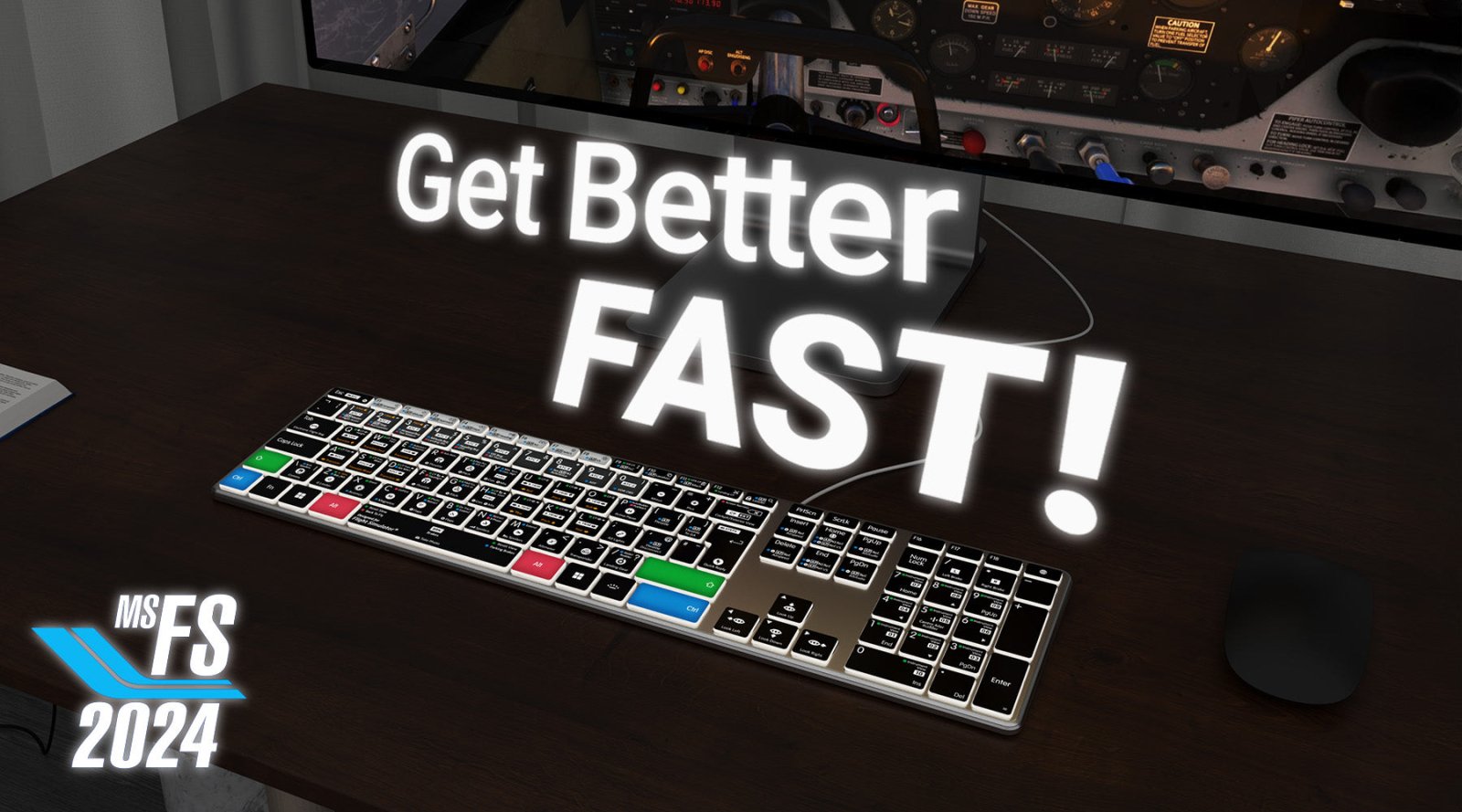
Our DaVinci Resolve keyboard carries this exact layout printed onto the keys and colour-coded by function — including the full colour trim set on the numeric keypad. It's backlit, so it still reads in a darkened grading suite, and comes wired or wireless for Mac and PC. Used by teams at the BBC, NASA, Warner Bros., Rockstar Games and Pinewood Studios, with a free three-year warranty.
See the Resolve keyboard →Colour page nodes
The node shortcuts are what separate a fast colourist from a slow one. Building a chain without the mouse is the single biggest speed gain on this page.
| Action | Mac | Windows / Linux |
|---|---|---|
| Add serial node | Opt + S | Alt + S |
| Add serial node + LPW | Opt + Q | Alt + Q |
| Add parallel node | Opt + P | Alt + P |
| Add layer node | Opt + L | Alt + L |
| Append a node | Opt + K | Alt + K |
| Add splitter / combiner node | Opt + Y | Alt + Y |
| Disable / enable current node | Cmd + D | Ctrl + D |
| Disable / enable all nodes | Opt + D | Alt + D |
| Bypass all grades | Shift + D | Shift + D |
| Grab still | Cmd + Opt + G | Ctrl + Alt + G |
| Add version | Cmd + Y | Ctrl + Y |
| Highlight | Shift + H | Shift + H |
| Video scopes | Cmd + Shift + W | Ctrl + Shift + W |
| Reset grades and nodes | Cmd + Home | Ctrl + Home |
Colour trims on the numeric keypad
This is the group almost nobody memorises, and it's the one that saves the most time. On the Colour page the numeric keypad becomes a direct colour trim controller: each pair adds or subtracts one channel.
| Action | Key |
|---|---|
| Add / subtract red | 7 4 |
| Add / subtract green | 8 5 |
| Add / subtract blue | 9 6 |
| Add / subtract cyan | 1 – |
| Add / subtract magenta | 2 0 |
| Add / subtract yellow | 3 . |
| Add / subtract master | + Enter |
Same on Mac and Windows. Fourteen keys, no dialogs, no dragging — and the reason a printed keyboard earns its keep on this page in particular.
Global commands
These work wherever you are in the application.
| Action | Mac | Windows / Linux |
|---|---|---|
| Save project | Cmd + S | Ctrl + S |
| Import media | Cmd + I | Ctrl + I |
| Undo | Cmd + Z | Ctrl + Z |
| Redo | Cmd + Shift + Z | Ctrl + Shift + Z |
| New timeline | Cmd + N | Ctrl + N |
| New bin | Cmd + Shift + N | Ctrl + Shift + N |
| Export project | Cmd + E | Ctrl + E |
| Preferences | Cmd + , | Ctrl + , |
| Keyboard Customization | Cmd + Opt + K | Ctrl + Alt + K |
| Full screen viewer | Cmd + F | Ctrl + F |
| Quit Resolve | Cmd + Q | Ctrl + Q |
Keys still not doing what you expect?
Check which keyboard preset is loaded. Resolve ships with presets that emulate other editing applications, and if one of those is active your keys won't match this guide. Open Keyboard Customization with Cmd+Opt+K (Ctrl+Alt+K on Windows) and set the preset back to DaVinci Resolve.
Frequently asked questions
Why don't my DaVinci Resolve keyboard shortcuts work?
Two things cause almost every case. First, the page you're on — Resolve gives the same key different jobs on the Edit, Colour and Fairlight pages, so a key that works in one room does nothing in another. Second, the keyboard preset. Resolve ships with presets that emulate other editing applications, and if one is active your keys won't match the defaults. Open Keyboard Customization with Cmd+Opt+K (Ctrl+Alt+K on Windows) and set the preset back to DaVinci Resolve.
How do I switch pages in DaVinci Resolve with the keyboard?
Shift plus a number. Shift+2 Media, Shift+3 Cut, Shift+4 Edit, Shift+5 Fusion, Shift+6 Colour, Shift+7 Fairlight, Shift+8 Deliver. Shift+1 opens the Project Manager and Shift+9 opens Project Settings. These are the highest-value shortcuts in the whole application — learn them first.
What is the blade or razor shortcut in DaVinci Resolve?
Cmd+B on Mac, Ctrl+B on Windows, which cuts every enabled track at the playhead. B selects the Blade tool itself if you'd rather cut by clicking. Cmd+\ splits a clip and Opt+\ joins two clips back together.
How do I add a node in DaVinci Resolve?
On the Colour page, Opt+S adds a serial node, Opt+P a parallel node, Opt+L a layer node and Opt+K appends a node to the end of the chain. Opt+Q adds a serial node with a Layer Mixer node before it. On Windows, use Alt in place of Opt.
Are DaVinci Resolve shortcuts the same on Mac and Windows?
The single-key shortcuts are identical — J, K, L, I, O, B, N and the whole numeric keypad colour trim set behave the same way. Only the modifier combinations differ: Command becomes Ctrl and Option becomes Alt.
Which version of DaVinci Resolve do these shortcuts apply to?
DaVinci Resolve 21, the current release. Resolve's default mapping has been stable across recent versions, so these hold on earlier ones too. They apply to both the free version and Resolve Studio.
Can I print the DaVinci Resolve shortcuts?
Yes — the free PDF on this page is built for it. A4, grouped by page and task, with separate Mac and Windows columns so it reads correctly whichever you're on.
Related reading
- Final Cut Pro keyboard shortcuts: the complete 2026 cheat sheet
- Avid Media Composer keyboard shortcuts: the complete 2026 cheat sheet
- Pro Tools keyboard shortcuts: the complete 2026 cheat sheet
- The Editors Keys DaVinci Resolve keyboard
Verified against Resolve's default keyboard layout and cross-checked key by key against the mapping printed on the Editors Keys DaVinci Resolve keyboard. Disputed entries were left out. Current for DaVinci Resolve 21. DaVinci Resolve is a trademark of Blackmagic Design Pty Ltd. Editors Keys is not affiliated with Blackmagic Design.