If you spend hours every day editing in Avid Media Composer, every mouse movement adds up.
Whether you're cutting documentaries, feature films, television, YouTube content or corporate videos, learning the right keyboard shortcuts can dramatically reduce editing time while making the entire editing process feel smoother and more intuitive.
Professional editors rarely rely on menus. Instead, they keep their hands on the keyboard, allowing them to trim, navigate, mark clips and assemble sequences almost instinctively. Even saving just one or two seconds every edit can translate into hours saved over the course of a large project.
In this guide, we'll look at 20 of the most essential Media Composer keyboard shortcuts in 2026, explain exactly what each one does, how to use it, and why it deserves a permanent place in your editing workflow.
Why Keyboard Shortcuts Matter
Media Composer has remained the industry standard for high-end television and feature film editing because it is built around speed and precision.
Editors working on large productions often make thousands of edits every day. Constantly moving between the keyboard and mouse interrupts concentration and slows down the creative process.
Keyboard shortcuts allow you to:
-
Edit faster
-
Keep your eyes on the footage
-
Reduce repetitive mouse movements
-
Make more accurate edits
-
Stay focused on storytelling rather than software
The more shortcuts become muscle memory, the more Media Composer begins to disappear, allowing you to focus entirely on the edit itself.

1. Play / Stop
Shortcut: Spacebar
Probably the most frequently used shortcut in Media Composer.
Pressing the Spacebar begins playback from the current playhead position. Press it again to stop.
While incredibly simple, editors may press this hundreds or even thousands of times during a single day's work.
Why it's essential
Almost every edit involves reviewing footage.
Instead of repeatedly clicking the Play button with your mouse, the Spacebar keeps your hands exactly where they need to be.
2. Mark In
Shortcut: I
The Mark In command defines where an edit should begin.
Simply move the playhead to your chosen frame and press I.
Why it's essential
Every source clip needs an In point before it can be edited into the timeline.
When reviewing interviews or selecting B-roll, this shortcut becomes second nature and significantly speeds up logging and assembly editing.

3. Mark Out
Shortcut: O
The companion shortcut to Mark In.
Once you've found the end of your desired clip, press O to create an Out point.
Why it's essential
Together, Mark In and Mark Out allow you to isolate only the section of footage you actually need, making insert and overwrite edits incredibly efficient.
Free: the complete Avid Media Composer shortcuts PDF
Every default Media Composer shortcut, checked against Avid's own documentation. A4, printable, grouped by task. Pop your email in and we'll send it straight over.
We'll email the PDF straight over, then the occasional tip. Unsubscribe any time.
4. Clear In and Out
Shortcut: G
Need to remove your current marks?
Press G to clear both the In and Out points instantly.
Why it's essential
During fast-paced editing sessions you'll constantly redefine selections. Clearing marks with one keypress is far quicker than removing them manually.
5. Insert Edit
Shortcut: V
Insert Edit places your marked clip into the sequence without replacing existing material.
Everything after the edit shifts further along the timeline.
Why it's essential
Ideal when building a rough cut or adding new shots without overwriting your existing work. It preserves everything already in the timeline.
6. Overwrite Edit
Shortcut: B
Overwrite Edit replaces footage already on the timeline.
Instead of pushing clips forwards, it swaps existing frames with your new selection.
Why it's essential
Perfect when refining edits or replacing placeholder shots without affecting sequence timing.
7. Lift
Shortcut: Z
Lift removes the selected section of a sequence while leaving a gap behind.
Nothing else moves.
Why it's essential
Useful when temporarily removing dialogue, replacing graphics or making structural changes without affecting downstream timing.

8. Extract
Shortcut: X
Extract removes the selected section and automatically closes the gap.
Everything later in the timeline shifts left.
Why it's essential
Editors constantly tighten edits.
Extract allows you to remove unwanted pauses or mistakes instantly while maintaining sequence continuity.
9. Add Edit
Shortcut: Add Edit button (default keyboard mapping often uses Enter on the numeric keypad or a user-assigned key)
Add Edit creates a cut at the playhead without deleting or moving anything.
Why it's essential
Perfect for splitting long clips before trimming, adding transitions or reorganising sequences.
Many editors customise this command to one of their easiest-to-reach keys because of how frequently it's used.

10. Match Frame
Shortcut: T
Match Frame loads the original source clip corresponding to the selected frame in your timeline.
Why it's essential
Need a slightly longer version of a shot?
Want to recover handles for trimming?
Match Frame instantly takes you back to the original media, making it one of the most valuable shortcuts in Media Composer.

11. Go to Previous Edit
Shortcut: A
Moves the playhead directly to the previous edit point.
Why it's essential
Instead of zooming into the timeline and clicking individual cuts, you can jump rapidly between edits for review or trimming.
12. Go to Next Edit
Shortcut: S
Moves directly to the next cut.
Why it's essential
Used alongside Previous Edit, this makes checking pacing and reviewing transitions dramatically faster.
13. Trim Mode
Shortcut: U
Activates Trim Mode.
Why it's essential
Professional editors spend enormous amounts of time refining edits rather than creating them.
Trim Mode allows incredibly precise adjustments to edit points while keeping playback fluid.

14. Toggle Source/Record Monitor
Shortcut: Ctrl + Tab (Windows) or Cmd + Tab (Mac) (depending on keyboard focus configuration)
Switches keyboard focus between the Source and Record monitors.
Why it's essential
Keeping your hands on the keyboard while reviewing clips speeds up logging and assembly editing.
15. Fast Forward
Shortcut: L
Pressing L increases playback speed forwards.
Repeated presses increase playback speed further.
Why it's essential
Excellent for reviewing long interviews, speeches and documentaries.
You can locate important moments much faster than normal playback.
16. Rewind
Shortcut: J
The opposite of Fast Forward.
Repeated presses increase rewind speed.
Why it's essential
Perfect for quickly returning to previous edits without reaching for the mouse.

17. Pause Playback
Shortcut: K
Stops playback instantly.
Combined with J, K and L, editors gain complete transport control directly from the keyboard.
Why it's essential
JKL controls have become standard across professional editing software because they allow incredibly fast footage review.
18. Step Forward One Frame
Shortcut: Right Arrow
Moves the playhead forward one frame.
Why it's essential
Essential when making frame-perfect edits, checking lip sync or locating exact cut points.

19. Step Back One Frame
Shortcut: Left Arrow
Moves backwards one frame.
Why it's essential
Frame-accurate navigation is critical in professional editing, especially when cutting dialogue or music.
20. Render Effects
Shortcut: Ctrl + R (Windows) / Cmd + R (Mac) (where assigned in current keyboard layout)
Begins rendering selected effects that require processing.
Why it's essential
Complex colour correction, titles and effects often require rendering before smooth playback.
Being able to trigger rendering without navigating menus keeps your workflow moving.

Tips for Learning Media Composer Shortcuts Faster
Trying to memorise dozens—or even hundreds—of shortcuts can seem overwhelming at first. Rather than attempting to learn everything at once, focus on the shortcuts you use every single day.
Start with:
-
Play
-
Mark In
-
Mark Out
-
Insert
-
Overwrite
-
Extract
-
Lift
-
Trim Mode
-
Match Frame
-
Previous and Next Edit
Once these become second nature, add a few more every week. Within a surprisingly short period, you'll find yourself editing almost entirely from the keyboard!
Take Your Workflow Even Further with Editors Keys Shortcut Keyboards
Learning shortcuts is one thing, remembering hundreds of them is another.
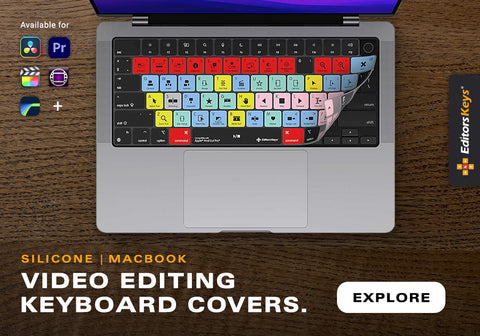
That's exactly why Editors Keys created its range of professional shortcut editing keyboards and keyboard covers for Media Composer and many of the world's most popular creative applications. Instead of relying on memory, every important shortcut is clearly printed directly onto the keys, allowing you to see the commands exactly when you need them. Whether you're trimming edits, marking clips, navigating timelines or switching tools, the shortcut is always right in front of you.
For editors working on long-form productions, documentaries or fast-turnaround broadcast projects, this can make a remarkable difference. New users learn shortcuts naturally through repeated use, while experienced editors spend less time second-guessing key combinations and more time focusing on creative decisions.

Editors Keys offers both its premium AB10 Air Wireless Shortcut Keyboard, featuring wireless connectivity, adjustable backlighting and support for multiple Bluetooth devices, as well as the AB10 Core Wired USB-C Shortcut Keyboard for editors who prefer a dependable wired connection. If you're happy with your existing keyboard, dedicated Media Composer keyboard covers provide the same clearly labelled shortcuts while protecting your keyboard from dust, dirt and accidental spills.
Whether you're editing full-time or just beginning your Media Composer journey, using a dedicated shortcut keyboard helps build muscle memory far more quickly than trying to memorise dozens of key combinations from a cheat sheet.

Final Thoughts
Media Composer remains one of the fastest and most capable editing platforms available, but its true speed comes from mastering the keyboard.
These twenty shortcuts represent the commands professional editors rely on every day. Individually, each one might only save a second or two, but across hundreds or even thousands of edits, those small savings quickly become hours. By gradually incorporating these shortcuts into your daily workflow—and using a dedicated Editors Keys shortcut keyboard to make them even easier to remember—you'll spend less time navigating menus and more time doing what really matters: crafting great edits.
Whether you're cutting a feature film, broadcast television, online content or a documentary, mastering these essential Media Composer shortcuts will make you a faster, more confident and more efficient editor.