Video editing can take hours longer than it needs to, particularly when you spend too much time searching through footage, making repetitive adjustments or reaching for the mouse to perform simple tasks. If you want to edit twice as fast in Adobe Premiere Pro, the key is to build a more efficient workflow, learn the right keyboard shortcuts and organise your projects so that you can concentrate on the creative decisions that matter.
Whether you edit YouTube videos, social media content, music videos, documentaries or professional client projects, a few changes to the way you work can save a surprising amount of time. Here are some practical Adobe Premiere Pro editing tips to help you work faster without compromising the quality of your finished videos.

1. Master the Most Important Premiere Pro Keyboard Shortcuts
One of the quickest ways to speed up video editing is to reduce how often you switch between your keyboard and mouse. Every time you navigate through menus to find a command, you interrupt your editing flow. Learning keyboard shortcuts allows you to perform common actions almost instantly, helping you move through a timeline with fewer unnecessary movements.
Start with the shortcuts you use throughout the day. In Adobe Premiere Pro, V selects the Selection Tool, C activates the Razor Tool, B selects the Ripple Edit Tool, and N activates the Rolling Edit Tool. Pressing I and O sets your In and Out points, allowing you to mark the section of a clip you want to use. Press Spacebar to play or pause your sequence, and use the arrow keys to move through your footage one frame at a time.
You should also learn shortcuts for cutting, trimming and moving between edits. The default shortcut for adding an edit at the playhead is Ctrl+K on Windows or Command+K on Mac. To ripple-delete a selected clip or gap, use the relevant Ripple Delete command and learn its assigned shortcut, as this can remove unwanted material while closing the gap automatically. This is particularly useful when tightening dialogue, removing pauses or assembling a rough cut.
The real advantage comes from using these commands consistently. Rather than memorising every shortcut at once, start with the ten or fifteen actions you perform most frequently. Once those become second nature, introduce additional shortcuts as you identify repetitive tasks in your workflow.

2. Use Ripple Editing to Remove Unwanted Gaps
A common time-waster in Premiere Pro is removing unwanted sections of footage and then manually closing the gaps left behind. Ripple editing eliminates much of this unnecessary work by automatically moving the remaining clips together when you remove material.
The Ripple Edit Tool is especially useful for trimming the beginning or end of a clip while keeping the rest of your sequence in sync. Ripple Delete is equally valuable when removing unwanted footage or empty spaces from the timeline. Instead of cutting a clip, selecting the gap and dragging everything back into place, you can remove the unwanted section and allow Premiere Pro to close the gap automatically.
For dialogue-heavy videos, interviews and YouTube content, these small improvements can make a considerable difference over the course of a project. You can move through a rough cut quickly, remove pauses and mistakes, and keep your sequence compact without repeatedly rearranging clips by hand.
Be aware of linked audio, multiple video tracks and synchronised sequences when ripple editing. Check which tracks are targeted before making changes, particularly when working with music, sound effects, graphics or footage that must remain aligned.
3. Organise Your Footage Before You Start Editing
Good organisation saves time long before you begin cutting clips together. When footage is scattered across folders or imported without a clear structure, finding the right shot can become a frustrating process. A few minutes spent preparing your project can prevent much longer interruptions later.
Create clearly named bins in the Project panel for your footage, audio, music, graphics, titles and other assets. For larger productions, consider separating footage by camera, location, scene or shooting day. Rename important clips where necessary and use labels, markers and metadata to identify useful takes.
Premiere Pro's search and filtering tools can help you locate assets without scrolling through hundreds of files. You can also use markers to identify key moments, good takes or sections that require attention. For interview editing, marking strong quotes during an initial review makes it much easier to return to the best material when building the final sequence.
If you regularly produce the same type of content, create a reusable project template with your preferred bins, sequence settings, tracks, graphics and audio effects already prepared. This means you can start a new project without rebuilding the same structure every time.
4. Customise Your Keyboard Shortcuts for Your Editing Style
Premiere Pro includes an extensive range of keyboard shortcuts, but the default layout will not necessarily suit the way you edit. Opening the Keyboard Shortcuts panel allows you to search for commands, assign new key combinations and change existing shortcuts to suit your workflow.
Think about the actions you repeat most often. If you regularly add edits, trim clips, toggle snapping, adjust audio or navigate between markers, make these commands easy to access. You can also assign shortcuts to commands that do not have a convenient default combination, provided the key assignment is available.
For example, editors who work primarily with dialogue may prioritise trimming and ripple editing, while those producing music videos may benefit more from shortcuts for markers, playback and timeline navigation. The best setup is the one that reflects your actual editing habits rather than forcing you to work around a generic layout.
If you use multiple editing applications, remember that shortcut layouts differ between programmes. Premiere Pro shortcuts will not necessarily correspond to those used in Final Cut Pro, DaVinci Resolve or Avid Media Composer. Save your customised keyboard layout and keep it consistent between projects wherever possible.
5. Speed Up Your Workflow with an Editors Keys Shortcut Keyboard
Learning keyboard shortcuts is one thing; remembering them when you are working under pressure is another. This is where an Editors Keys Premiere Pro shortcut keyboard can make a real difference.
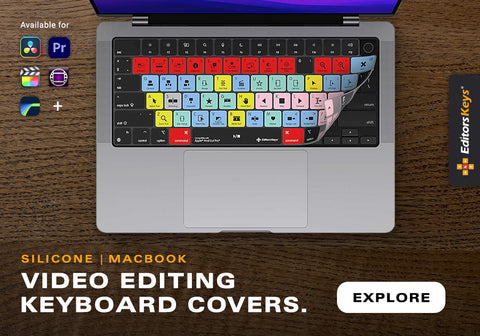
Editors Keys produces specialist shortcut editing keyboards and silicone keyboard covers designed to display the commands for supported creative software directly on the keys. Instead of repeatedly checking shortcut lists or opening menus to find an unfamiliar command, you can see the relevant shortcuts in front of you while you edit. This makes it easier to learn new commands, reinforce muscle memory and build a more keyboard-focused workflow.
For Premiere Pro editors, having shortcuts mapped out on the keys can be particularly helpful when learning advanced trimming techniques or moving beyond the basic commands. As you become more familiar with the layout, you can spend less time thinking about which command to use and more time concentrating on pacing, storytelling and the quality of your edit.
Editors Keys offers two backlit shortcut keyboard options for editors who want to improve their setup:
AB10 Air Wireless Backlit Shortcut Keyboard: The AB10 Air offers a wireless editing setup with backlit keys, making it a practical option for editors who want to keep their desk free from unnecessary cables. Backlighting is useful when working in a dimly lit editing suite, while the dedicated shortcut layout helps you identify commands quickly. Its wireless design also offers flexibility if you switch between compatible devices.
AB10 Core Wired USB-C Backlit Shortcut Keyboard: The AB10 Core is a wired alternative featuring USB-C connectivity and backlit shortcut keys. It is suited to editors who prefer a direct cable connection and want their keyboard ready to use at their workstation without relying on a wireless connection. The illuminated keys and shortcut-focused layout help make frequently used editing commands easier to identify.
If you already own a compatible keyboard, Editors Keys silicone shortcut covers offer another way to improve your editing workflow. These covers place software shortcuts directly over the relevant keys while helping protect the keyboard from dust and light spills. They can be a useful option if you want the benefits of a shortcut-labelled layout without replacing your existing keyboard.
Explore the Editors Keys shortcut keyboards and silicone covers to find an option suited to your editing setup. By keeping frequently used commands visible, you can gradually learn more shortcuts and reduce the time spent navigating Premiere Pro's menus.
6. Use Proxies for Smoother Playback
High-resolution footage can put considerable pressure on your computer, especially when working with 4K, 6K or 8K video, complex effects or footage recorded using demanding codecs. If playback stutters or your timeline takes too long to respond, you can lose valuable editing time waiting for the software to catch up.
Adobe Premiere Pro's proxy workflow allows you to create lower-resolution versions of your original media for editing. Premiere Pro can use these smaller files during playback, reducing the processing demands on your system. You can then switch back to the original media for full-resolution output when exporting, without permanently lowering the quality of your source footage.
To create proxies, select your clips in the Project panel, right-click and choose Proxy > Create Proxies. Select an appropriate preset and storage location, then allow Premiere Pro to generate the proxy files. Once they are ready, use the Toggle Proxies button to switch proxy playback on or off. If the button is not visible, you can add it through the Button Editor in the Program Monitor.
Proxies are particularly helpful when working on a laptop, editing multicamera footage or handling large projects stored on external drives. They will not solve every performance problem, but smoother playback can make trimming, reviewing and arranging clips much more responsive.
7. Use Keyboard Shortcuts to Navigate Your Timeline
An efficient editor spends less time searching through the timeline and more time making decisions. Learning to navigate your sequence using the keyboard can make a significant difference, particularly when working on long videos with multiple tracks.
Use the Up and Down Arrow keys to jump between edit points in your sequence, and use the Left and Right Arrow keys to move frame by frame. The Home and End keys can take you to the beginning and end of a sequence. Zooming in and out of the timeline also helps you switch quickly between detailed trimming and a broader view of the overall edit.
The playhead is another important part of an efficient workflow. Learn to position it accurately, use In and Out points to define sections, and make selections without repeatedly dragging the playhead with your mouse. If you regularly work with markers, assign shortcuts where appropriate so that you can flag important moments without breaking your concentration.
These techniques become particularly valuable when refining a sequence with dozens or hundreds of edits. Once timeline navigation becomes instinctive, you can move between sections, find edit points and make adjustments much more quickly.

8. Save Time with Presets, Adjustment Layers and Reusable Effects
Repeatedly applying the same effects and adjustments to individual clips can slow down an otherwise efficient edit. Premiere Pro offers several tools that help you reuse settings rather than rebuilding them from scratch.
If you frequently use the same colour correction, sharpening, blur or other effect settings, save suitable effects as presets. You can then apply them to other clips instead of manually adjusting every parameter again. Presets are especially useful for recurring projects where you want to maintain a consistent visual style.
Adjustment layers offer another way to streamline your workflow. By placing an adjustment layer above multiple clips, you can apply supported effects across an entire section of your sequence. This is useful for shared colour treatments, creative effects and other adjustments that should remain consistent across several shots. Individual clips can still have their own corrections beneath the adjustment layer.
You can also create reusable title designs, lower thirds, motion graphics and audio effect chains. If you regularly produce branded content, preparing these assets in advance can remove a substantial amount of repetitive work from each new project.
However, avoid applying effects indiscriminately. Heavy effects can reduce playback performance, and a preset that works well on one shot may not suit another. Reusable settings should speed up the process while still allowing you to make the adjustments each clip requires.
9. Improve Performance Before It Slows You Down
Even a well-organised editing workflow can become frustrating if Premiere Pro is running slowly. Before starting a demanding project, check that your media is stored on a suitable drive with enough available space, close unnecessary applications and make sure your computer meets the requirements of your footage and effects.
Premiere Pro's playback resolution controls allow you to reduce the preview quality when working with demanding sequences. Selecting a lower playback resolution, such as Half or Quarter, can improve responsiveness without changing the resolution of your final export. Combined with proxies, this can make a noticeable difference when editing high-resolution footage.
Keep your media and project files organised, maintain sufficient free storage and avoid filling your system drive with temporary files. If Premiere Pro begins behaving unexpectedly, check your media cache settings and clear the cache when appropriate, rather than repeatedly deleting files without understanding their purpose.
Finally, save regularly and use incremental project versions for important milestones. Recovering from a lost edit can take considerably longer than the few seconds required to save your work. Autosave is helpful, but it should complement a sensible backup routine rather than replace it.
10. Build a Repeatable Editing Workflow
The fastest editors are often those who have developed a consistent process. Rather than approaching every project from scratch, establish a workflow that takes you from importing footage to delivering the finished video.
Start by organising your media and creating the correct sequence. Review your footage and identify the strongest material before assembling a rough cut. Once the structure is in place, refine the pacing, trim unnecessary sections, add graphics and apply colour correction. Finish with audio balancing, a review of the complete sequence and the appropriate export settings.
Try to complete similar tasks together instead of constantly switching between different types of work. For example, assemble the rough cut before spending time on detailed colour grading, and organise your audio adjustments into a dedicated stage when the project allows. This reduces unnecessary backtracking and helps you maintain focus.
Templates, keyboard shortcuts, reusable effects and a shortcut-labelled keyboard can all support this process. The aim is to remove repetitive tasks and unnecessary decisions so that more of your editing time goes towards the creative work that improves the finished video.
Final Thoughts: Edit Faster in Premiere Pro
Editing twice as fast in Adobe Premiere Pro is an ambitious target, and the actual time saved will depend on the type of projects you produce and your current experience. However, combining keyboard shortcuts, ripple editing, organised media, proxies and reusable presets can significantly reduce the time spent on repetitive tasks.
Start by identifying the actions that slow you down most often, then introduce improvements that address those specific problems. Learning a handful of shortcuts, customising your keyboard layout and improving timeline navigation can deliver immediate benefits, while better project organisation and reusable templates will continue to save time across future projects.
For an even more streamlined setup, explore the Editors Keys AB10 Air Wireless Backlit and AB10 Core Wired USB-C Backlit shortcut keyboards, alongside the range of silicone shortcut covers. With editing commands displayed directly on the keys, you can learn shortcuts more easily, develop muscle memory and spend less time searching through menus.
Visit EditorsKeys.com to explore shortcut keyboards and silicone covers designed to help video editors work more efficiently in Adobe Premiere Pro and other creative applications. A few improvements to your setup today could save you hours across your next editing project.