The difference between a beginner and a professional editor often isn't creativity—it's speed. Professional editors aren't necessarily editing faster. They're simply clicking less.
Free: the complete Final Cut Pro shortcuts PDF
Every default Final Cut Pro shortcut, taken from Apple's own documentation. A4, printable, grouped by task. Pop your email in and we'll send it straight over.
We'll email the PDF straight over, then the occasional tip. Unsubscribe any time.
Whether you're editing YouTube videos, documentaries, corporate films, weddings or social media content, learning the right keyboard shortcuts in Final Cut Pro can dramatically reduce editing time, improve precision and help you stay focused on your creative decisions instead of constantly reaching for menus.
Many professional editors barely touch the toolbar once they've memorised their favourite shortcuts. Instead, their hands remain on the keyboard, allowing them to edit with a natural rhythm that keeps ideas flowing. Below are ten of the most useful Final Cut Pro shortcuts every editor should know in 2026.

1. Blade Tool — Command (⌘) + B
If there's one shortcut you'll use hundreds—if not thousands—of times during a project, it's Command + B.
The Blade tool instantly cuts a selected clip wherever your playhead is positioned.
Instead of selecting the Blade tool, making the cut, then switching back to the Select tool, you simply:
-
Move the playhead
-
Press ⌘ + B
-
Continue editing
It couldn't be simpler.
This shortcut is invaluable when:
-
Removing mistakes
-
Cutting dialogue
-
Creating jump cuts
-
Editing interviews
-
Trimming gaming footage
-
Removing pauses
-
Splitting B-roll
-
Preparing clips for transitions
Professional editors often perform hundreds of blade edits throughout a single project, making this one of the biggest time-saving shortcuts available.
2. Play/Pause — Spacebar
It sounds obvious, but efficient playback is fundamental to fast editing.
The Spacebar instantly starts and stops playback from wherever your playhead is positioned.
While many beginners instinctively reach for the mouse to press the on-screen play button, experienced editors rarely do.
Keeping one hand on the keyboard allows you to:
-
Review edits quickly
-
Check cuts
-
Listen for awkward dialogue
-
Inspect transitions
-
Watch footage at speed
Since you're constantly reviewing edits, even saving a second every time quickly adds up over the course of an entire project.
3. Undo — Command (⌘) + Z
Every editor makes mistakes.
The difference is that experienced editors don't fear making them because Command + Z is always there.
Undo instantly reverses your previous action, allowing you to experiment freely without worrying about permanently damaging your timeline.
It's especially useful when:
-
Accidentally deleting clips
-
Moving footage
-
Applying the wrong effect
-
Trimming too much
-
Testing different edits
Professional editing is often an experimental process. Knowing you can instantly undo encourages creativity.
4. Zoom Timeline — Command (⌘) + Plus (+) / Minus (-)
Timeline navigation is something editors do constantly.
Rather than using the zoom slider, simply use:
⌘ + +
to zoom in.
Or
⌘ + -
to zoom out.
Zooming in helps when:
-
Editing audio precisely
-
Matching dialogue
-
Tightening cuts
-
Working frame-by-frame
-
Fine-tuning transitions
Zooming out lets you:
-
View your overall project
-
Rearrange scenes
-
Spot pacing issues
-
Navigate long timelines quickly
Being able to instantly change your view keeps you focused without interrupting your editing flow.
5. Select Tool — A
Whenever you're finished trimming or cutting, you'll almost always return to the Select Tool.
Rather than clicking the toolbar every time, simply press:
A
This returns you to Final Cut Pro's primary editing tool, allowing you to:
-
Move clips
-
Rearrange footage
-
Select edits
-
Adjust transitions
-
Modify timeline elements
It sounds like a small shortcut, but when switching tools hundreds of times during a project, the time savings become significant.
6. Trim Start or End of Clip — Option (⌥) + Left/Right Bracket
Precise trimming is essential for professional editing.
Using the trimming shortcuts allows editors to quickly adjust clip lengths without relying entirely on the mouse.
These shortcuts are perfect for:
-
Tightening dialogue
-
Removing dead space
-
Refining interview edits
-
Adjusting B-roll timing
-
Perfecting music edits
Once mastered, trimming becomes much faster and considerably more accurate than dragging clip edges manually.
7. Connect Clip — Q
One of Final Cut Pro's unique strengths is its Magnetic Timeline.
The Q shortcut connects clips above your primary storyline without disrupting the rest of your edit.
This is particularly useful for:
-
B-roll
-
Titles
-
Graphics
-
Sound effects
-
Background music
-
Logos
-
Lower thirds
Rather than dragging clips into place and worrying about accidentally shifting your timeline, pressing Q instantly connects the clip exactly where the playhead is positioned.
For editors producing YouTube videos or documentaries, this shortcut becomes second nature.
8. Insert Clip — W
Sometimes you don't want to overwrite existing footage—you want to insert something new.
Pressing:
W
inserts the selected clip at the playhead, automatically pushing everything else further along the timeline.
This is ideal for:
-
Adding missing shots
-
Inserting interviews
-
Placing extra B-roll
-
Extending sequences
-
Rebuilding edits
Instead of manually creating space in your timeline, Final Cut Pro does all the work for you.
9. Append to End — E
One of the fastest ways to build a rough cut is using:
E
Append places your selected clip at the very end of your timeline.
Many editors review footage in the Browser and simply press E every time they find a usable shot.
Within minutes, they have an organised rough cut ready for refinement.
It's especially effective when:
-
Building documentaries
-
Editing weddings
-
Creating travel films
-
Organising interviews
-
Assembling YouTube content
Rather than dragging clips individually, your entire first edit comes together remarkably quickly.
10. Show or Hide Inspector — Command (⌘) + 4
The Inspector is where you'll adjust:
-
Colour settings
-
Audio levels
-
Video effects
-
Transform controls
-
Scaling
-
Position
-
Rotation
-
Stabilisation
-
Metadata
Instead of constantly clicking the Inspector button, press:
⌘ + 4
This instantly shows or hides the Inspector panel, giving you more timeline space whenever you need it.
Editors frequently switch between viewing the timeline and adjusting clip properties, making this one of those shortcuts that quickly becomes muscle memory.
Why Professional Editors Rely on Keyboard Shortcuts
Think about how often you perform simple editing actions during an average project.
-
Hundreds of cuts
-
Hundreds of playback pauses
-
Constant trimming
-
Endless clip movement
-
Frequent zooming
-
Regular timeline navigation
If each action takes only one extra second because you're reaching for menus or using the mouse, those seconds quickly turn into minutes—and eventually hours.
Professional editors understand that efficiency compounds over time. Saving just a second or two on common actions can shave hours off larger projects, especially when working to tight client deadlines.
Perhaps more importantly, keyboard shortcuts help you stay immersed in the creative process. Instead of interrupting your train of thought to hunt through menus, you can concentrate on pacing, storytelling and visual flow.
As these shortcuts become second nature, editing starts to feel less like operating software and more like shaping a story.
Memorise Final Cut Pro Shortcuts Faster with Editors Keys
Learning dozens of shortcuts can feel overwhelming at first.
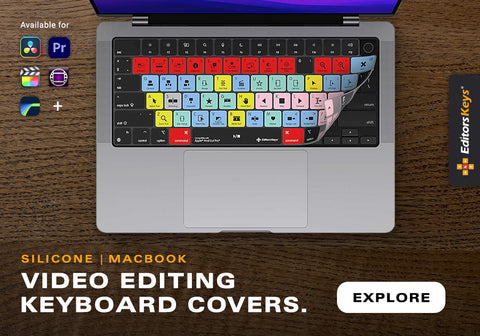
That's where the Editors Keys Final Cut Pro shortcut keyboards make a real difference.
Rather than placing stickers on your existing keyboard or trying to memorise every command from a cheat sheet, Editors Keys keyboards feature professionally printed shortcut icons directly on every key.
Whether you're just starting out or you're an experienced editor looking to improve speed, having every important Final Cut Pro shortcut visible beneath your fingertips dramatically shortens the learning curve.
Editors Keys offers both Wired and Wireless Backlit Final Cut Pro keyboards.
Editors Keys Wired Final Cut Pro Keyboard
The wired version offers a reliable, plug-and-play solution that's ideal for permanent editing workstations. With no batteries to charge and a dependable wired connection, it's perfect for editors who spend long hours working in Final Cut Pro every day.
Editors Keys Wireless Backlit Final Cut Pro Keyboard
For editors who prefer a cleaner desk setup or frequently work in different locations, the wireless backlit model combines cable-free convenience with illuminated shortcut keys. The adjustable backlighting makes it particularly useful when editing in darker studios or late into the evening, while the printed shortcuts remain clear and easy to read in any lighting conditions.

Both versions are designed to help editors develop muscle memory more quickly, allowing you to spend less time searching for commands and more time focusing on your edit.Many users find that after just a few weeks of using a dedicated shortcut keyboard, the most common commands become second nature—meaning you'll often continue benefiting from faster editing even when using a standard keyboard elsewhere.
Final Thoughts
Final Cut Pro is already one of the fastest non-linear editing platforms available, but knowing the right keyboard shortcuts unlocks even more of its potential.
From making instant cuts with ⌘ + B to rapidly assembling rough cuts using E, W and Q, these simple commands can dramatically speed up your workflow while helping you edit with greater confidence and precision.
Whether you're producing YouTube videos, short films, documentaries, commercial work or social media content, investing time in learning these shortcuts will pay dividends on every project you complete.
Pair them with an Editors Keys Wired or Wireless Backlit Final Cut Pro keyboard, and you'll have one of the simplest yet most effective ways to improve your editing speed, accuracy and overall workflow.