
If you've recently started using Avid Pro Tools and found that your keyboard shortcuts suddenly stop working, you're certainly not alone. It's one of the most common questions asked by new Pro Tools users, and in many cases the solution is surprisingly simple.
The culprit is often a small button located in the top-right corner of the Edit window labelled "A-Z". Understanding what this button does can save you a huge amount of frustration and help you unlock one of Pro Tools' most powerful workflow features.

What Is the A-Z Button in Pro Tools?
The A-Z button controls a feature called Keyboard Commands Focus.
When Keyboard Commands Focus is enabled, the A-Z button becomes highlighted in yellow. This transforms your standard computer keyboard into a collection of single-key editing shortcuts. Instead of holding multiple modifier keys such as Command, Control, Option or Shift, many commonly used Pro Tools functions can be triggered instantly with a single key press.
When the A-Z button is disabled and appears grey, these one-key shortcuts no longer work. As a result, users often believe their keyboard shortcuts have stopped functioning or that there is a problem with Pro Tools itself. In reality, Keyboard Commands Focus has simply been turned off.

Why Does This Confuse New Pro Tools Users?
Unlike many other audio and video editing applications, Pro Tools offers two different ways of accessing shortcuts.
Many software packages use traditional keyboard combinations such as:
-
Command + S for Save
-
Command + Z for Undo
-
Command + C for Copy
Pro Tools supports these standard shortcuts, but it also includes Keyboard Commands Focus mode, which introduces an entirely separate layer of single-key commands.
For example, with the A-Z button enabled, pressing a single key may:
-
Switch editing tools
-
Create fades
-
Zoom in or out
-
Navigate through a session
-
Perform editing functions
Because these shortcuts only work when Keyboard Commands Focus is active, new users can become confused when they suddenly stop responding. This often happens after accidentally clicking the A-Z button or opening a session on a different workstation where the setting is configured differently.
Free: the complete Pro Tools shortcuts PDF
Every default Pro Tools shortcut, including the full Commands Keyboard Focus layout. A4, printable, grouped by task. Pop your email in and we'll send it straight over.
We'll email the PDF straight over, then the occasional tip. Unsubscribe any time.
How to Check if Keyboard Commands Focus Is Enabled
If your shortcuts aren't behaving as expected, the first thing to check is the A-Z button.
Look in the upper-right corner of the Edit window.
If the button is:
Yellow: Keyboard Commands Focus is enabled and single-key shortcuts will work.
Grey: Keyboard Commands Focus is disabled and you'll need to use traditional shortcut combinations instead.
Simply click the button to toggle the feature on or off.
In many cases, this instantly solves the problem.

If you've modified your keyboard shortcuts with Pro Tools in the past...
You'll need to restore them to default in order for the keyboard to be fully compatible. To do this...
Step 1: Go to Set Up in the top menu bar and open up the Keyboard Shortcuts window. Or, use the shortcut Control/Cmd + Shift + K.
Step 2: Click Reset All
Step 3: Save the window if prompted

Why Keyboard Commands Focus Is So Powerful
Professional Pro Tools editors often rely heavily on Keyboard Commands Focus because it dramatically reduces the number of keystrokes required during editing sessions.
When you're editing dialogue, podcasts, music recordings or post-production projects, every second counts. Reaching for multiple modifier keys hundreds of times per day can slow down your workflow and interrupt your creative momentum.
Keyboard Commands Focus allows many frequently used functions to be executed instantly with a single finger. Over the course of a long editing session, these small time savings can add up to hours. This is one reason why experienced Pro Tools operators can often edit significantly faster than beginners. They're not necessarily working harder—they're simply making better use of Pro Tools' shortcut system.
Learning Pro Tools Shortcuts Faster
While Keyboard Commands Focus is incredibly useful, memorising dozens or even hundreds of shortcuts can feel overwhelming when you're first learning Pro Tools.
Many users find themselves constantly searching online for shortcut lists or digging through menus to remember which key performs a particular function. This is where dedicated shortcut keyboards can make a huge difference.
Instead of trying to memorise shortcuts from memory alone, you can see them directly on the keyboard in front of you. The more frequently you see and use a shortcut, the faster it becomes second nature.
Speed Up Your Workflow with Editors Keys Pro Tools Keyboards
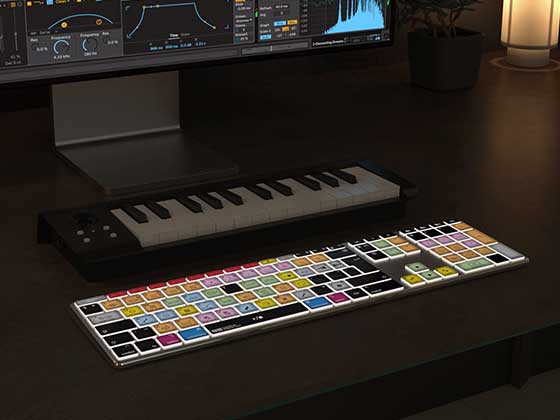
At Editors Keys, we design professional shortcut keyboards and keyboard covers specifically for creative software including Pro Tools.
Our Pro Tools shortcut keyboards display the most important commands directly on the keys, allowing users to locate tools and commands instantly without repeatedly searching through menus or reference guides.
Whether you're a beginner learning the software or a professional looking to work more efficiently, a dedicated shortcut keyboard can help:
Improve shortcut memorisation through daily use
- Reduce editing time
- Increase productivity
- Minimise interruptions to your workflow
- Build long-term muscle memory
Many users report that simply having the shortcuts visible on the keyboard helps them discover features and workflow techniques they previously didn't know existed.

Shortcut Keyboard Covers for Existing Setups
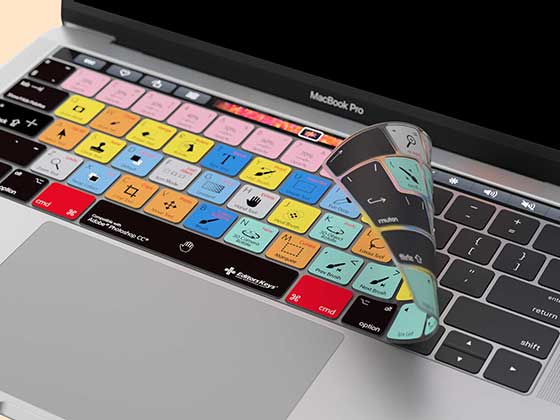
If you already have a keyboard you love, Editors Keys also offers silicone keyboard covers designed specifically for Pro Tools. These covers sit directly over your existing keyboard and provide clear shortcut labelling for the most commonly used commands. It's an affordable way to accelerate learning while maintaining your current workstation setup.
The Simple Fix Most Pro Tools Users Miss
If you've ever found yourself asking, "Why aren't my keyboard shortcuts working in Pro Tools?", the answer may be as simple as checking the A-Z button.
This small feature controls Keyboard Commands Focus and determines whether Pro Tools' powerful single-key shortcut system is active. Understanding how it works can eliminate confusion, improve editing speed and help you get more from the software.
Once you've enabled Keyboard Commands Focus, pairing it with an Editors Keys Pro Tools shortcut keyboard or keyboard cover can help you learn shortcuts faster, edit more efficiently and spend more time focused on your creative work rather than searching through menus.
If you're serious about improving your Pro Tools workflow, mastering Keyboard Commands Focus is one of the easiest and most effective places to start.