Final Cut Pro ships with hundreds of keyboard shortcuts, and almost nobody uses more than a dozen of them. That isn't laziness. It's that the full list lives buried in Apple's documentation, most of the cheat sheets floating around the internet were written for Final Cut Pro X years ago, and there's no obvious way to learn a shortcut you don't know exists.
So we built the reference we wanted. Every shortcut below was checked against Apple's Final Cut Pro User Guide for version 12.3, the current release as of July 2026. Nothing here is copied from an older cheat sheet, and nothing is guessed. There's a free printable PDF of the whole thing too.
The short answer
The Final Cut Pro shortcuts worth learning first are the four edit commands and the tool keys. E appends a clip to the end of your storyline, W inserts at the playhead, D overwrites, and Q connects a clip above the primary storyline. For tools, A is Select, B is Blade, T is Trim and R is Range Selection.
Learn those eight and you'll already be editing without reaching for a menu.
The 20 Final Cut Pro shortcuts worth learning first
Nobody learns three hundred shortcuts. What actually happens is that you learn a small core, they become automatic, and then you add more as you notice yourself reaching for a menu. These twenty are the core. Between them they cover the majority of what happens in a normal edit.
| What it does | Shortcut |
|---|---|
| Append a clip to the end of the storyline | E |
| Insert at the playhead | W |
| Overwrite at the playhead | D |
| Connect a clip above the primary storyline | Q |
| Blade at the playhead | Cmd + B |
| Set the range start | I |
| Set the range end | O |
| Select tool | A |
| Blade tool | B |
| Trim tool | T |
| Range Selection tool | R |
| Snapping on / off | N |
| Fit the whole timeline to the window | Shift + Z |
| Play around where you're parked | Shift + ? |
| Play / stop | Space |
| Shuttle backward, pause, forward | J K L |
| Add a marker | M |
| Rate a clip as a favourite | F |
| Add the default transition | Cmd + T |
| Detach audio from a clip | Control + Shift + S |
Want this as a printable PDF?
Everything on this page is free and staying free — the full list is below. But a browser tab is the wrong place for this the moment you're actually editing, with both hands on the keyboard.
So we've laid the same shortcuts out as a three-page printable PDF, colour-grouped like our keyboards and sized to be read at arm's length. Print it and pin it by the monitor, keep it open on an iPad, or take it on location where there's no wifi. It also carries the sections that would make this page unreadable — captions, multicam, roles, auditions, library and rendering.
Final Cut Pro Shortcuts — printable PDF
Three pages, A4, free. Every default shortcut grouped by task and verified against Apple's documentation for version 12.3. Designed to be printed once and pinned up.
Pop your email in below and we'll send it straight over — it usually lands within a minute.
We'll email you the PDF, and the occasional editing tip after that. Unsubscribe any time.
The rest of this page is the full list, grouped by the job you're doing.
What's on this page
- The 20 shortcuts worth learning first
- Get the printable PDF
- Why most Final Cut shortcut lists are out of date
- The seven timeline tools
- Playback and navigation
- The core edit commands
- Trimming and precision
- Marking, rating and organising
- Effects, titles and retiming
- Audio
- View and zoom
- How to make shortcuts actually stick
- If your keys don't match this list
- Frequently asked questions
Why most Final Cut shortcut lists are out of date
Search for Final Cut Pro shortcuts and you'll find dozens of cheat sheets. Open a few and you'll notice something: most of them still say "Final Cut Pro X", a name Apple stopped using in 2022. Some were written around version 10.4. They get copied, re-hosted, lightly reworded and copied again, and the errors travel with them.
That matters more than it sounds. A shortcut list is only useful if you can trust it completely — the moment you press a key and the wrong thing happens, you stop trusting the whole page and go back to the menus. We've seen the same problem from the other side: we make keyboards with shortcuts printed on the keys, and there is nowhere to hide when a key is wrong.
So the rule we work to, for the keyboards and for this page, is simple. Every shortcut is checked against Apple's own documentation for the current release, and if we can't verify it, it doesn't go in.
One more thing worth saying up front: everything below is Apple's default command set. That's deliberate. Defaults are what your colleague's machine uses, what the tutorial you're watching uses, and what's printed on a shortcut keyboard. Staying on them means every one of those things agrees with every other.
The seven timeline tools
Final Cut has seven tools in the Tools menu at the top-left of the timeline, and each has a single-letter shortcut. These are the highest-value keys on the whole keyboard, because you'll switch between them constantly.
| Tool | Key | What you'd use it for |
|---|---|---|
| Select | A | The default. Moving and selecting clips. |
| Trim | T | Ripple, roll, slip and slide edits. |
| Position | P | Placing a clip exactly, ignoring the magnetic timeline. |
| Range Selection | R | Selecting part of a clip, or across several. |
| Blade | B | Cutting clips by hand. |
| Zoom | Z | Zooming into a section of timeline. |
| Hand | H | Scrolling the timeline without moving anything. |
The trick most people miss: you don't have to tap these keys, you can hold them. Hold Z, click to zoom, release, and you're straight back to whatever tool you were using. Same with H. It turns tool switching from a decision into a reflex.
Playback and navigation
If you only ever fix one habit, make it this one: stop dragging the playhead with the mouse.
| Action | Shortcut |
|---|---|
| Play / stop | Space |
| Play forward | L |
| Pause | K |
| Play backward | J |
| Step one frame at a time | hold K + J or L |
| Previous / next frame | ← → |
| Previous / next edit point | ↑ ↓ |
| Play around the playhead | Shift + ? |
| Play selection | / |
| Play from beginning | Control + Shift + I |
| Play full screen | Shift + Cmd + F |
| Loop playback | Cmd + L |
| Skimming on / off | S |
| Audio skimming on / off | Shift + S |
| Go to start / end of project | Home End |
Play Around (Shift + ?) is the one editors are most surprised by. It jumps back a couple of seconds, plays through where you're parked, and stops — so you can judge a cut without ever losing your position. Once it's in your hands you'll use it hundreds of times a day.
The core edit commands
Four keys do most of the work of building a timeline. They sit together under your left hand, which is not an accident.
| Action | Shortcut |
|---|---|
| Append to storyline | E |
| Insert at the playhead | W |
| Overwrite | D |
| Connect to primary storyline | Q |
| Blade at the playhead | Cmd + B |
| Blade all clips at the playhead | Shift + Cmd + B |
| Delete and close the gap | Delete |
| Replace with a gap | Shift + Delete |
| Insert a gap clip | Option + W |
| Replace | Shift + R |
| Replace from start | Option + R |
| Detach audio | Control + Shift + S |
| Expand audio | Control + S |
| New compound clip | Option + G |
| Detect edits in a clip | Shift + E |
| Snapping on / off | N |
| Enable / disable a clip | V |
| Undo / redo | Cmd + Z Shift + Cmd + Z |
Worth clearing up: Blade is Command + B, not Control + B. A lot of cheat sheets have this wrong, and it's an easy one to inherit from an old page. Command-B cuts the clip under the playhead; add Shift to cut every clip at that point.
Trimming and precision
Trimming is where the difference between a mouse editor and a keyboard editor becomes obvious. Selecting an edit point with the bracket keys and nudging it with commas and full stops is far quicker than dragging, and far more precise.
| Action | Shortcut |
|---|---|
| Select the left edge of an edit | [ |
| Select the right edge of an edit | ] |
| Select both edges (roll) | \ |
| Nudge left / right one frame | , . |
| Nudge left / right ten frames | Shift + , Shift + . |
| Trim start to the playhead | Option + [ |
| Trim end to the playhead | Option + ] |
| Trim to the selected range | Option + \ |
| Extend edit to the playhead | Shift + X |
| Show / hide the precision editor | Control + E |
| Change duration | Control + D |
Marking, rating and organising
Everything below happens before you start cutting, and it's the stage where shortcuts save the most time — because you're doing the same handful of actions across hundreds of clips.
| Action | Shortcut |
|---|---|
| Set range start / end | I O |
| Clear range start / end | Option + I Option + O |
| Select the whole clip range | X |
| Select the clip under the pointer | C |
| Add a marker | M |
| Add a marker and name it | Option + M |
| Delete a marker | Control + M |
| Favourite / unrate | F U |
| Apply keyword 1 to 9 | Control + 1–9 |
| Remove all keywords | Control + 0 |
| Show favourites / hide rejected | Control + F Control + H |
The keyword trick: Control + 1 through 9 applies your first nine keyword tags. Set those up at the start of a project and you can log an entire card of rushes without touching the mouse — skim, press I and O, hit a number, move on.
Effects, titles and retiming
| Action | Shortcut |
|---|---|
| Add the default transition | Cmd + T |
| Add the default video effect | Option + E |
| Add the default audio effect | Option + Cmd + E |
| Connect the default title | Control + T |
| Connect a lower third | Control + Shift + T |
| Add an adjustment clip | Option + A |
| Copy / paste effects | Option + Cmd + C / V |
| Paste attributes | Shift + Cmd + V |
| Remove all effects | Option + Cmd + X |
| Show / hide the retime editor | Cmd + R |
| Reset retiming | Option + Cmd + R |
| Add a two-second hold | Shift + H |
| Add colour adjustment | Option + Cmd + O |
| Match colour | Option + Cmd + M |
| Add an Auto Mask | Control + Cmd + K |
| Add a Magnetic Mask | Control + Cmd + M |
Audio
| Action | Shortcut |
|---|---|
| Raise volume 1 dB | Control + = |
| Lower volume 1 dB | Control + – |
| Set volume to a specific level | Control + Option + L |
| Adjust volume by a relative amount | Control + L |
| Solo the selection | Option + S |
| Crossfade an audio edit | Option + T |
| Expand / collapse audio components | Control + Option + S |
View and zoom
| Action | Shortcut |
|---|---|
| Zoom in / out | Cmd + + Cmd + – |
| Fit the timeline to the window | Shift + Z |
| Fit clip heights vertically | Option + Shift + Z |
| Timeline scrolling on / off | Option + Shift + S |
| Find / timeline index | Cmd + F |
Shift + Z is the one to burn in. Whenever you lose your bearings in a long timeline, one keystroke puts the whole thing back on screen.
How to make shortcuts actually stick
Reading a list doesn't teach you anything. Muscle memory comes from repetition under mild pressure, which is a fancy way of saying you have to use a shortcut while you're actually trying to get work done.
Three things that work:
Pick two a week, not twenty. Write them on a sticky note, force yourself to use them even when the mouse would be quicker, and by Friday they're free. Twenty at once and you'll remember none.
Ban the mouse for one task. Log a card of rushes without touching it. You'll be slower for ten minutes and noticeably faster forever after.
Keep the reference in your eyeline, not in a window. This is the one that matters most. Alt-tabbing to a PDF breaks the exact concentration you're trying to protect — you've left the edit to look something up, and getting back takes longer than the lookup did. A printed reference next to the monitor is better. Shortcuts printed on the keys themselves are better again, because your eyes are already pointed at your hands.
Made by Editors Keys since 2005
The reference that never needs another window
Our Final Cut Pro keyboards and MacBook covers carry the same shortcuts you've just read, printed straight onto the keys and grouped by colour so you learn them by position rather than by memory. They're used by teams at the BBC, NASA, Warner Bros., Rockstar Games and Pinewood Studios, and every keyboard ships with a free three-year warranty.
 Backlit wireless keyboard Full-size, Mac, wired or wireless Backlit wireless keyboard Full-size, Mac, wired or wireless |
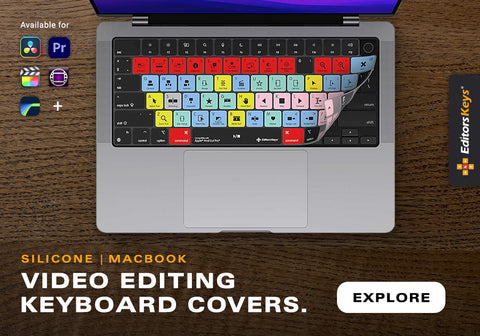 MacBook & iMac covers Silicone, protects and prints in one MacBook & iMac covers Silicone, protects and prints in one |
If your keys don't match this list
Every shortcut on this page is Apple's default command set. If something on your machine behaves differently, the command set has been changed at some point — they carry across updates and follow a user account from machine to machine, so it's common on shared or second-hand Macs and easy to inherit without realising.
To get back to standard, choose Final Cut Pro › Commands and select the Default set. Everything on this page, in Apple's documentation, in every tutorial you watch and on a shortcut keyboard will then agree with each other, which is the whole point of a default.
Want all of this on paper?
The printable three-page version is free, and includes captions, multicam, roles, auditions, library and rendering as well.
Get the printable PDF ↑Frequently asked questions
How many keyboard shortcuts does Final Cut Pro have?
Several hundred, once you count every command in Apple's default set including multicam angles, roles and keyword tags. The number matters far less than the grouping — most editors work comfortably with around thirty, and the rest are there when a specific job needs them.
What is the Blade shortcut in Final Cut Pro?
Command + B cuts the clip at the playhead or skimmer. Shift + Command + B cuts every clip at that position. Pressing B on its own switches to the Blade tool so you can cut by clicking. Some older guides list Control + B for this, which isn't correct in Apple's default set.
What's the difference between append, insert and overwrite?
Append (E) drops the clip at the end of the storyline regardless of where your playhead is. Insert (W) puts it in at the playhead and pushes everything after it further down the timeline. Overwrite (D) puts it in at the playhead and replaces whatever was already there, leaving the overall duration unchanged.
Can I print the Final Cut Pro shortcuts?
Yes — the PDF above is designed for it. Three A4 pages, grouped by task, readable at arm's length pinned next to a monitor.
Which Final Cut Pro version do these shortcuts apply to?
Version 12.3, released June 2026, which is the current release at the time of writing. The great majority have been stable across the Final Cut Pro X and Final Cut Pro releases, so they'll hold on older versions too, but we verify against the current one.
Do the shortcuts work on a MacBook keyboard?
Almost all of them. The exceptions are the ones using Home and End, which need the Fn key on a laptop layout, and anything on the numeric keypad. Everything else behaves identically.
Related reading
- 10 Final Cut Pro shortcuts that instantly make you a faster editor
- How much time can keyboard shortcuts actually save?
- Final Cut Pro keyboards and covers
Shortcuts verified against Apple's Final Cut Pro User Guide for Mac, version 12.3 (June 2026). Apple, Final Cut Pro and Mac are trademarks of Apple Inc. Editors Keys is not affiliated with Apple Inc.