If you are choosing video editing software in 2026, two names are almost impossible to avoid: DaVinci Resolve and Adobe Premiere Pro. Both are professional non-linear editing systems capable of handling everything from YouTube videos and social media content to commercials, documentaries, television and feature films. Both have sophisticated editing tools, colour correction, audio capabilities, visual effects and increasingly powerful AI features, yet the way they approach post-production is very different.
So, which is better: DaVinci Resolve or Premiere Pro? The honest answer is that neither is universally better. Premiere Pro remains an exceptionally powerful editing platform, particularly if you already work inside the Adobe Creative Cloud ecosystem, while DaVinci Resolve has developed from a specialist colour-grading application into one of the most comprehensive all-in-one post-production environments available.
For 2026, this comparison looks at DaVinci Resolve 21 and Adobe Premiere Pro 26.3, the current major desktop releases available at the time of writing. Resolve 21 introduced a major collection of new editing, colour, Fusion, Fairlight and AI features, while Premiere Pro 26.3 added improvements including single-word captions, faster Object Masking, Firefly Boards integration, new creative effects and improvements for large-scale Productions.
If you are currently deciding which application to learn, considering moving from one to the other, or simply wondering whether you should use both DaVinci Resolve and Premiere Pro in your workflow, this guide will break down the major differences and similarities.

DaVinci Resolve vs Premiere Pro: The Quick Answer
At a fundamental level, Premiere Pro is primarily an editing application surrounded by a huge ecosystem of Adobe creative tools, while DaVinci Resolve is an integrated post-production suite designed to handle editing, colour, visual effects and audio within a single application.
Premiere Pro is particularly attractive to editors who regularly use After Effects, Photoshop, Illustrator, Audition, Frame.io and other Adobe services. The ability to move between applications and combine them into a larger creative workflow is one of Premiere's biggest advantages. Adobe itself positions Premiere as part of a connected workflow with applications such as After Effects, Audition and Photoshop, as well as a large third-party ecosystem.
Resolve takes a different approach. Its Media, Cut, Edit, Fusion, Colour and Fairlight pages provide dedicated environments for different stages of post-production, but they all exist inside the same project. Blackmagic describes Resolve 21 as a solution combining editing, colour correction, visual effects, motion graphics and audio post-production, with the additional Photo page introduced in the latest version.
That distinction is important. If your work involves constant movement between Premiere Pro and After Effects, Premiere may feel like the more natural choice. If you want to import your footage, edit it, colour grade it, create effects, mix the audio and deliver the final master without leaving the application, Resolve has an enormous advantage.
DaVinci Resolve 21: What Makes It Different?
DaVinci Resolve has one of the most unusual histories of any modern video editing application. It began life primarily as a high-end colour correction and grading system used in professional post-production. Over time, Blackmagic Design expanded it dramatically, adding editing, Fusion visual effects and Fairlight audio post-production.
That history is still visible in the software. Resolve's Colour page remains arguably its defining feature, with node-based colour correction, advanced tracking, Power Windows, curves, qualifiers, HDR tools, colour management and extensive options for creating highly controlled looks. Resolve 21 also adds further improvements to colour workflows, including MultiMaster trim passes, layer-list node graphs and group versions.
However, it would be a mistake to think of Resolve as simply a colour-grading application. Its Edit page is now a serious professional editing environment, while the Cut page provides a faster alternative for assembling projects, particularly when working against deadlines or dealing with large quantities of footage.

Resolve also includes Fusion, a node-based environment for compositing, visual effects, titles, motion graphics and animation. Instead of sending a shot to After Effects, creating the effect and then bringing it back into your edit, you can perform the work directly within the Resolve project.
Then there is Fairlight, which provides a dedicated audio-post environment with mixing, effects, automation and other professional audio tools. This means Resolve can potentially take a project from camera originals all the way through to the finished master without requiring another application.
Premiere Pro 26.3: What Makes It Different?
Adobe Premiere Pro has a different philosophy. It is first and foremost an exceptionally mature non-linear video editing application, with a huge ecosystem surrounding it.
The timeline is at the heart of Premiere. It is particularly well suited to editors who spend most of their time assembling interviews, cutting narrative sequences, working with multiple camera angles, editing branded content, creating social videos or working on long-form projects. Its interface has become familiar to generations of editors, and its integration with other Adobe applications can be extremely powerful.
Premiere Pro 26.3, released in June 2026, introduced several useful improvements. Editors can now create single-word captions designed for fast-paced social media content, import media from Firefly Boards as ready-to-edit sequences, use the new Shape Dissolve transition and apply a new Magnify effect. Object Masking also received performance and reliability improvements.
The release also improved workflows for larger professional productions. Premiere's Productions workflow received changes that make project upgrades considerably faster, while workspace switching was improved and VRAM compatibility warnings were added to help identify systems that may not have enough graphics memory for demanding workflows.
This demonstrates one of Premiere's major strengths: Adobe continues to concentrate heavily on the practical needs of working editors, particularly those producing large amounts of content and working within established collaborative workflows.
Editing: Is Premiere Pro Better Than DaVinci Resolve?
This is one of the closest categories in the entire comparison.
Both applications provide professional trimming, ripple editing, rolling edits, slip and slide editing, multicam editing, markers, adjustment layers, keyframing, transitions, effects, proxies, captions and sophisticated timeline management. Both can handle professional formats and complex projects, so the choice often comes down to which interface and workflow make more sense to you.
Premiere Pro has traditionally had an advantage among editors who want a highly flexible timeline-centred workflow. Its editing environment is mature, familiar and deeply integrated with the rest of Adobe's ecosystem. Features such as Productions can also be particularly useful for large projects that need to be divided across multiple project files.
Resolve's Edit page has become considerably more competitive. Its Cut page is another major difference, providing a faster editing environment designed around speed and streamlined operation. Resolve 21 also introduced improvements to keyframing, graphic formats and multicam angle previews.
For a conventional editing workflow, there is no overwhelming winner. Premiere Pro may have the edge if you are already deeply invested in Adobe, while Resolve can be the better choice if you want your editing, grading, effects and audio to remain in one application.

Colour Grading: DaVinci Resolve Wins
If colour grading is an important part of your work, this is where the comparison becomes considerably easier.
DaVinci Resolve is the clear choice for advanced colour grading.
Premiere Pro's Lumetri Color tools are capable of producing excellent results. You can perform primary corrections, secondary corrections, curves, HSL adjustments, creative looks, LUT application, colour matching and a great deal more without leaving Premiere.
However, Resolve's Colour page was built around professional colour grading from the beginning. Its node-based workflow provides a much more flexible environment for constructing complex grades, and its tracking, masking, qualifiers, scopes, HDR tools and colour-management options make it particularly powerful when precise image manipulation is required.
This is not simply a theoretical advantage. Resolve continues to be used by professional colourists on high-end film and television projects. In 2026, senior colourist Dylan Hopkin used Resolve Studio throughout the digital intermediate pipeline for the Norwegian feature Kraken, including grading, online and finishing. He specifically highlighted Resolve's HDR grading tools for the film's Dolby Vision grade, saying they provided more precise control over micro-contrast and saturation across custom tonal zones.
That is a good illustration of where Resolve comes into its own. If you are a filmmaker who wants to spend significant time developing a cinematic look, matching cameras, controlling skin tones, building node trees and working in HDR, Resolve should be very high on your list.

Visual Effects and Motion Graphics: Resolve vs Premiere Pro
This category is more complicated because the real comparison is not simply Premiere Pro versus Resolve.
It is really Premiere Pro + After Effects versus Resolve + Fusion.
Premiere Pro itself contains a large collection of effects, transitions, keying tools, masking tools, compositing capabilities and motion-graphics functionality. However, for sophisticated motion graphics and visual effects, many Adobe users naturally move into After Effects.
Resolve approaches this differently by including Fusion directly within the application.
Fusion is a powerful node-based compositing environment capable of creating motion graphics, titles, screen replacements, visual effects, tracking, keying, compositing and much more. Resolve 21 expanded Fusion with the Krokodove toolset, adding more than 70 new graphics.
The choice therefore depends heavily on what you already know. If you are an experienced After Effects user, Adobe's workflow can be extremely difficult to beat. If you prefer the idea of keeping your entire project inside one application, Fusion is a compelling alternative.
For straightforward editing, you may never need either.
For serious motion graphics, however, Premiere Pro paired with After Effects and Resolve paired with Fusion are both powerful professional combinations.
Audio: Fairlight vs Premiere Pro
Audio is another area where Resolve has a significant advantage in terms of integration.
Premiere Pro includes a comprehensive set of audio tools, including track and clip effects, mixing, automation, Essential Sound tools, loudness controls, audio ducking and dialogue-processing capabilities. If you are producing YouTube videos, corporate films, documentaries or social content, you can complete a great deal of audio work without ever leaving Premiere.
Adobe's ecosystem also means you can move into Audition when you require a dedicated audio workstation.
Resolve instead gives you Fairlight directly inside the application. Fairlight is effectively a professional audio-post-production environment built into Resolve, with editing, mixing, automation, effects and routing capabilities.
Resolve 21 also improved Fairlight's organisation with folder functionality for managing and navigating audio tracks more efficiently.
For a solo creator, this can be incredibly convenient. You can edit your picture, open Fairlight, mix your audio, return to the edit and then go to Colour without exporting or round-tripping between applications.
AI Features in 2026: Premiere Pro vs DaVinci Resolve
Artificial intelligence has become one of the biggest areas of development in both applications.
Premiere Pro has embraced Adobe Firefly and AI-assisted editorial tools. Its recent releases include Object Masking, Media Intelligence, Generative Extend, automatic reframing, speech enhancement and caption-related tools. Generative Extend can create additional frames at the beginning or end of a clip when you need to cover a small gap, while Media Intelligence helps editors locate relevant footage using intelligent search. Adobe introduced Generative Extend and Media Intelligence as major additions to Premiere's AI-powered workflow.
Premiere Pro 26.3 continued that development with features such as single-word captions, improved Object Masking and Firefly Boards integration.
Resolve 21 has also significantly expanded its AI capabilities. Blackmagic's latest release introduces tools including IntelliSearch, which can search media based on content, CineFocus for AI-assisted focal-point adjustments and new facial refinement capabilities. Resolve's Neural Engine also powers tools such as Magic Mask and other intelligent image-processing functions, with many advanced AI features requiring Resolve Studio.
Rather than asking which application has "more AI", it is more useful to ask what you want AI to do.
Premiere's AI development is particularly compelling for editorial efficiency, media searching, masking, captions and content creation. Resolve's AI tools are particularly impressive when applied to colour, image manipulation, tracking, audio and post-production.
Which Has Better Colour Management?
Colour management has become increasingly important as cameras produce increasingly sophisticated log, RAW and HDR footage.
Premiere Pro has made significant progress here. Adobe's Premiere Colour Management is designed to simplify the process of bringing footage from different cameras into a consistent working environment, while Lumetri provides the tools required to make creative and technical adjustments.
Resolve, however, remains particularly strong for users working with log, RAW and HDR workflows. Its colour-management architecture, node system and extensive grading controls give colourists a huge amount of control over how footage moves through the pipeline.
This is particularly relevant if you are shooting with cameras such as Sony, Canon, Panasonic, Blackmagic, ARRI or RED and want to preserve as much control over the image as possible.
For creators who simply want to make their footage look good quickly, both applications are more than capable. For someone building a sophisticated professional colour pipeline, Resolve is generally the stronger choice.
Collaboration: Which Is Better for Teams?
For professional teams, the decision becomes less about individual features and more about the ecosystem surrounding the application.
Premiere Pro benefits enormously from Adobe's broader infrastructure. Productions, Team Projects, Frame.io, Creative Cloud Libraries and integration with applications such as After Effects and Photoshop can make it an attractive choice for agencies, production companies and creative teams already invested in Adobe.
Resolve has its own collaborative ecosystem through Blackmagic Cloud, allowing teams to collaborate around Resolve projects and media. Blackmagic has increasingly built Resolve around the idea that editing, grading, VFX and audio can happen within the same project rather than being separated into multiple applications.
Neither approach is inherently better. If your team already works with Adobe Creative Cloud and Frame.io, Premiere can make perfect sense. If your team wants a unified Resolve-based post-production pipeline, Resolve can be incredibly efficient.
DaVinci Resolve vs Premiere Pro: Pricing
Pricing is one of the biggest differences between the two.
DaVinci Resolve has a free version, and it is not simply a stripped-down demonstration of the software. The free edition is genuinely capable and can be used for serious editing projects. Blackmagic also offers DaVinci Resolve Studio as a paid upgrade, currently listed at £225 on its UK website. Studio adds advanced features including additional AI tools, effects, HDR functionality and other professional capabilities.
Premiere Pro follows Adobe's subscription model and is available through Creative Cloud plans rather than as a perpetual licence.
For someone starting out, the difference is significant. You can download Resolve and begin learning professional editing without committing to a monthly software subscription. For a freelancer who works primarily in Premiere, however, the subscription may be justified by the combination of Premiere, After Effects, Photoshop and the rest of the Adobe ecosystem.
The important thing is to look at the total cost of your workflow, rather than simply comparing the price of two applications.

DaVinci Resolve vs Premiere Pro for YouTube
For YouTube creators, both applications are excellent.
Premiere Pro is particularly attractive if your videos involve frequent use of Photoshop graphics, After Effects animations, Adobe Stock assets and other Creative Cloud tools. Its captioning, social-media workflows and AI tools also make it well suited to high-volume content production.
Resolve is particularly attractive to creators who want everything in one application. You can edit, colour grade, create effects and mix audio without paying for a separate collection of applications.
If you are producing cinematic YouTube content, travel films, documentaries or camera-heavy projects where colour is important, Resolve deserves serious consideration.
If you are producing fast-paced content where graphics, Photoshop assets, After Effects animations and Adobe's wider ecosystem are central to the process, Premiere Pro may fit more naturally.
DaVinci Resolve vs Premiere Pro for Film and Television
Both applications are capable of professional film and television workflows, but they tend to occupy different positions in the pipeline.
Premiere Pro is deeply established as an editorial platform and is used by professional editors working across film, television, advertising and online production. Adobe's own customer examples include professional editors such as Scott Waugh, editor of 6 Below: Miracle on the Mountain, who described the power of Premiere as "truly mind-blowing" and highlighted the technology's ability to support creativity.
Resolve is exceptionally strong in finishing, colour grading and post-production, and its use on high-end productions continues to expand. Recent examples include Kraken, while Blackmagic has also documented Resolve's use across Sundance projects and major feature-film workflows.
This is one reason you will often find both applications involved in professional productions. Premiere may be used for editorial while Resolve is used for colour grading and finishing. There is no rule saying that you have to choose one application forever.

Can You Use Premiere Pro and DaVinci Resolve Together?
Absolutely. In fact, for some editors, this is the best solution.
You might perform your main edit in Premiere Pro before sending the project through to Resolve for colour grading. Alternatively, you could edit and grade entirely within Resolve while using After Effects for a particularly complex motion-graphics sequence.
Professional post-production is often about using the right tool for the right job rather than choosing a single application and refusing to use anything else.
The important thing is understanding how projects move between applications. XML, AAF, EDL and other interchange workflows can be used depending on the specific requirements of the project, although complex effects, speed changes, transitions and third-party plugins may require additional checking when moving between systems.
For this reason, if you regularly collaborate with other editors or colourists, it is worth learning the basics of both applications even if one becomes your primary editor.
Which Is Easier to Learn?
Both applications have a learning curve.
Premiere Pro can feel more immediately familiar to someone who has used conventional timeline-based editing software before. Its interface is relatively straightforward to understand at a basic level, although the application becomes extremely deep once you start exploring advanced workflows, customisation, Productions, multicam editing, effects and professional finishing.
Resolve can initially feel more complicated because it is effectively several professional applications inside one interface. The Edit page is relatively approachable, but then you discover Fusion, Colour and Fairlight, each of which has its own terminology and workflow.
This can actually become one of Resolve's biggest strengths. Instead of learning five different applications, you can gradually develop your skills inside one environment.
For a complete beginner, Resolve's free version makes it an especially attractive way to learn professional video editing. For someone already familiar with Adobe applications, Premiere may provide the gentler transition.

DaVinci Resolve vs Premiere Pro: Performance
Performance depends heavily on the computer, footage, codecs, GPU, RAM, storage and project complexity, so blanket claims that one application is always faster should be treated with caution.
Both applications support proxy workflows, hardware acceleration and modern GPU-based processing. Both can handle demanding 4K workflows and significantly higher resolutions when paired with suitable hardware.
Resolve is particularly GPU-oriented, which can make a powerful graphics card extremely valuable for colour grading, Fusion and AI processing. Premiere also makes extensive use of GPU acceleration and continues to receive performance improvements, including faster workspace switching and improved media handling in recent releases.
If your computer struggles with either application, creating proxies, using optimised media, keeping media on fast storage and ensuring your system has adequate RAM and GPU resources can make a much bigger difference than simply switching software.
DaVinci Resolve vs Premiere Pro: Which Is Better for Colourists?
DaVinci Resolve.
This is probably the easiest recommendation in the entire comparison.
Resolve's entire history is rooted in colour science and professional grading, and its Colour page remains one of the most sophisticated environments available to colourists.
If colour grading is something you want to specialise in, learning Resolve is arguably essential. You can learn node-based grading, colour management, scopes, HDR, Power Windows, tracking, qualifiers and professional finishing techniques within the same application.
For editors who simply need basic correction, Premiere's Lumetri tools are more than sufficient.
Which Is Better for Video Editors?
For general video editing, it is much closer.
Premiere Pro has an exceptionally mature editorial workflow and an enormous professional user base. It is particularly compelling for editors who work alongside After Effects artists, graphic designers, Photoshop users and other Adobe professionals.
Resolve's editing tools are now sufficiently advanced that choosing it does not mean sacrificing professional editing capabilities. Its all-in-one approach can actually make it faster for certain workflows because you do not have to constantly move between applications.
The best editor is ultimately the one you can work fastest and most confidently in.
Which Is Better for Freelancers and Solo Creators?
For freelancers, Resolve is particularly difficult to ignore because of its free version and the amount of functionality available without a subscription.
A solo creator can shoot a project, edit it, create graphics, grade it, mix the audio and export it without necessarily needing another application.
Premiere Pro becomes more compelling if your freelance business already relies heavily on Adobe Creative Cloud. If you regularly create Photoshop artwork, After Effects animations, Illustrator graphics and Premiere edits, staying inside that ecosystem can save a tremendous amount of time.

Which Is Better for Professional Editors?
There is no single answer.
If a production company, agency or broadcaster already uses Premiere Pro, learning Premiere is likely to be the most practical career decision. Familiarity with established workflows, project structures and Adobe applications can be extremely valuable.
If you want to work in colour grading, finishing, independent filmmaking or all-in-one post-production, Resolve is an outstanding skill to develop.
And increasingly, there is a third answer: learn both.
Understanding Premiere Pro makes it easier to collaborate with editors and production teams using Adobe, while understanding Resolve gives you valuable knowledge of professional colour, finishing and post-production.
A Simple Comparison: DaVinci Resolve vs Premiere Pro
| Feature | DaVinci Resolve 21 | Premiere Pro 26.3 |
|---|---|---|
| General video editing | Excellent | Excellent |
| Professional timeline editing | Excellent | Excellent |
| Colour grading | Outstanding | Very good |
| Visual effects | Excellent via Fusion | Excellent with After Effects |
| Motion graphics | Excellent via Fusion | Excellent with After Effects |
| Audio post-production | Excellent via Fairlight | Very good, with Audition integration |
| AI tools | Excellent | Excellent |
| HDR workflow | Excellent | Excellent |
| Multicam editing | Excellent | Excellent |
| Proxy workflow | Excellent | Excellent |
| Creative Cloud integration | Limited | Outstanding |
| After Effects integration | No direct equivalent | Outstanding |
| Photoshop integration | Limited | Outstanding |
| Free version | Yes | No |
| Paid model | One-off Studio licence | Subscription |
| All-in-one workflow | Excellent | Requires other Adobe applications for advanced work |
| Beginner-friendly | Good | Good |
| Best for colourists | Resolve | — |
| Best for Adobe-based teams | — | Premiere Pro |
| Best for solo creators | Resolve | Excellent |
| Best for established Adobe workflows | — | Premiere Pro |
Don't Forget the Keyboard: Speed Matters as Much as Software
Once you become comfortable with either Premiere Pro or DaVinci Resolve, one of the biggest ways to improve your editing speed is to stop relying so heavily on the mouse.
Professional editing is built around shortcuts. Commands such as cutting, trimming, moving between edits, adding markers, navigating the timeline, switching tools and controlling playback can all be performed considerably faster when your hands remain on the keyboard.

This is where a dedicated Editors Keys shortcut editing keyboard can make a noticeable difference.
Rather than forcing you to memorise hundreds of commands or repeatedly search through menus, Editors Keys keyboards have the shortcuts for your chosen application printed directly onto the keys and colour-coded by function. This makes it much easier to learn shortcuts through repetition while keeping commonly used commands immediately visible.
For Resolve users, the dedicated Editors Keys DaVinci Resolve AB10 keyboard features more than 150 Resolve shortcuts mapped directly onto the keyboard, covering functions across the Edit, Colour and Fairlight environments. It is available as the AB10 Air wireless backlit keyboard or the AB10 Core wired USB-C backlit keyboard.

For Premiere Pro editors, the dedicated Editors Keys Premiere keyboard features more than 100 Premiere Pro shortcuts, with colour-coded commands printed directly onto the keys. It is also available as the AB10 Air wireless model or AB10 Core wired USB-C model.
Shop Premiere Pro Shortcut Keyboards from Editors Keys
The AB10 Air is particularly useful if you move between multiple computers or want a clean, cable-free editing desk. It can connect to up to three devices and features adjustable backlighting, making it useful in darker edit suites as well as conventional desktop environments. The AB10 Core, meanwhile, connects directly via USB-C, requires no battery and is designed for editors who prefer the reliability of a wired keyboard.
Turn Your MacBook or iMac Keyboard into an Editing Keyboard
If you already like the keyboard on your MacBook or iMac and do not want to replace it, another option is an Editors Keys silicone shortcut keyboard cover.
The covers are designed to sit directly over compatible Mac keyboards, adding colour-coded editing shortcuts while also providing protection against dust, dirt and accidental spills. They are particularly useful for editors who work on a MacBook Pro or iMac and want the shortcut information immediately in front of them without buying a separate keyboard.
Editors Keys produces dedicated covers for DaVinci Resolve, with shortcuts covering editing, colour correction and other common Resolve functions. They are made from thin silicone and designed to fit compatible MacBook and iMac keyboards.
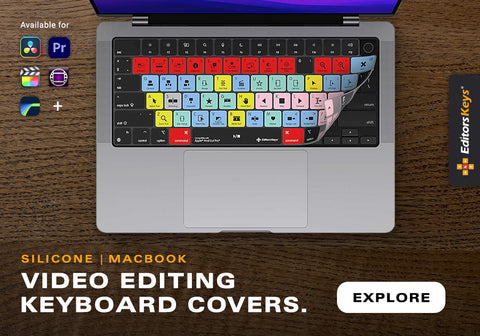
This is particularly useful for people learning a new editing application. Rather than constantly reaching for a shortcut cheat sheet, you can simply look down at your keyboard and see the command you need. Over time, repeated use helps build muscle memory, meaning you should eventually find yourself using the shortcuts automatically.
So, Should You Choose DaVinci Resolve or Premiere Pro in 2026?
The biggest mistake is to assume there is one universally superior video editing programme.
Choose DaVinci Resolve 21 if colour grading is a major part of your work, you want powerful editing, VFX and audio tools inside one application, you want access to a genuinely capable free version, or you want to develop professional colour and finishing skills.
Choose Premiere Pro 26.3 if you already work within Adobe Creative Cloud, rely heavily on After Effects and Photoshop, collaborate with Adobe-based production teams, or prefer Premiere's established editorial workflow.
And if you are serious about becoming a professional video editor, there is a strong argument for learning both. Premiere Pro remains an important professional editing platform, while Resolve has become far more than a colour-grading application and is now a complete post-production environment.
The good news is that choosing one does not permanently lock you into it. Modern post-production workflows can involve Premiere Pro, Resolve, After Effects, Photoshop, Audition and other specialist tools depending on the project.
Ultimately, the best video editing software is the one that allows you to spend less time fighting the software and more time making creative decisions. Learn the fundamentals of editing, become fluent with keyboard shortcuts, understand colour and audio, and develop a workflow that suits the work you actually want to produce.
Whether you ultimately choose Premiere Pro, DaVinci Resolve or a combination of both, the most important investment is not simply the software itself. It is learning how to use it quickly, efficiently and creatively.
And that is exactly where a dedicated shortcut keyboard or silicone keyboard cover can help. Once your most-used editing commands are directly in front of you, you can keep your hands on the keyboard, reduce unnecessary mouse movements and gradually build the shortcut muscle memory that separates a technically competent editor from a genuinely fast one.
Explore the full Editors Keys shortcut keyboard and cover range