If you're editing in DaVinci Resolve 21 in 2026, learning keyboard shortcuts is one of the quickest ways to become a faster, more efficient editor. Whether you're creating YouTube videos, documentaries, wedding films, commercials or feature-length productions, every second spent reaching for your mouse quickly adds up over the course of a project.
Professional editors rarely rely solely on clicking through menus. Instead, they build muscle memory for the commands they use hundreds of times every day. A shortcut that saves just one second may not sound significant, but if you use it several hundred times during an edit, it can easily save hours across a week's work.
In this guide, we'll cover 25 of the most useful DaVinci Resolve keyboard shortcuts available in the latest version of Resolve. These shortcuts are all current for DaVinci Resolve 21 and remain some of the most valuable tools for speeding up professional editing workflows.

Why Learn DaVinci Resolve Keyboard Shortcuts?
Keyboard shortcuts offer far more than convenience.
They help you maintain concentration because you're spending less time searching through menus. Your hands remain on the keyboard, your eyes stay focused on the timeline, and editing becomes much more fluid.
The benefits include:
-
Faster editing sessions
-
More precise timeline control
-
Less repetitive mouse movement
-
Better consistency across projects
-
Improved creative flow
-
Reduced editing fatigue
Many editors report that once they become comfortable with shortcuts, it's almost impossible to go back to mouse-only editing.
Free: the complete DaVinci Resolve shortcuts PDF
Every default Resolve shortcut, grouped by page, including the colour trim keypad. A4, printable, grouped by task. Pop your email in and we'll send it straight over.
We'll email the PDF straight over, then the occasional tip. Unsubscribe any time.
1. Spacebar — Play / Pause
Shortcut: Space
This is easily the most frequently used shortcut in DaVinci Resolve.
You'll press Space constantly while reviewing footage, checking cuts, monitoring transitions and watching exports.
Although incredibly simple, eliminating even a tiny movement to the mouse hundreds of times a day makes a noticeable difference to editing speed.
2. J, K and L — Professional Playback Controls
Shortcuts:
-
J = Play backwards
-
K = Stop
-
L = Play forwards
These three keys are used by editors across almost every professional editing platform.
Even better:
-
Press L repeatedly to increase playback speed.
-
Press J repeatedly for faster reverse playback.
-
Hold K while pressing J or L to move through footage frame by frame during trimming. (Blackmagic Design Documents)
Learning JKL playback alone can dramatically improve footage review.
3. I — Mark In Point
Shortcut: I
Marking an In point tells Resolve exactly where a clip should begin.
This becomes incredibly useful when performing three-point edits, selecting only the footage you actually need instead of dragging entire clips onto the timeline.
4. O — Mark Out Point
Shortcut: O
Works alongside the In point.
Together, I and O allow you to isolate the precise section of footage you want before inserting it into your timeline.
Professional editors rely on this constantly.
5. Ctrl+B (Windows) / Cmd+B (Mac) — Split Clip
Shortcut:
-
Windows: Ctrl+B
-
Mac: Cmd+B
This cuts the selected clip at the playhead.
You'll use it for:
-
Removing mistakes
-
Creating B-roll cuts
-
Syncing edits
-
Making room for transitions
-
Cutting interviews
It's probably the most-used editing shortcut after Play.

6. Shift + Delete / Shift + Backspace — Ripple Delete
Shortcut:
-
Removes the selected clip
-
Automatically closes the gap
Instead of deleting a clip and then manually moving everything together, Ripple Delete keeps your timeline clean instantly. (DaVinci Shortcuts)
7. Delete
Deletes selected clips without automatically closing the gap.
This is useful when you intentionally want to leave empty space for timing purposes.
8. F9 — Insert Edit
Adds your selected source clip at the playhead while pushing existing clips further down the timeline.
Perfect for documentaries, interviews and assembling rough cuts.
9. F10 — Overwrite Edit
Rather than pushing clips along, Overwrite replaces whatever currently exists.
Ideal for replacing B-roll or updating shots without affecting timing.
10. Shift+F12 — Append to End
This instantly places your selected clip at the end of your timeline.
Perfect when building rough edits from large amounts of footage.
Many editors barely touch the mouse during assembly because of this shortcut.

11. N — Toggle Snapping
Shortcut: N
Snapping helps clips align perfectly with:
-
Other clips
-
Markers
-
Playhead
-
Timeline edges
Sometimes you'll want snapping disabled for precise adjustments.
Instead of hunting for the snapping button, simply press N.
12. T — Trim Mode
Shortcut: T
Trim Mode is designed specifically for refining edit points.
Once activated you can make extremely accurate adjustments to clip boundaries.
Professional editors spend almost as much time trimming as they do making cuts.
13. A — Selection Tool
Shortcut: A
Returns you to the normal selection tool.
If you've switched into Trim Mode or another editing tool, pressing A immediately returns to standard editing.
14. D — Enable or Disable Clip
Shortcut: D
Need to compare two shots?
Want to temporarily remove a clip without deleting it?
Disable it.
Resolve simply ignores disabled clips during playback while leaving them in place.
15. Up Arrow — Previous Edit
Shortcut: ↑
Moves directly to the previous edit point.
Excellent for checking pacing throughout an entire sequence.

16. Down Arrow — Next Edit
Shortcut: ↓
Moves instantly to the next edit.
This becomes incredibly useful when reviewing cuts across long timelines.
17. Ctrl+A / Cmd+A — Select All
A familiar shortcut that remains just as useful inside Resolve.
Perfect when:
-
Moving entire timelines
-
Copying projects
-
Applying bulk changes
-
Deleting everything from a timeline
18. Ctrl+S / Cmd+S — Save Project
Never rely solely on auto-save.
Professional editors develop the habit of pressing Save almost subconsciously.
When working on client projects, this habit can save hours of frustration.
19. Ctrl+Z / Cmd+Z — Undo
Everyone makes mistakes.
Undo allows you to instantly reverse almost any previous action.
You'll likely press this hundreds of times during larger projects.
20. Ctrl+Y (Windows) / Cmd+Shift+Z (Mac) — Redo
Changed your mind?
Redo restores an action you've just undone.
Together with Undo, these shortcuts make experimentation much safer.

21. Shift+Z — Zoom Timeline to Fit
Large timelines quickly become difficult to navigate.
Shift+Z instantly zooms the entire timeline to fit within your screen, making it much easier to see the structure of your edit. (DaVinci Shortcuts)
22. Ctrl+= / Cmd+= — Zoom In Timeline
Need to make frame-accurate edits?
Zoom in for greater precision.
This shortcut is invaluable when trimming dialogue or syncing audio.
23. Ctrl+- / Cmd+- — Zoom Out Timeline
The opposite of Zoom In.
Quickly gain a wider overview of your project before jumping back into detailed editing.
24. Shift+4, Shift+5, Shift+6, Shift+7 & Shift+8 — Switch Resolve Pages
DaVinci Resolve's page-based workflow is one of its biggest strengths.
These shortcuts let you jump instantly between:
-
Shift+4 — Edit
-
Shift+5 — Fusion
-
Shift+6 — Colour
-
Shift+7 — Fairlight
-
Shift+8 — Deliver
Instead of clicking across the interface, you can move through your entire post-production workflow almost instantly. (DaVinci Shortcuts)

25. Alt+S (Windows) / Option+S (Mac) — Add Serial Node (Colour Page)
One of the most important shortcuts for colour grading.
Adding serial nodes allows you to separate different grading adjustments such as:
-
Exposure
-
White balance
-
Contrast
-
Skin tones
-
Secondary corrections
-
Creative looks
Building node trees efficiently is essential for professional grading workflows.
Bonus Tip: Create Your Own Custom Keyboard Shortcuts
One of Resolve's biggest strengths is its customisation.
If you find yourself repeatedly clicking the same menu command, there's a good chance you can assign your own shortcut.
Open: Keyboard Customisation
and create shortcuts that perfectly match your editing style.
Many professionals even customise Resolve to resemble Premiere Pro, Final Cut Pro or Avid Media Composer when switching between applications.
Take Your Editing Even Further with an Editors Keys DaVinci Resolve Keyboard
Learning shortcuts is only half the battle.
Remembering dozens—or eventually hundreds—of keyboard commands can take time, particularly if you're new to DaVinci Resolve. That's where an Editors Keys DaVinci Resolve Keyboard can make a huge difference.
Instead of memorising every shortcut, each key is clearly colour-coded and labelled with the corresponding Resolve command. This means you can glance down, find the shortcut you need instantly, and gradually build muscle memory without interrupting your workflow.

Whether you're trimming interviews, colour grading cinematic footage, editing YouTube videos or producing commercial work, having the shortcuts visible directly on your keyboard can significantly reduce the learning curve.
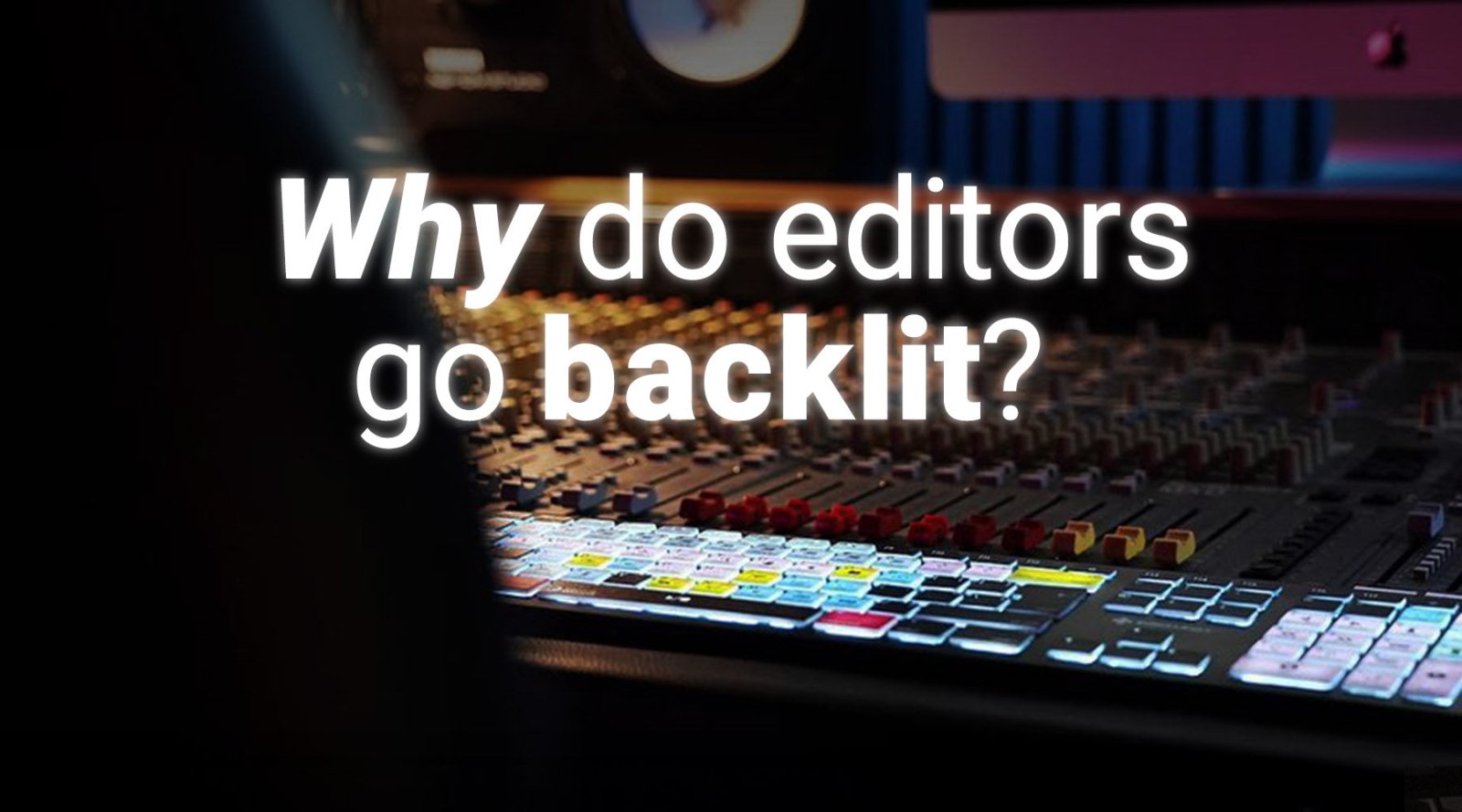
Editors Keys also offers both wired and wireless backlit keyboards, making them ideal for editors working in darker studios or on late-night editing sessions. Combined with the shortcuts covered in this guide, they can help speed up your workflow while making Resolve feel much more intuitive.
Final Thoughts
DaVinci Resolve continues to grow into one of the most powerful editing platforms available in 2026, and mastering keyboard shortcuts remains one of the simplest ways to become a faster editor. You don't need to memorise all 25 shortcuts overnight!
Start with the ones you'll use every few minutes—such as Space, JKL playback, Split Clip, Ripple Delete, Insert Edit, Overwrite Edit, Trim Mode, and Snap. Once these become second nature, gradually introduce the others into your workflow.
Over time, you'll spend less time searching menus, less time reaching for the mouse, and more time focusing on the creative side of editing.
Whether you're producing content for YouTube, social media, corporate clients or feature-length productions, these shortcuts can genuinely save hours over the course of a single project. And when paired with an Editors Keys DaVinci Resolve keyboard, you'll be able to learn, remember and execute them even faster, helping you edit with greater confidence and efficiency.