Avid Media Composer remains one of the most widely used editing systems in professional film, television and post-production. For assistant editors, knowing the basics is only part of the job. Managing large amounts of media, preparing projects for editors, organising bins, synchronising audio and keeping sequences running smoothly can all take considerable time, particularly on productions with tight deadlines.
Fortunately, Avid Media Composer includes a range of lesser-known features and workflow techniques that can make these tasks considerably easier. Whether you're preparing dailies, organising a project for handover or helping an editor work through a complex sequence, learning a few of these tools can save time and reduce the risk of mistakes.

1. Use Group Clips to Speed Up Multicamera Editing
When working with interviews, performances or scenes recorded using multiple cameras, synchronising footage manually can become a time-consuming task. Avid Media Composer's multicamera tools allow assistant editors to organise several camera angles into a single group clip, making it much easier for the editor to switch between them during playback.
To create a group clip, select the relevant master clips in a bin and use their synchronisation information, such as matching timecode or an audio waveform, to establish a common sync point. Depending on the Media Composer version and workflow, you can create a group clip using the appropriate command in the Clip menu or bin context menu. Once the group clip has been created, open it in the Source Monitor and use the multicamera editing controls to view and switch between camera angles.
This is particularly useful when preparing multicamera interviews, music performances or dialogue scenes. Rather than forcing the editor to manage individual camera files, you can deliver clearly organised group clips that are ready for cutting. Before grouping, check that the source clips have consistent timecode or suitable synchronisation points, and confirm that the correct audio source is being used.

2. Master Advanced Bin Organisation and Custom Columns
Bins are central to an efficient Avid workflow, but their full potential is easy to overlook. Assistant editors frequently deal with hundreds or thousands of clips, so keeping media organised is essential for helping the editor locate the right shot quickly.
Custom bin columns allow you to display and organise information beyond the standard clip name, duration and start time. Depending on the project and media type, useful fields can include scene, take, camera, tape or source identifiers, comments and other metadata. You can also use custom columns to record information that is important to your production, such as whether a clip has been checked, whether sound has been synchronised or whether a particular shot has been selected.
To make the most of this feature, open a bin in Text view and customise the displayed columns using the bin's column headings or settings. You can then populate relevant fields and sort clips by the information that matters to your workflow. For example, sorting by scene and take can make it much easier to compare performances, while sorting by camera can help when checking coverage.
Consistent naming conventions and metadata are especially valuable when handing a project to another editor. A well-organised bin reduces time spent searching for footage and helps everyone understand what the media contains without repeatedly opening individual clips.
3. Use Find and Advanced Search to Locate Media Quickly
Searching through large projects manually is an inefficient way to work, particularly when an editor needs a specific shot during a review or you are troubleshooting a missing source clip. Avid's Find functionality can help you locate clips and other project items using their names and available metadata.
Rather than opening every bin individually, use the Find command and enter a distinctive part of the clip name or relevant metadata. Where supported by your version and search settings, you can narrow the search to particular bins or project areas. Searching for a scene number, camera identifier or take number can be especially useful when productions use consistent naming conventions.
For assistant editors, this becomes even more powerful when combined with organised bins and populated metadata columns. If an editor asks for a particular take, for example, you can search using its scene and take identifiers rather than navigating through multiple folders. It is worth agreeing on a consistent naming system early in a project, as the quality of your search results depends heavily on how the media is labelled.
4. Learn Match Frame and Reverse Match Frame
Match Frame is one of the most useful commands in Media Composer, yet it can be overlooked by editors who rely heavily on manual searching. It allows you to locate the original source frame corresponding to a shot in your sequence, making it easier to inspect the source material, check surrounding footage or retrieve alternative takes.
Position the playhead over a clip in the timeline and use the Match Frame command to load the corresponding source frame into the Source Monitor. You can then review the original media, find a different moment from the same recording or check the available handles around an edit.
Reverse Match Frame provides the complementary workflow, helping you locate a sequence occurrence associated with a source clip, where supported by the relevant command and editing context. This is useful when investigating where a particular shot has been used or checking how a source clip relates to an existing edit.
For assistant editors, these commands are particularly valuable when responding to editorial requests. If an editor wants a longer version of a shot, an alternative moment or confirmation of the original source, Match Frame can take you directly to the relevant material without searching through the entire project.
5. Use Locators to Improve Communication Between Editors
Locators provide a straightforward way to attach notes to specific points in a sequence or source clip. They are useful for marking potential problems, identifying moments that need attention and communicating editorial information without relying on separate documents or long email threads.
To add a locator, position the playhead at the relevant frame and use the locator command available in your keyboard mapping or the appropriate menu. You can then add a colour or label, where supported, and enter a short note describing the issue or instruction.
An assistant editor might use locators to flag a possible audio sync problem, identify a shot that requires a replacement, highlight a continuity concern or mark a section that needs further review. On a large production, establishing a consistent colour-coding system can make these notes easier to interpret.
Locators should be used alongside clear communication and appropriate version control, rather than as a substitute for formal notes when a production requires them. Their main advantage is that the information stays attached to a relevant point in the media or sequence, making it easier for the editor to investigate the issue in context.

6. Create Subclips to Make Long Recordings Easier to Manage
Long recordings can be difficult to navigate, particularly when working with extended interviews, documentary footage, performances or unscripted material. Subclips allow you to identify useful sections of a longer source clip and make them easier to organise and review.
Load the original clip into the Source Monitor, identify the section you want to isolate, and mark its In and Out points. You can then create a subclip using the relevant command in Media Composer. The subclip appears as a separate item in the bin, allowing you to name it, add metadata and organise it alongside other selected material.
For example, an assistant editor working on a documentary could create subclips for individual interview answers, key moments in an event or particularly useful reactions. Instead of asking the editor to search through an hour-long recording, you can provide a collection of clearly labelled sections ready for review.
Subclips can make large amounts of footage much more manageable, but they should be labelled carefully. Include useful identifiers such as the subject, scene or topic, and make sure the editor can still trace each subclip back to its original source.
7. Understand Media Relinking Before a Project Goes Offline
Relinking is an essential skill for assistant editors working with projects that move between workstations, storage systems or stages of post-production. If media becomes offline, the problem may be caused by a disconnected drive, a changed folder structure or a mismatch between the media available and the files referenced by the project.
Before attempting to relink, check that the relevant storage is mounted, the media files are accessible and the project is looking in the correct location. Then select the appropriate offline clips or sequences and use the Relink command to search for the corresponding media. The available options can vary according to the Media Composer version and the type of media involved.
Take particular care when relinking to alternative resolutions or different versions of media. Matching criteria such as source names, timecode and other identifying information can affect which files are selected. If the project contains proxies and high-resolution camera originals, confirm that the intended media is being linked before continuing to edit.
A good assistant editor should also maintain clear media folder structures and follow the production's established naming and storage conventions. Relinking is often straightforward when a project has been prepared properly, but inconsistent file names and poorly documented media moves can make recovery considerably more difficult.
8. Take Advantage of Keyboard Customisation
Avid Media Composer is built around keyboard-driven editing, and customising your shortcuts can make everyday tasks faster and more consistent. Commands such as Mark In, Mark Out, Match Frame, Add Edit, trimming and playback control are used repeatedly throughout the editing process. Reducing the time spent navigating menus allows you to concentrate on the footage and the task at hand.
Media Composer provides a Keyboard settings panel where you can view and customise the commands assigned to keys. Open the Settings area in your project window, locate the Keyboard settings and review the available mappings. You can drag supported commands onto keys to create a layout that suits your workflow, although the exact procedure and available commands depend on your version and configuration.
It is worth learning the default shortcuts before making extensive changes, particularly if you regularly work on different systems or share projects with other editors. A consistent keyboard layout makes it easier to move between workstations without having to relearn basic commands.
For assistant editors, keyboard shortcuts are particularly helpful when processing large volumes of footage, organising media and preparing sequences for handover. The more frequently you use a command, the more valuable it becomes to have that function readily available.
9. Speed Up Your Workflow with an Editors Keys Avid Media Composer Keyboard
Once you begin relying on keyboard shortcuts, remembering every command can become a challenge. Avid Media Composer has a large range of editing functions, and constantly checking shortcut lists or navigating menus can interrupt your concentration, especially when switching between different tasks.
Editors Keys produces shortcut editing keyboards and silicone keyboard covers designed to help you work more efficiently in Avid Media Composer. Rather than relying on memory alone, you can see the relevant editing shortcuts mapped directly onto the keys, making commands easier to identify and helping you develop muscle memory as you work.
For editors who want a dedicated keyboard, the Editors Keys AB10 Air Wireless Backlit Shortcut Keyboard for Avid Media Composer offers a wireless setup with backlit keys, making it useful for editing suites and workstations where a clean desk and visible key legends are important. The Editors Keys AB10 Core Wired USB-C Backlit Shortcut Keyboard for Avid Media Composer provides a wired alternative with USB-C connectivity and backlit keys.
Both keyboards are designed to make frequently used commands easier to find, helping you spend less time looking up shortcuts and more time working on your project. The backlighting is particularly useful in dimly lit editing rooms, while the printed shortcut legends can help newer Media Composer users learn commands more quickly.
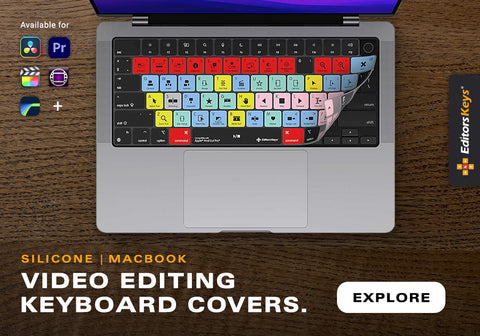
Editors Keys also offers silicone keyboard covers for compatible keyboards and software configurations. These covers display editing shortcuts directly over the keys while retaining the familiar feel of your existing keyboard. They can be particularly useful if you prefer to keep your current hardware or need a portable solution that you can use across different editing environments. Depending on the model, a silicone cover can also help protect the keyboard against dust and light spills.
For assistant editors, who often spend long periods logging footage, creating subclips, checking sync and preparing sequences, having shortcuts clearly displayed can make repetitive work more comfortable and efficient. Explore the Editors Keys Avid Media Composer range at EditorsKeys.com to find a shortcut keyboard or silicone cover that suits your editing setup.
Work Smarter in Avid Media Composer
Being an effective assistant editor means more than understanding the technical side of Media Composer. It also means preparing projects carefully, maintaining clear organisation and making it as easy as possible for the editor to find the material they need. Features such as group clips, custom bin columns, Match Frame, locators, subclips and relinking can all help streamline post-production when used consistently.
Combining these tools with a well-planned keyboard shortcut workflow can save time across an entire production. Whether you are assisting on a feature film, television series, documentary or independent project, taking the time to master these lesser-known techniques will help you work more efficiently and deliver better-prepared projects.
If you want to make shortcuts easier to learn and use every day, explore the Editors Keys AB10 Air Wireless and AB10 Core Wired USB-C backlit shortcut keyboards, alongside the range of silicone keyboard covers for compatible editing setups. Having the commands you use most often clearly mapped onto your keys can help you build confidence, improve your workflow and spend more time concentrating on the edit.