
Whether you're editing a feature-length video, mixing an album or spending hours working through a complex post-production project, your desk setup can make a huge difference to your productivity, comfort and creativity. A well-organised editing workstation helps you work efficiently, keeps your equipment within easy reach and makes those longer editing sessions much more comfortable.
The ideal editing desk isn't necessarily the most expensive one. A few carefully chosen upgrades, from an ergonomic chair and monitor stand to ambient lighting and a dedicated editing keyboard, can transform your workspace.
Here are some essential items and practical tips to help you build the ultimate editing desk, whether you're a video editor, music producer, audio engineer or creative professional.

1. Start With a Good Editing Desk
Your desk is the foundation of your workstation, so it's worth choosing one that gives you enough room to work comfortably. Video editors might need space for multiple monitors, external storage, control surfaces and a keyboard, while music producers may need additional room for MIDI keyboards, audio interfaces, studio monitors and other recording equipment.
Look for a desk with enough depth to position your monitors at a comfortable viewing distance without having everything pushed right to the edge. Cable management is another important consideration. Built-in cable trays, clips and discreet storage compartments can help keep USB cables, power supplies and audio connections organised.

If you regularly switch between sitting and standing, consider an adjustable standing desk. Being able to change your working position throughout the day can help reduce the discomfort associated with remaining seated for extended periods. However, remember that standing all day isn't necessarily better than sitting all day. The real benefit comes from regularly changing positions.
2. Invest in an Ergonomic Chair
A comfortable chair is one of the most important investments you can make in an editing workstation. Sitting in an unsuitable chair for several hours can contribute to back discomfort, shoulder tension and poor posture.
Look for an ergonomic office chair with adjustable seat height, lumbar support, a supportive backrest and adjustable armrests. Your feet should rest flat on the floor, with your knees roughly level with your hips. Your lower back should feel supported rather than having to compensate for a slouched sitting position.

Adjustable armrests are particularly useful for video editors and music producers who spend considerable time using a mouse, keyboard or control surface. Ideally, your shoulders should remain relaxed and your elbows should sit comfortably close to your body.
You don't necessarily need an expensive gaming chair covered in branding. A properly adjustable office chair designed for long working sessions will often be a better investment.
3. Get Your Monitor Height and Position Right
Your monitor setup can have a significant impact on neck and eye comfort. If you're constantly looking down at a laptop screen or stretching your neck towards a poorly positioned display, you may experience unnecessary tension throughout the day.
A monitor stand or adjustable monitor arm can help position your screen at a more comfortable height. As a general starting point, aim to have the top of your monitor at or slightly below eye level, with the screen approximately an arm's length away. You should be able to look straight ahead without tilting your head upwards or downwards.
For video editors, a dual-monitor setup can be particularly useful. You could dedicate one display to your Premiere Pro, Final Cut Pro or DaVinci Resolve timeline, while using the second for media bins, preview windows, reference footage or other applications.
Music producers can benefit from a similar arrangement, keeping their DAW on one display and plugins, virtual instruments, mixing tools or reference material on another.
If you're working on a laptop, consider using a separate monitor, keyboard and mouse rather than looking down at the laptop for hours. This allows you to position your screen independently of your typing position.
4. Upgrade Your Keyboard With an Editors Keys Shortcut Keyboard
Keyboard shortcuts are among the biggest time-savers in video editing and music production. However, remembering hundreds of commands across different applications can take time, particularly when you're learning a new piece of software.
This is where an Editors Keys shortcut keyboard can make a real difference to your editing desk.
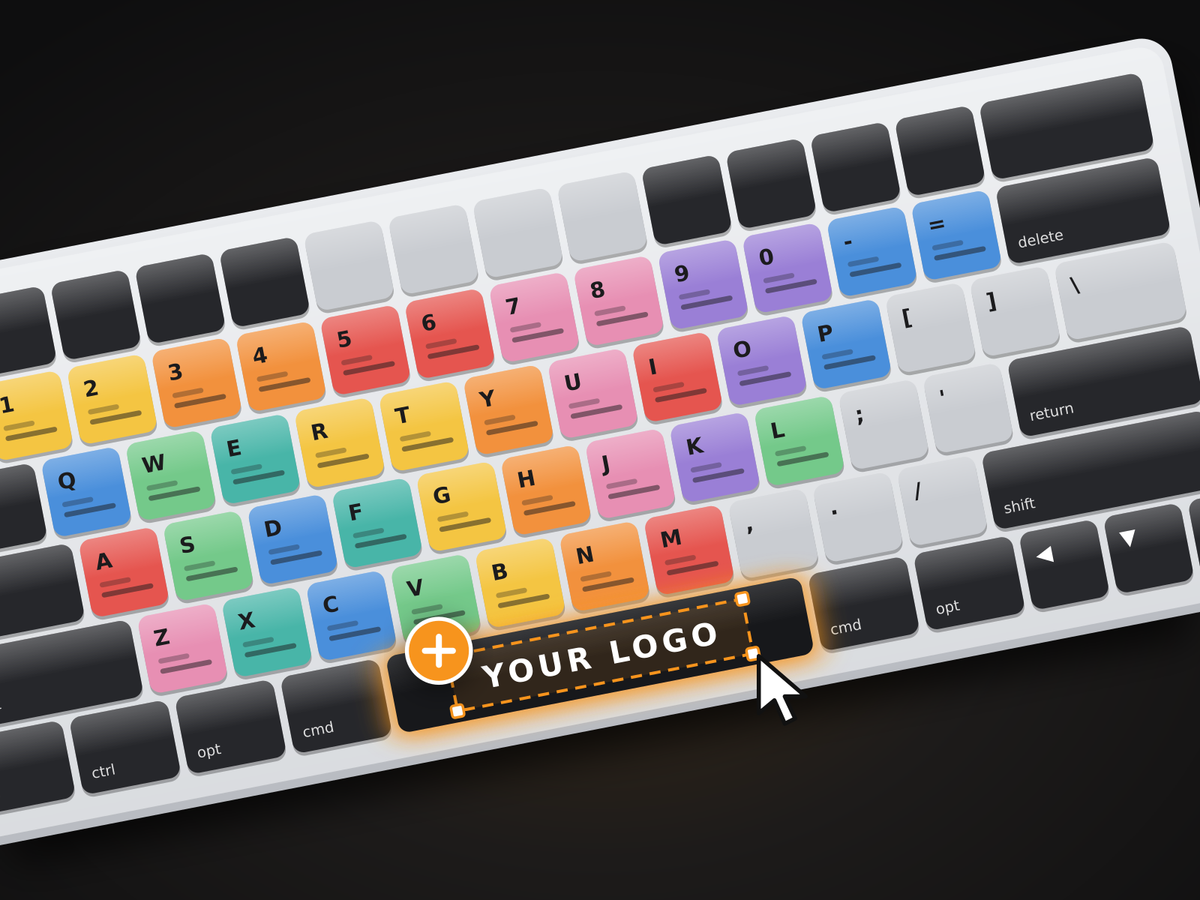
Editors Keys keyboards feature software-specific shortcuts printed directly onto the keys, allowing you to see the commands you need without constantly referring to online shortcut lists or memorising every combination. Whether you're working in Adobe Premiere Pro, DaVinci Resolve, Final Cut Pro, Avid Media Composer, Logic Pro, Ableton Live or Pro Tools, having your most frequently used shortcuts in front of you can help speed up your workflow.

For beginners, the visual shortcut layout makes learning a new application much easier. For experienced editors, it provides a convenient reference that can help reduce unnecessary mouse movements and keep your hands on the keyboard.
Editors Keys offers two backlit shortcut keyboard options to suit different editing environments.
AB10 Air Wireless Backlit Shortcut Keyboard
The AB10 Air is a wireless backlit editing keyboard designed for a clean, cable-free workstation. Its backlit keys make shortcuts easier to see in darker editing rooms and studios, while its wireless connectivity helps keep your desk free from unnecessary cables.
AB10 Core Wired USB-C Backlit Shortcut Keyboard
The AB10 Core offers a wired USB-C connection, making it a great option for editors who prefer a direct connection to their computer. It features backlit keys and clearly displayed software shortcuts, helping you work more efficiently without worrying about wireless connectivity.
Both keyboards are designed to help you spend less time searching for commands and more time concentrating on your creative work.
5. Consider Silicone Keyboard Covers
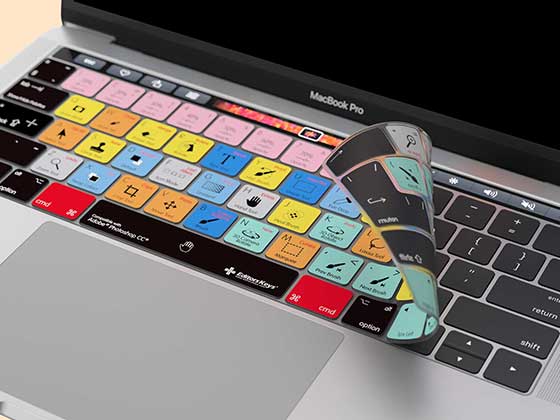
If you already own a keyboard you enjoy using, or prefer working with a laptop keyboard, an Editors Keys silicone shortcut cover is another excellent addition to your editing desk. These custom-fit silicone covers sit directly over compatible keyboards, displaying the shortcuts for your chosen software on the keys themselves. They're available for popular creative applications, including video editing and music production software.
The colour-coded shortcuts make it easier to identify different key combinations, helping you become familiar with commonly used commands as you work. This can be particularly useful when learning more advanced editing techniques or moving between different applications.
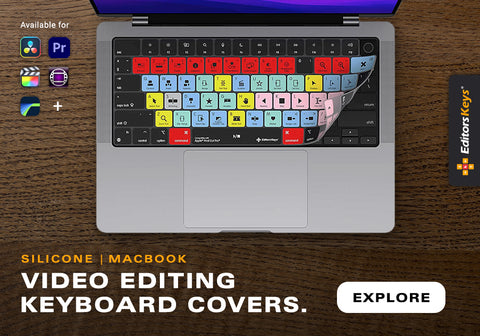
There are practical benefits, too. The silicone material helps protect your keyboard against dust, dirt and accidental light spills, while being removable and washable when it needs cleaning.
For anyone who spends hours editing, having shortcuts clearly displayed on the keyboard can make everyday tasks feel much more straightforward.
6. Add a Wrist Rest for Better Typing Comfort
A wrist rest can be a useful addition to your workstation, particularly if you spend a lot of time typing, using keyboard shortcuts or moving between your keyboard and mouse.
Look for a wrist rest that matches the height of your keyboard and provides comfortable support without forcing your wrists into an awkward position. Memory foam and gel-filled options are popular because they offer a softer surface than resting your hands directly on a hard desk.
However, it's important to use a wrist rest correctly. Your wrists should remain relatively straight while typing, rather than being bent upwards or pressed firmly against the support. Ideally, your hands should move freely over the keyboard, with the rest providing occasional support between typing sessions.
A separate mouse wrist rest can also help if you regularly spend long periods navigating editing timelines, adjusting audio levels or working with detailed visual effects.
7. Invest in a Comfortable Mouse or Trackball
Your mouse is another piece of equipment you'll probably use throughout the entire working day. A standard mouse can become uncomfortable during long editing sessions, particularly if you find yourself making thousands of small movements across a timeline.
Consider an ergonomic mouse designed to support a more natural hand position. Vertical mice, for example, position your hand differently from conventional mice and may feel more comfortable for some users.
Trackballs are another option. Rather than moving the entire mouse across your desk, you control the cursor using a stationary ball. This can be useful if you have limited desk space or prefer making precise movements without repeatedly repositioning your hand.
For video editors, a dedicated editing mouse or programmable device can also provide additional customisable buttons for frequently used commands. Music producers may prefer a mouse with a particularly accurate scroll wheel for navigating large DAW projects.
The best option will depend on your hand size, working habits and personal comfort, so try a few different designs if possible.
8. Use Ambient Lighting to Create a Better Editing Environment
Lighting is often overlooked when putting together an editing workstation, but it can have a surprisingly big impact on the overall feel of your desk.
If you're working in a dark room with a bright monitor, the difference in brightness between your screen and surroundings can make your eyes feel tired. A small desk lamp, monitor light bar or indirect ambient lighting can help create a more balanced environment.
LED light strips positioned behind your desk or monitors are a popular option. They provide a soft background glow without shining directly into your eyes, helping to make your workspace feel more welcoming.

For video editors working with colour grading, it's worth being more careful with lighting. Strong coloured LEDs or changing ambient colours can influence how you perceive colours on screen. When making important colour decisions, use consistent, neutral lighting and avoid coloured light reflecting onto your display or workspace.
Music producers and audio engineers might prefer softer, warmer lighting to create a relaxed studio atmosphere. Adjustable lighting also makes it easier to change the mood of your workspace depending on whether you're recording, mixing or working late.
9. Keep Your Cables and Equipment Organised
Nothing makes an editing desk feel more cluttered than a collection of tangled cables, unused adapters and equipment spread across every available surface. Start by grouping cables according to their purpose. Keep power cables separate from audio connections where practical, and use cable ties, Velcro straps or under-desk cable trays to keep everything tidy.
For music producers, consider positioning your audio interface somewhere easily accessible, particularly if you regularly adjust input levels, headphone volume or monitor controls. Keep frequently used studio equipment within reach without overcrowding your desk.
Video editors may benefit from a dedicated USB hub or docking station. These can make it easier to connect external SSDs, card readers, cameras and other peripherals without repeatedly reaching around the back of a computer. You should also leave some clear desk space. Having room to write notes, use a tablet or simply move your hands comfortably makes a workstation much easier to use.

10. Add a Desk Mat and Keep Your Workspace Comfortable
A desk mat is a relatively inexpensive upgrade that can make your workstation feel much more finished. It provides a consistent surface for your keyboard and mouse, helps protect the desk itself and can make mouse movements feel smoother.
Large desk mats are particularly useful if you have a full-sized keyboard and mouse that you regularly move around. They also help reduce the noise of keyboards and mice making contact with a hard desk surface.
Choose a material that's comfortable to work on and easy to clean. If you use a wrist rest, make sure the mat doesn't raise your keyboard to an uncomfortable height.
You could also keep a small notebook, pen and water bottle nearby. Having somewhere to write down editing notes, production ideas, client feedback or mix adjustments can save you from constantly switching between applications.
11. Don't Forget Your Eyes and Take Regular Breaks
Even the most comfortable editing desk won't eliminate the effects of spending too long in front of a computer. Regular breaks are essential, particularly when you're working on detailed timelines, colour grading or mixing projects that require sustained concentration.
A useful technique is the 20-20-20 rule. Every 20 minutes, look at something approximately 20 feet away for at least 20 seconds. This gives your eyes a brief break from focusing on a nearby screen.
Try to get up, stretch and move around regularly, too. A short walk, a few shoulder rolls or simply changing your sitting position can help break up long periods of inactivity.
If you regularly work on projects that take several hours, consider using a timer or break reminder. It's easy to lose track of time when you're concentrating on an edit or trying to finish a mix.
12. Make Your Editing Desk Somewhere You Enjoy Working
Finally, remember that your editing desk should be a place where you feel comfortable spending time. A productive workstation doesn't have to look like a corporate office or a professional recording studio.
Add a few personal touches that make the space feel like yours. This could be artwork, plants, photographs, record sleeves, ambient lighting or some of your favourite music equipment.
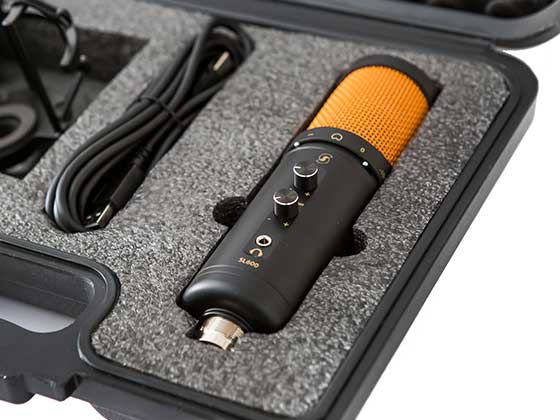
Keep the things you use regularly within easy reach and avoid filling the desk with equipment you rarely touch. A clean, organised environment can make it easier to concentrate, particularly when you're working on demanding creative projects. You might also want to keep a pair of comfortable studio headphones nearby, alongside a headphone stand, speaker isolation pads or a monitor controller if you're building a dedicated audio workstation.
Build an Editing Desk That Works for You
The ultimate editing desk is one that supports the way you work. A comfortable chair, correctly positioned monitors, an ergonomic mouse and a well-organised workspace can all help make long editing sessions more manageable.
One of the simplest upgrades you can make is improving the way you interact with your editing software. Editors Keys shortcut keyboards and silicone keyboard covers put commonly used software commands directly in front of you, helping you learn shortcuts, reduce time spent searching through menus and develop a faster editing workflow.
Whether you choose the wireless AB10 Air, the wired AB10 Core USB-C or a silicone shortcut cover for your existing keyboard, Editors Keys has options designed for video editors, music producers and creative professionals.
Explore the full range of Editors Keys shortcut keyboards and silicone keyboard covers and start building a workstation that helps you work smarter, stay comfortable and get more out of every editing session.
Be sure to check our our Youtube video on our editing desk setup!