
Adobe Premiere Pro is one of the most popular video editing programmes available, offering an impressive range of tools for editing, colour grading, audio adjustments and visual effects. However, if you want to take your projects further, third-party plugins can introduce features and creative possibilities that aren't available in Premiere Pro by default.
Whether you're producing music videos, YouTube content, documentaries, wedding films or commercial projects, the right plugins can help improve your footage, save editing time and give your finished videos a more professional appearance.
We've picked five of the best Premiere Pro plugins to consider in 2026, covering everything from cinematic colour grading and noise reduction to professional visual effects, slow motion and animated titles. We'll look at what each plugin does, its standout features, how it can improve your editing workflow and how much it costs.

1. Neat Video – Best for Noise Reduction
If you've ever filmed in low light or had to increase your camera's ISO to capture a shot, you'll probably be familiar with image noise. This often appears as unwanted grain, coloured speckles or flickering across darker areas of your footage. It can be particularly noticeable when filming at night, recording indoors or working with underexposed footage.
Neat Video is one of the best Premiere Pro plugins for dealing with this problem. It specialises in video noise reduction, analysing your footage to distinguish unwanted image noise from the actual detail within a frame. Rather than simply applying a blur, it attempts to remove noise while retaining important details such as skin texture, hair, fine edges and background elements.
One of its most useful features is its noise profiling system. You can select an area of your footage that should contain relatively little detail, allowing Neat Video to analyse the noise characteristics of your camera and recording conditions. It then creates a noise profile that helps it apply more accurate corrections to the rest of the image.

The plugin also uses spatial and temporal filtering. Spatial filtering analyses individual frames to identify and reduce noise, while temporal filtering compares information across multiple frames. Combining these techniques can produce much cleaner footage without sacrificing as much detail as conventional noise reduction methods.
Neat Video is particularly useful for documentary filmmakers, wedding videographers, event videographers and anyone working with older camera equipment. It can also help rescue footage that might otherwise be difficult to use, especially when reshooting isn't an option.
Price: Neat Video v6 for Premiere Pro starts at $67.90 for the Home edition and $127.40 for the Pro edition at the currently advertised discounted prices. The Home edition is limited to 1080p and non-commercial use, so professional editors should consider the Pro licence. Both have free demonstration versions.
Where to find it: Visit the official Neat Video website at https://www.neatvideo.com/ to download the plugin, explore its features and compare the different licences.
2. FilmConvert Nitrate – Best for Cinematic Colour Grading
Colour grading is one of the most important stages of video production. It helps establish the atmosphere of a scene, creates consistency between different camera shots and gives your footage a distinctive visual identity.
While Premiere Pro includes its own excellent Lumetri Colour tools, FilmConvert Nitrate offers a different approach by recreating the characteristics of traditional motion picture film.
FilmConvert Nitrate includes a collection of film stock emulations designed to reproduce the colour response and appearance of real film stocks. These can introduce warmer highlights, richer shadows, softer tonal transitions and more natural-looking colours into your footage.
One of its biggest advantages is its camera-specific profiling. Rather than applying exactly the same colour treatment to every camera, Nitrate allows you to select your camera make, model and recording profile. It then uses this information to tailor its film emulation to the characteristics of your footage. This is particularly useful when working with LOG footage from cameras made by Sony, Canon, Panasonic and Blackmagic, where accurate colour handling is important.

Another standout feature is its film grain processing. Digital footage can sometimes look overly clean, particularly when compared with the texture and character of traditional film. FilmConvert allows you to introduce realistic-looking grain, with controls for its intensity, size, softness and appearance across different exposure levels. You can also adjust the colour response and contrast to create a look that suits your project.
Nitrate provides additional control over colour curves, exposure and individual colour channels, allowing you to fine-tune the final result rather than relying entirely on presets.
For music videos, short films, promotional content, documentaries and commercial projects, FilmConvert Nitrate is a particularly useful option if you want to achieve a consistent film-inspired appearance without spending hours building a grade from scratch.
Price: $119 as an advertised discounted one-time purchase, reduced from $149. There are no monthly subscription fees. A separate Halation add-on is also available.
Where to find it: Visit https://www.filmconvert.com/ to download FilmConvert Nitrate, explore its supported camera profiles and try the watermarked demonstration version before purchasing.
3. Boris FX Continuum – Best for Professional Visual Effects
Boris FX Continuum is a comprehensive collection of visual effects and creative tools designed for professional video editors. Rather than concentrating on one particular task, it provides a large library of effects that can be used to transform footage, create animations, build titles and introduce more advanced visual treatments into your projects.
The plugin includes hundreds of effects and presets, covering everything from lens flares, glows and blurs to particles, distortions, colour treatments and creative transitions. These can be particularly useful when producing music videos, trailers, advertisements, social media content and other projects that benefit from more distinctive visual effects.
One of the biggest attractions of Continuum is its Mocha-powered tracking and masking technology. This allows you to track objects and surfaces within your footage, making it easier to attach effects to moving subjects, replace elements on screens or isolate particular areas of an image.

For example, imagine you want to add a graphic to a moving laptop screen in a promotional video. Rather than manually adjusting the graphic's position throughout the clip, tracking tools can help keep it aligned with the screen as the camera moves.
Continuum also includes machine-learning-assisted features for tasks such as face detection, masking and image processing. These can reduce the amount of manual work involved in certain effects, particularly when dealing with moving subjects or complicated footage.
The 2027 release, which became available in October 2026, introduces further improvements for Premiere Pro. These include BCC Text for creating animated titles with per-character control, additional distortion effects, improved AI masking, new particle tools and more than 450 additional presets. Boris FX has also introduced GPU performance improvements designed to make previews smoother and reduce rendering times.
Continuum is particularly suited to editors who regularly work with advanced visual effects and want a larger selection of creative tools available directly inside Premiere Pro. It can save considerable time compared with building every effect manually or constantly moving between different applications.
Price: From $325 per year or $48 per month for Continuum 2027. An upgrade may be available for existing customers with eligible licences, and a free trial is available.
Where to find it: Visit https://borisfx.com/products/continuum/ to explore the effects library, watch demonstrations and download the Boris FX Hub installer.

4. Twixtor – Best for Professional Slow Motion
Slow-motion footage is a popular technique in everything from music videos and action sequences to sports coverage, product advertisements and cinematic travel videos. However, slowing down footage that wasn't originally recorded at a high frame rate can produce choppy playback, duplicated frames and unwanted judder.
Twixtor, developed by RE Effects, is designed to address this problem. It uses advanced motion estimation to generate additional frames between the original frames in your footage. This allows you to slow down clips considerably while maintaining smoother movement than you might achieve with a basic speed adjustment in Premiere Pro.
For example, imagine you've recorded someone walking, a car passing through a scene or a guitarist performing on stage at 25fps. If you slow that footage down too much using Premiere Pro's standard speed controls, the result can look unnatural because there aren't enough original frames to maintain smooth movement. Twixtor analyses the motion within the image and generates intermediate frames to fill the gaps.
Twixtor 8 also introduces a machine-learning-based processing model designed to improve frame interpolation, particularly when dealing with complicated movement. This can be useful when working with moving subjects, fast camera movements and footage that requires more extreme speed adjustments.

Another useful feature is its ability to speed footage up as well as slow it down. You can use this to create dramatic speed ramps, where a clip moves between normal speed and slow motion, or produce smoother changes in playback speed throughout a sequence.
The Pro version offers additional controls, including a frame-by-frame retiming interface, motion vector import and export, and user-defined tracking points. These provide more control over how the plugin interprets movement within complicated shots.
There are some limitations to be aware of. Optical-flow processing can struggle when objects overlap, move unpredictably or pass in front of one another. This can introduce warping or visual artefacts, so it's always worth checking the results frame by frame before exporting.
For editors producing action sequences, sports videos, performance footage or cinematic promotional content, Twixtor can provide considerably more control over how footage is retimed.
Price: Twixtor 8 Regular is approximately $329.95 as a one-time purchase. Twixtor Pro is a more advanced, higher-priced licence. A watermarked demonstration version is available to try before purchasing.
Where to find it: Download Twixtor directly from https://revisionfx.com/products/twixtor/premiere-pro/ where you can explore the different versions, view demonstrations and check compatibility with your editing setup.
5. Animation Composer – Best for Titles, Transitions and Motion Graphics
If you regularly edit YouTube videos, social media content, promotional videos or commercial projects, you'll probably spend a considerable amount of time creating titles, transitions and animated graphics.
Animation Composer, from Mister Horse, is a useful plugin that helps speed up these tasks by providing a large library of ready-made animation presets and design elements. Previously known as Premiere Composer, it was renamed Animation Composer in 2026.
The plugin provides an integrated panel within Premiere Pro where you can browse, preview and apply different animations directly to your timeline.
Its library includes animated text, titles, transitions, social media graphics, shapes, overlays, sound effects and other motion graphics elements. Instead of manually keyframing every title or transition, you can select a preset and apply it to your footage before customising it to suit the project.

For example, if you're producing a YouTube video and want to introduce a new section, you could use an animated title preset rather than building the animation yourself. Similarly, if you're editing a product advertisement, you can use animated callouts, text and graphic elements to highlight important features or information.
One particularly useful aspect is the ability to customise the presets after applying them. You can adjust text, colours, positioning and other properties, giving you more flexibility than simply dropping a finished video overlay onto the timeline.
Animation Composer is also useful for maintaining consistency across multiple projects. If you regularly produce content for the same client or brand, you can reuse similar titles, transitions and graphic styles without having to recreate them every time.
There is a free version available, which includes the plugin and more than 1,000 assets. The paid subscription expands the library to more than 6,000 assets, providing a much larger selection for editors who regularly produce content.
Price: Free version available with over 1,000 assets. The paid subscription costs $19.90 per month or $198 per year when billed annually.
Where to find it: Visit https://misterhorse.com/ to download Animation Composer and browse the available Premiere Pro presets.
Improve Your Premiere Pro Workflow with Editors Keys
Third-party plugins can make a huge difference to your editing workflow, but there are other ways to save time when working in Premiere Pro. One of the biggest time-consuming aspects of video editing is constantly navigating menus, searching for tools and remembering keyboard shortcuts.
This is where an Editors Keys shortcut editing keyboard or silicone keyboard cover can make a real difference.
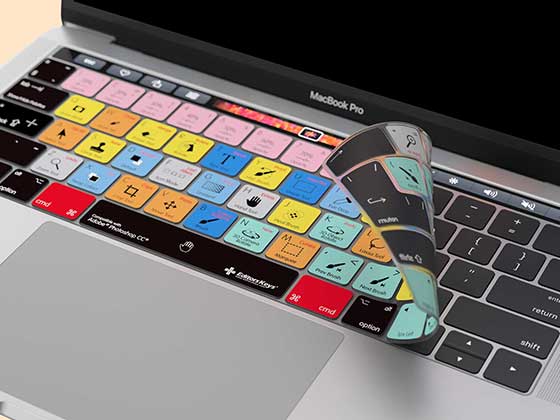
Editors Keys produces specialist shortcut keyboards and silicone keyboard covers designed for popular video editing and music production software. Each keyboard features the relevant software shortcuts printed directly onto the keys, making it easier to find commands, learn new shortcuts and work more efficiently without constantly referring to online shortcut lists.
For Premiere Pro users, this means having commonly used editing commands mapped out directly in front of you. Whether you're trimming clips, navigating your timeline, making selections or switching between editing tools, having shortcuts clearly displayed can help reduce unnecessary mouse movements and speed up everyday tasks.
If you're looking for a complete keyboard replacement, Editors Keys offers two backlit shortcut keyboard options.

The AB10 Air Wireless Backlit Shortcut Keyboard provides a wireless editing solution, with illuminated shortcut keys that make it easier to work in darker editing environments. It's a useful choice for editors who prefer a cleaner desk setup without additional cables.
The AB10 Core Wired USB-C Backlit Shortcut Keyboard offers a wired alternative with USB-C connectivity. It features illuminated shortcut keys and provides a straightforward connection for your editing workstation.
Editors Keys also offers silicone keyboard editing covers, which fit over compatible keyboards and display the shortcuts for your chosen software. These are a useful option if you already have a keyboard you enjoy using but want the benefits of having Premiere Pro shortcuts clearly labelled.
Both options are designed to make learning and remembering keyboard shortcuts easier, helping you spend less time searching through menus and more time concentrating on your footage.
Whether you're a professional editor working on client projects or someone learning Premiere Pro for the first time, a dedicated shortcut keyboard can be a worthwhile addition to your editing setup.
Explore the full range of Editors Keys shortcut keyboards and silicone editing covers at https://www.editorskeys.com/.
Final Thoughts
The best Premiere Pro plugins for 2026 will depend on the type of projects you produce and the areas of your workflow you want to improve. Neat Video is an excellent choice for cleaning up noisy footage, FilmConvert Nitrate provides impressive film-inspired colour grading, and Boris FX Continuum offers an extensive collection of professional visual effects.
Twixtor is particularly useful for creating smoother slow-motion footage, while Animation Composer can save considerable time when producing titles, transitions and motion graphics.
You don't necessarily need to purchase all five. Start by identifying the areas where Premiere Pro's built-in tools are holding you back, then look at which plugins offer the most useful improvements for your particular editing style.
Combine the right plugins with an efficient editing setup and a dedicated Editors Keys shortcut keyboard, and you can make your Premiere Pro workflow considerably faster, more organised and more enjoyable.